OpusPAY
User guide
×
Menu
Index

Accounts

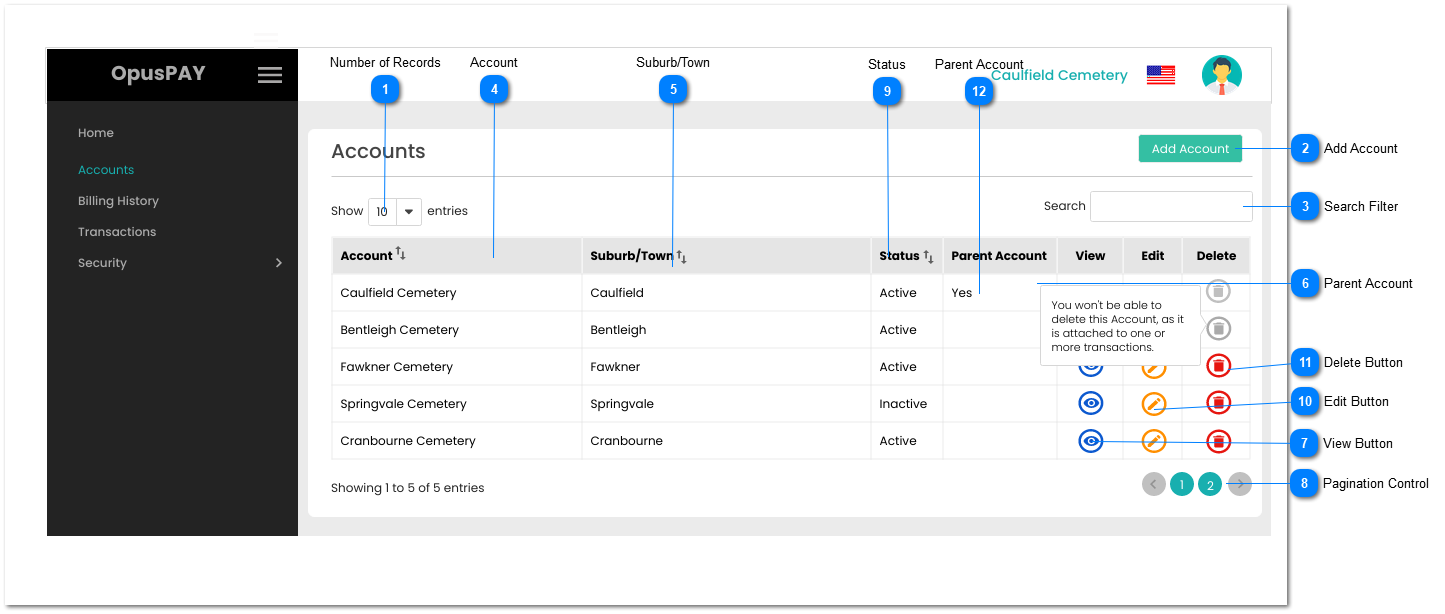
The Accounts screen lists all merchants registered with OpusPAY belonging to an organisation that has multiple cemeteries. It also enables users to search for Accounts, sort the grid results by columns, and view more details about a Merchant Account.
 
Accounts
1

Number of Records

 
Type
Notes
Rules
Compulsory
Format
Edit
Size
Default
Error Message
Combo-Box
-
1. This should allow the user to select an option to control the number of Merchant Account records visible in the grid.
 
2. Displays following options to select from:
 
  • 10
  • 25
  • 50
  • 100
 
-
-
Y
-
10
-
2

Add Account

 
Type
Notes
Rules
Compulsory
Format
Edit
Size
Default
Error Message
Button
-
1. If Parent Account does not have the Gateway details entered, display inline error message.
 
2. This will navigate the user to the Add Account screen in order to add a new merchant account. Refer to the specification for that here.
-
-
-
-
-
1. Gateway details missing for Parent Account. Please enter Gateway details before creating a sub account.
3

Search Filter

 
Type
Notes
Rules
Compulsory
Format
Edit
Size
Default
Error Message
Text
-
1. Filters the grid by matching the input entered by the user across the Account and Suburb/Town grid columns.
 
2. Filter results based on each character entered. For example:
  • if "c" is entered, only the first and fifth rows in the on screen example will be displayed. This is based on "Caulfield" and "Cranbourne" in both the Account and Suburb/Town columns.
If "ca" is entered only the first row in the on screen example will be displayed based on "Caulfield".
-
-
Y
-
-
-
4

Account

 
Type
Notes
Rules
Compulsory
Format
Edit
Size
Default
Error Message
Column
-
1. This should display the merchant account names.
 
2. This should be sortable.
-
-
N
-
-
-
5

Suburb/Town

 
Type
Notes
Rules
Compulsory
Format
Edit
Size
Default
Error Message
Column
-
1. This should display the merchant City or Town.
 
2. This should be sortable.
-
-
N
-
-
-
6

Parent Account

 
Type
Notes
Rules
Compulsory
Format
Edit
Size
Default
Error Message
Column
 
1. This will display which Account is the Parent Account.
 
2. This should be sortable.
-
-
N
-
-
-
7

View Button

 
Type
Notes
Rules
Compulsory
Format
Edit
Size
Default
Error Message
Button
-
1. The user is navigated to the Account summary screen when clicked. Refer to the specification for the screen here.
-
-
Y
-
-
-
8

Pagination Control

 
Type
Notes
Rules
Compulsory
Format
Edit
Size
Default
Error Message
Button
-
1. This should allow the users to paginate through the merchant account grid records.
 
2. To determine the number of pagination buttons to display please follow the current logic that is being used in byondcloud.
-
-
-
-
-
-
9

Status

 
Type
Notes
Rules
Compulsory
Format
Edit
Size
Default
Error Message
Column
-
1. This should display the status of the Account (Active or Inactive). If the Account is Active, it is able to pass transactions through OpusPAY.
 
2. This should be sortable.
-
-
N
-
-
-
10

Edit Button

 
Type
Notes
Rules
Compulsory
Format
Edit
Size
Default
Error Message
Button
-
1. This should open the Account details in Edit mode. Refer to the specification here:
-
-
Y
-
-
-
11

Delete Button

 
Type
Notes
Rules
Compulsory
Format
Edit
Size
Default
Error Message
Button
-
1. This should delete the Account record.
 
2. This should be greyed out and disabled if an Account has a sub Account or has at least one transaction attached. User should see a pop-up message upon hovering action over the button: "You won't be able to delete this Account as it has a sub Account and/or is attached to one or more transactions."
 
3. If there are any users assigned to the Account, their access to the Account should be disabled and the Account should be removed from the "Assign Account Access" screen.
-
-
Y
-
-
-
12

Parent Account

 
Type
Notes
Rules
Compulsory
Format
Edit
Size
Default
Error Message
Column
-
1. This should display if the Account is a Parent Account. 
 
2. This should be sortable.
-
-
N
-
-
-