To properly display this page you need a browser with JavaScript support.
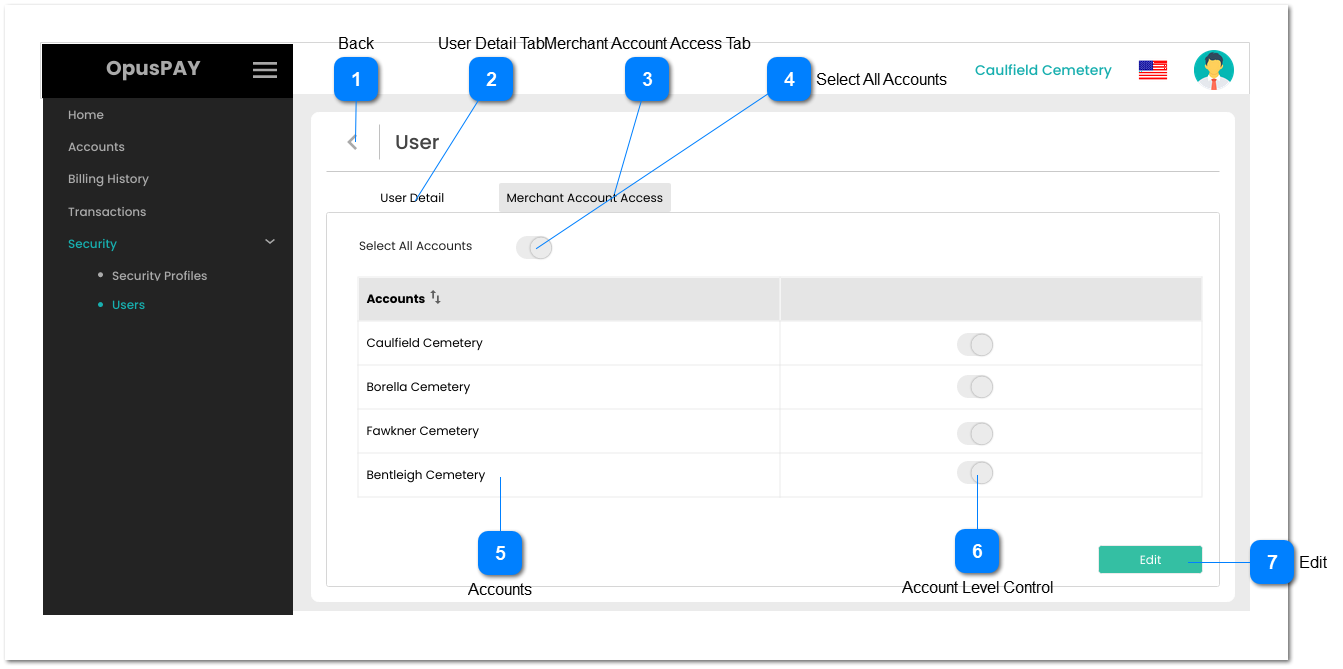
View User (Merchant Account Access)
Back
Type
Notes
Rules
Compulsory
Format
Edit
Size
Default
Error Message
Button
-
1. This will navigate the user to the User Detail screen when clicked. Refer to the specification for that screen here .
-
-
Y
-
-
-
User Detail Tab
Type
Notes
Rules
Compulsory
Format
Edit
Size
Default
Error Message
Tab
-
1. This should allow the user to view user details. Refer to the specification for that screen here .
-
-
Y
-
-
-
Merchant Account Access Tab
Type
Notes
Rules
Compulsory
Format
Edit
Size
Default
Error Message
Tab
-
1. This should display the merchant account access provided to the user.
2. The tab should be highlighted to identify the tab the user is currently on.
-
-
-
-
-
-
Select All Accounts
Type
Notes
Rules
Compulsory
Format
Edit
Size
Default
Error Message
Switch Control
-
1. This displays if the user has access to all Merchant Accounts or not.
-
-
N
-
-
-
Accounts
Type
Notes
Rules
Compulsory
Format
Edit
Size
Default
Error Message
Column
-
1. This should display the merchant account names.
2. This should be sortable.
-
-
N
-
-
-
Account Level Control
Type
Notes
Rules
Compulsory
Format
Edit
Size
Default
Error Message
Switch Control
-
1. This displays if the user has access to an individual Merchant Account.
-
-
N
-
-
-
Edit
Type
Notes
Rules
Compulsory
Format
Edit
Size
Default
Error Message
Button
Users cannot edit their own Merchant Account Access unless they are assigned an Admin Security Profile.
1. If the user is assigned an Admin Security Profile or they viewing another users profile, this opens the Merchant Account Access screen in edit mode. Refer to the specification for that screen here .
-
-
-
-
-
-