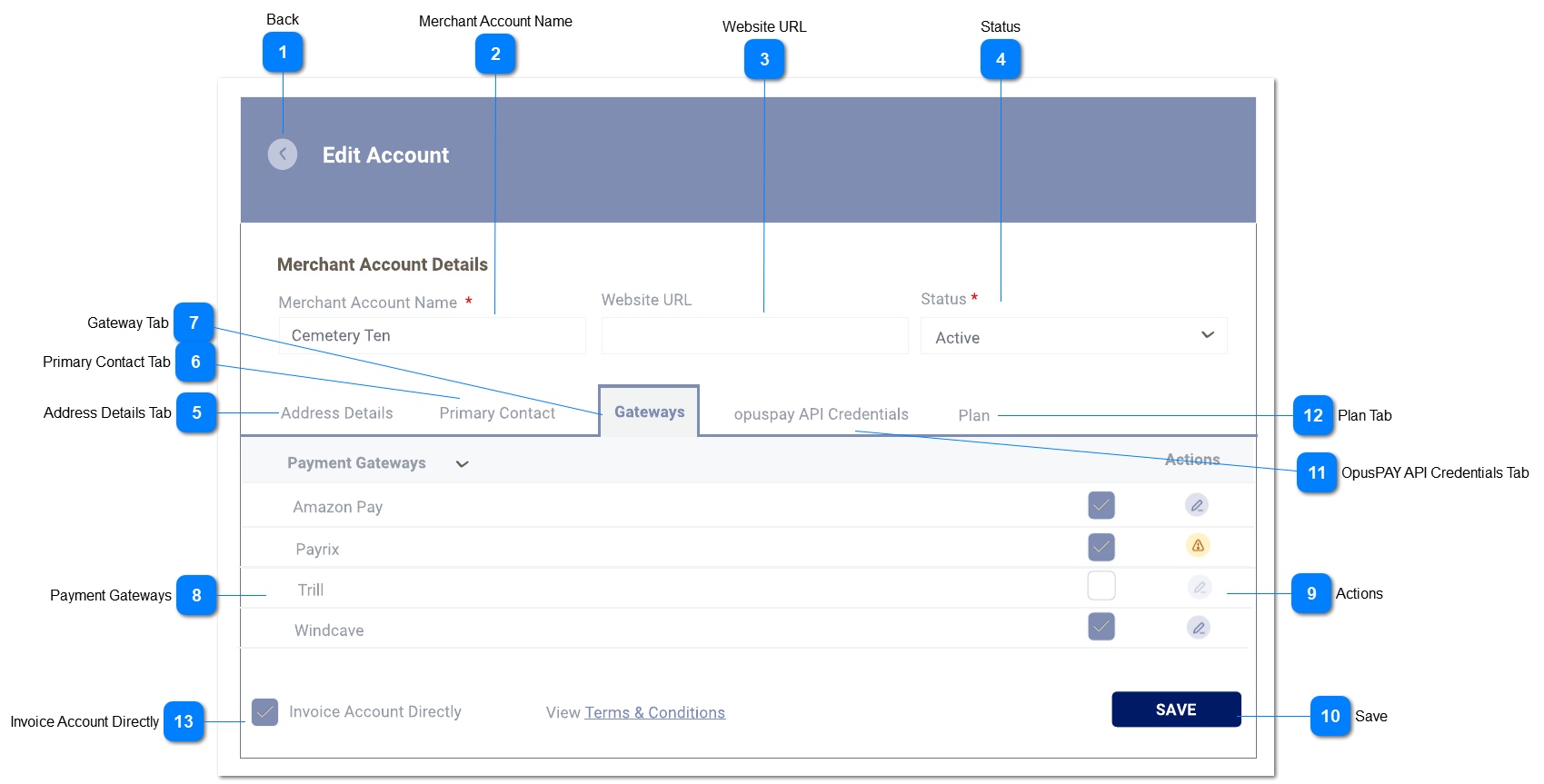
1. This should display the status of the Account (Active or Inactive). If the Account is Active, it is able to pass transactions through opuspay. If Inactive, the Account cannot pass transactions through opuspay.
2. If the user changes the Status from Active to Inactive for a Parent Account, all Sub Accounts that are set to "Invoice Account Directly" = "False" and/or where the Gateway is set to "Link to the Parent Entity's gateway account", set the Sub Account to Inactive as well.
byondpro should also be updated to show that the merchant account is inactive (which would display as On-Hold in byondpro).
byondcloud should also be updated to show that the merchant account is inactive (which would display as On-Hold in byondcloud).
3. If the Parent Merchant Account has been set to Inactive from the Admin Portal, all Sub Accounts must be set to Inactive as well and neither the Parent or Sub Accounts can be set to Active. They can only be activated from the Admin portal again.
This column should be filtered and should only show Gateways where the accepted Country matches the country the merchant is located in.
A gateway can be selected for use within the merchant account by clicking on the tickbox adjacent to each gateway name.
2a. No gateways will be selected by default when the screen is first loaded.
2b. Multiple gateways can be linked to a single merchant account by selecting more than one tickbox/ gateway.
When a Gateway is selected, display the Payment Gateways sliding screen with blank fields within the screen.
If the user navigates away from the Payment Gateways sliding screen without entering any relevant details, the Actions column should display a warning icon.
De-selecting the selected gateway should remove the link between the merchant account and the gateway.
5a. The edit button within the Actions tab should also be deactivated.
A payment gateway should be selected for the edit button to be activated.
2a. If a payment gateway is not selected, the edit button should be deactivated.
Clicking on the edit button should navigate the user to the Payment Gateways screen.
f the user navigates away from the Payment Gateways sliding screen without entering any relevant details, the Actions column should display a warning icon.
4a. Hovering over the warning icon should display a hover message.
1. Atleast one gateway should be selected prior to successful save. If no gateways are selected, display an inline error message.
2. Check that relevant details have been added to the Payment Gateways sliding screen, and show error messages for incomplete configuration AND validate compulsory fields based on rules defined.
3. If the gateway configurations are complete, then save all Gateway options selected and details entered and display message.
4. Navigate the user to the View Account - Gateway Details - PM screen. Refer to the specifications for that screen here.
-
-
-
-
-
1. Please select at least one gateway.
2. Warning
Please complete configuration of gateways selected.