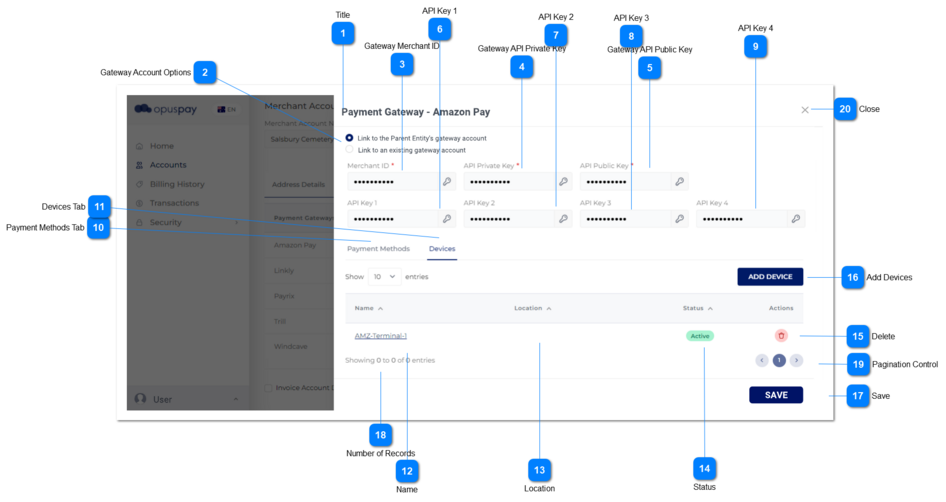
1. These radio buttons determine if the Account is linked to the Parent Entity's Gateway account or if the Account will have it's own Gateway account.
2. If the "Link to the Parent Entity's Gateway account" option is selected, disable and autopopulate the Gateway, Merchant ID, API Private Key, and API Public Key.
2a. Display Merchant ID, API Private Key, API Public Key and all other keys as hidden.
2b. Display a key icon within each field. If this key icon is clicked when the keys are hidden, unhide the values within each key and do not display the key icon.
3. If the "Link to an existing gateway account" option is selected, clear and enable the Gateway, Merchant ID, API Private Key, and API Public Key fields.
1. If linking to the Parent Entity's gateway account, display Merchant ID and set field to disabled. If the Account will have it's own Gateway account, enable this field and allow the user to enter the Merchant ID.
2. This should display an inline error message if the user clicks the Submit button without populating this field.
1. If linking to the Parent Entity's gateway account, display Gateway API Private Key and set field to disabled. If the Account will have it's own Gateway account, enable this field and allow the user to enter the Gateway API Private Key.
2. This should display an inline error message if the user clicks the Submit button without populating this field.
1. If linking to the Parent Entity's gateway account, display Gateway API Public Key and set field to disabled. If the Account will have it's own Gateway account, enable this field and allow the user to enter the Gateway API Public Key.
2. This should display an inline error message if the user clicks the Submit button without populating this field.
1. If linking to the Parent Entity's gateway account, display API Key 1 and set field to disabled. If the Account will have it's own Gateway account, enable this field and allow the user to enter the API Key 1.
1. If linking to the Parent Entity's gateway account, display API Key 2 and set field to disabled. If the Account will have it's own Gateway account, enable this field and allow the user to enter the API Key 2.
1. If linking to the Parent Entity's gateway account, display API Key 3 and set field to disabled. If the Account will have it's own Gateway account, enable this field and allow the user to enter the API Key 3.
1. If linking to the Parent Entity's gateway account, display API Key 4 and set field to disabled. If the Account will have it's own Gateway account, enable this field and allow the user to enter the API Key 4.
1. This displays the Gateway's Payment Methods and allows the user to select which Payment Methods the Account will offer. Refer to the specifications for that screen here.
1. This will allow the user to "delete" a Device from this table.
2. Devices should never be deleted from the database, only from this list. Deleted Devices will still need to be used for any reports, etc. where the Device is linked to a transaction.
1. Check the rules mentioned in each input element on both the Payment Methods and Devices tabs, and show inline error messages for invalid / unpopulated inputs.
2. If the validation results are successful save all Gateway options selected and entered.
3. Navigate the user to the Edit Account - Gateway Details screen. Refer to the specifications for that screen here.