To properly display this page you need a browser with JavaScript support.
View Account - Primary Contact
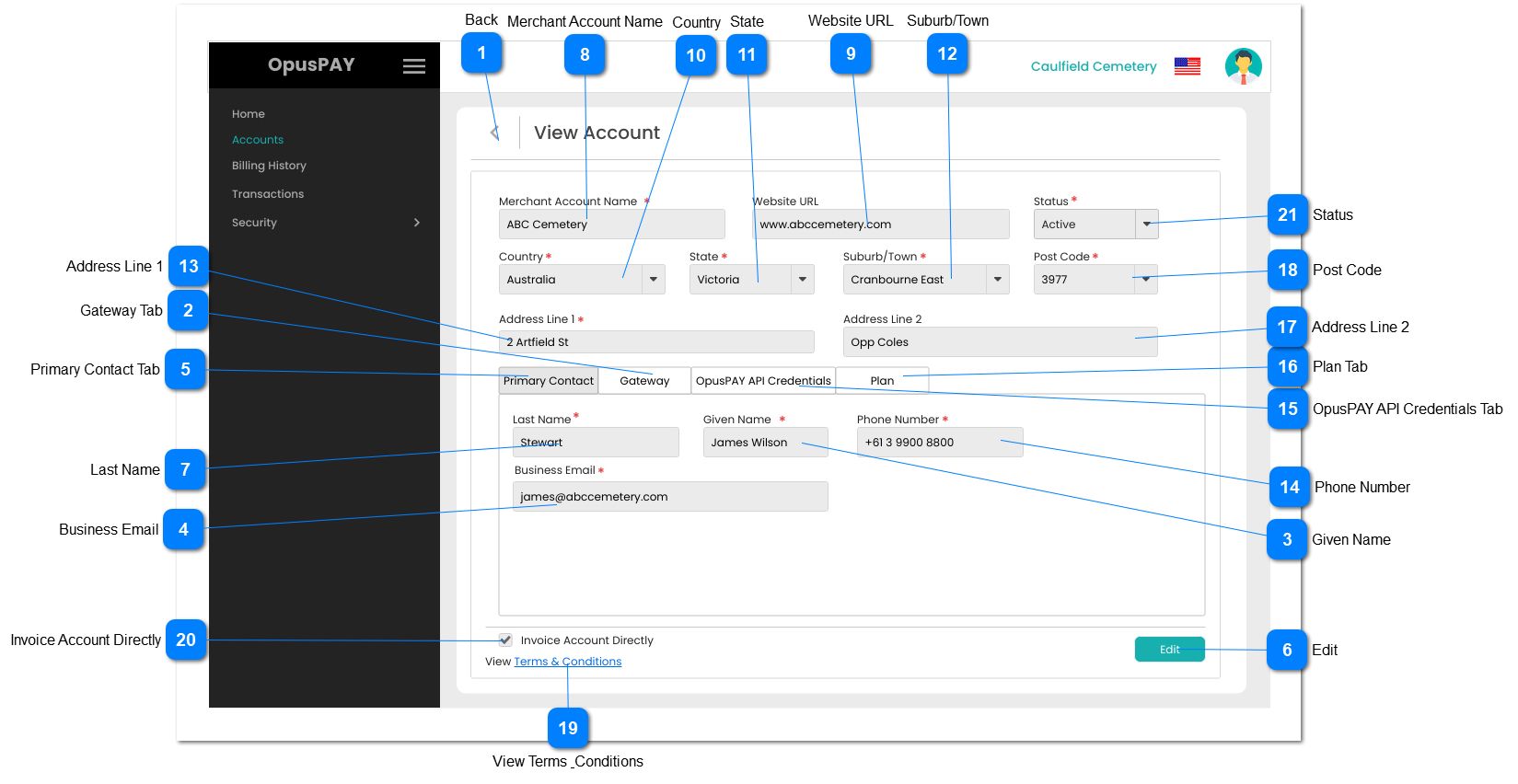
This screen allows the user to add sub-accounts to their merchant portal.
Back
Type
Notes
Rules
Compulsory
Format
Edit
Size
Default
Error Message
Button
-
1. When clicked this should navigate the user to the Accounts screen without saving any changes. Refer to the specification for that page here .
-
-
Y
-
-
-
Gateway Tab
Type
Notes
Rules
Compulsory
Format
Edit
Size
Default
Error Message
Tab
-
1. This should display the Gateway details.Refer to the specifications for this screen here .
-
-
Y
-
-
-
Given Name
Type
Notes
Rules
Compulsory
Format
Edit
Size
Default
Error Message
Text
-
1. This should display the Primary Contact's Given Name.
Y
-
N
255
-
-
Business Email
Type
Notes
Rules
Compulsory
Format
Edit
Size
Default
Error Message
Text
-
1. This should display the Primary Contact's Business Email.
Y
-
N
255
-
-
Primary Contact Tab
Type
Notes
Rules
Compulsory
Format
Edit
Size
Default
Error Message
Tab
-
1. This displays and allows the user to edit the Primary Contact of the Account.
2. This tab should be highlighted to identify the tab the user is on.
-
-
Y
-
-
-
Edit
Type
Notes
Rules
Compulsory
Format
Edit
Size
Default
Error Message
Button
-
1. Navigate the user to the Edit Account - Primary Contact screen. Refer to the specifications for that screen here .
-
-
-
-
-
-
Last Name
Type
Notes
Rules
Compulsory
Format
Edit
Size
Default
Error Message
Text
-
1. This should display the Primary Contact's Last Name.
Y
-
N
255
-
-
Merchant Account Name
Type
Notes
Rules
Compulsory
Format
Edit
Size
Default
Error Message
Text
-
1. This should display the Merchant Account name.
Y
-
N
255
-
-
Website URL
Type
Notes
Rules
Compulsory
Format
Edit
Size
Default
Error Message
Text
-
1. This should display the website of the organisation.
-
-
N
255
-
-
Country
Type
Notes
Rules
Compulsory
Format
Edit
Size
Default
Error Message
Combo-Box
-
1. This should display the Country for the organisation.
Y
-
N
255
-
-
State
Type
Notes
Rules
Compulsory
Format
Edit
Size
Default
Error Message
Combo-Box
-
1. This should display the State for the organisation.
Y
-
N
255
-
-
Suburb/Town
Type
Notes
Rules
Compulsory
Format
Edit
Size
Default
Error Message
Combo-Box
-
1. This should display the Suburb/Town for the organisation.
Y
-
N
255
-
-
Address Line 1
Type
Notes
Rules
Compulsory
Format
Edit
Size
Default
Error Message
Text
-
1. This should display Address Line 1 for the organisation.
Y
-
N
255
-
-
Phone Number
Type
Notes
Rules
Compulsory
Format
Edit
Size
Default
Error Message
Text
-
1. This should display the Primary Contact's Phone Number.
Y
-
N
255
-
-
OpusPAY API Credentials Tab
Type
Notes
Rules
Compulsory
Format
Edit
Size
Default
Error Message
Tab
-
1. This displays the Accounts API Credentials. Refer to the specifications for that screen here .
-
-
Y
-
-
-
Plan Tab
Type
Notes
Rules
Compulsory
Format
Edit
Size
Default
Error Message
Tab
-
1. This displays the Plan assigned to the Parent Entity. Refer to the specifications for that screen here .
-
-
Y
-
-
-
Address Line 2
Type
Notes
Rules
Compulsory
Format
Edit
Size
Default
Error Message
Text
-
1. This should display the Address Line 2 for the organisation.
-
-
N
255
-
-
Post Code
Type
Notes
Rules
Compulsory
Format
Edit
Size
Default
Error Message
Combo-Box
-
1. This should display the Post Code for the organisation.
Y
-
N
255
-
-
View Terms & Conditions
Type
Notes
Rules
Compulsory
Format
Edit
Size
Default
Error Message
Hyperlink
-
1. Clicking on the Terms & Conditions hyperlink will navigate the user to the published Terms & Conditions. Refer to the specifications for this screen here .
-
-
-
-
-
-
Invoice Account Directly
Type
Notes
Rules
Compulsory
Format
Edit
Size
Default
Error Message
Checkbox
-
1. If checked, indicate in the database that this account is to be invoiced directly for it's transactions.
N
-
N
-
-
-
Status
Type
Notes
Rules
Compulsory
Format
Edit
Size
Default
Error Message
Combo-Box
-
1. This should display the Status for the organisation.
Y
-
N
255
-
-