To properly display this page you need a browser with JavaScript support.
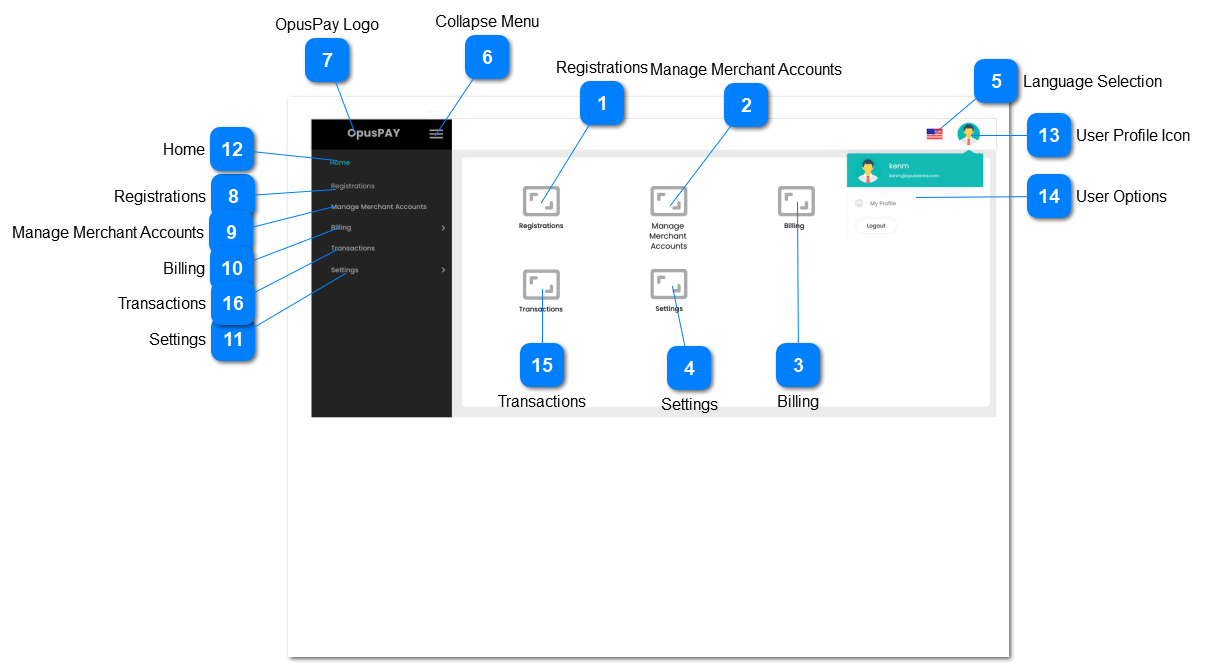
The home page displays all the OpusPay Admin Portal menu items in one place.
Registrations
Type
Notes
Rules
Compulsory
Format
Edit
Size
Default
Error Message
Icon with Hyperlink
-
1. This should navigate the user to the Registrations Grid screen. Refer to the specification for that screen here .
-
-
-
-
-
-
Manage Merchant Accounts
Type
Notes
Rules
Compulsory
Format
Edit
Size
Default
Error Message
Icon with Hyperlink
-
1. This should navigate the user to the Manage Merchant Accounts Grid screen. Refer to the specification for that screen here .
-
-
-
-
-
-
Billing
Type
Notes
Rules
Compulsory
Format
Edit
Size
Default
Error Message
Icon with Hyperlink
-
1. This should navigate the user to the Generate Invoices screen. Refer to the specification for that screen here .
-
-
-
-
-
-
Settings
Type
Notes
Rules
Compulsory
Format
Edit
Size
Default
Error Message
Icon with Hyperlink
-
1. This should navigate the user to the Countries & Currencies screen. Refer to the specification for that screen here .
-
-
-
-
-
-
Language Selection
Type
Notes
Rules
Compulsory
Format
Edit
Size
Default
Error Message
Icon
-
1. Click this to display available language options.
2. When selecting a language option from the list, change labels to display values as per the linked file.
3. Should function the same as per byondcloud language selection.
-
-
-
-
-
-
Collapse Menu
Type
Notes
Rules
Compulsory
Format
Edit
Size
Default
Error Message
Icon
-
1. Click this to collapse sidebar menu and display only icons.
2. Should function the same as per byondcloud collapse menu option.
-
-
-
-
-
-
OpusPay Logo
Type
Notes
Rules
Compulsory
Format
Edit
Size
Default
Error Message
Icon
-
1. OpusPay logo.
2. Click this to display Home screen.
-
-
-
-
-
-
Registrations
Type
Notes
Rules
Compulsory
Format
Edit
Size
Default
Error Message
Hyperlink
-
1. This should navigate the user to the Registrations Grid screen. Refer to the specification for that screen here .
-
-
-
-
-
-
Manage Merchant Accounts
Type
Notes
Rules
Compulsory
Format
Edit
Size
Default
Error Message
Hyperlink
-
1. This should navigate the user to the Merchants Grid screen. Refer to the specification for that screen here .
-
-
-
-
-
-
Billing
Type
Notes
Rules
Compulsory
Format
Edit
Size
Default
Error Message
Hyperlink
-
1. This should navigate the user to the Generate Invoices screen. Refer to the specification for that screen here .
-
-
-
-
-
-
Settings
Type
Notes
Rules
Compulsory
Format
Edit
Size
Default
Error Message
Hyperlink
-
1. This should navigate the user to the Countries & Currencies screen. Refer to the specification for that screen here .
-
-
-
-
-
-
Home
Type
Notes
Rules
Compulsory
Format
Edit
Size
Default
Error Message
Hyperlink
-
1. This should navigate the user to the Home screen. Refer to the specification for that screen here .
-
-
-
-
-
-
User Profile Icon
Type
Notes
Rules
Compulsory
Format
Edit
Size
Default
Error Message
Icon
-
1. This should display profile image selected in the Settings -> Security -> Users -> View Users screen. Refer to the specification for that screen here .
2. Click this to display user options. Refer to number 14.
3. Click this to hide the user options if they are showing.
-
-
-
-
-
-
User Options
Type
Notes
Rules
Compulsory
Format
Edit
Size
Default
Error Message
Menu with hyperlink and button
-
1. This menu will display the username and email address of the user logged in.
2. Will display a hyperlink called "My Profile" that when clicked will take the user to their profile details. Refer to the specification for that screen here .
3. Clicking on the Logout button will log the user out of OpusPay and will display the login page. Refer to the specification for that screen here .
-
-
-
-
-
-
Transactions
Type
Notes
Rules
Compulsory
Format
Edit
Size
Default
Error Message
Icon with Hyperlink
-
1. This should navigate the user to the Transactions screen. Refer to the specification for that screen here .
-
-
-
-
-
-
Transactions
Type
Notes
Rules
Compulsory
Format
Edit
Size
Default
Error Message
Hyperlink
-
1. This should navigate the user to the Transactions screen. Refer to the specification for that screen here .
-
-
-
-
-
-