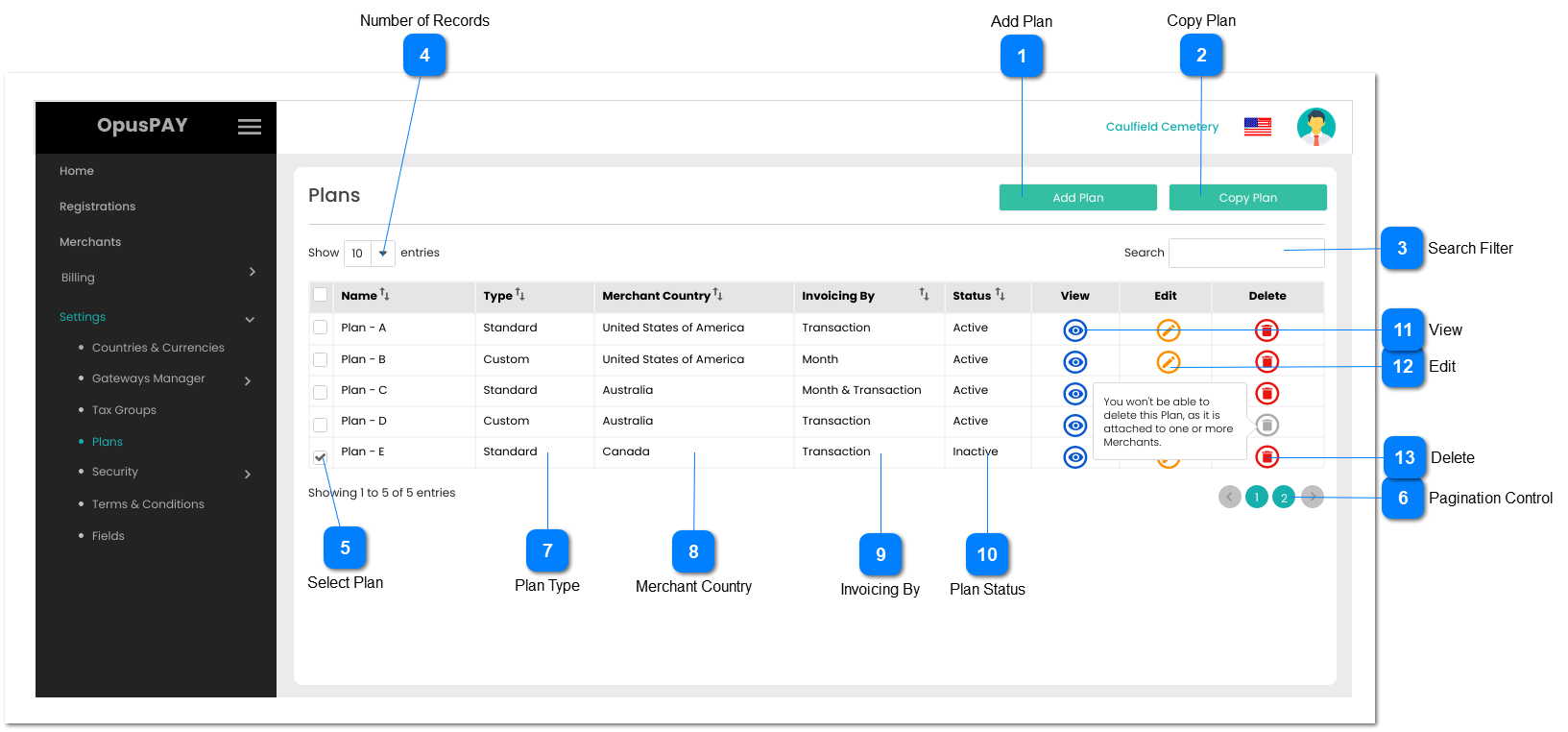
This page allows the user to add, view, or copy existing Plans.
Add Plan
Type
Notes
Rules
Compulsory
Format
Edit
Size
Default
Error Message
Button
-
1. The user is navigated to the Add Standard / Custom plan page after clicking this button. Refer to the specifications for those pages here: Standard Plan, Custom Plan
1. The button is disabled when no Plan is selected using the checkbox in the grid.
2. The button is activated when a Plan is selected in the grid using the checkbox and allows the user to copy the Plan selected.
3. Duplicate selected Plan(s). Add "Copy of" to the front of the name of the duplicated Plan(s). For example, the duplicate of the selected "Plan - E" becomes "Copy of Plan - E".
4. Set copies of duplicated plans to Inactive. User must edit duplicated plans, update the Plan name and set the Plan to active.
5. There should be no merchants assigned to this new Plan. All merchants stay with the original Plan.
1. Filters the grid by matching the input entered by the user across all grid columns with the exception of View, Edit, and Delete.
2. Filter results based on each character entered. For example:
if "c" is entered, only the second, third and fourth rows in the on screen example will be displayed. This is based on "Custom" in the Type column and "Canada" in the Merchant Country column.
If "ca" is entered only the fourth row in the on screen example will be displayed based on "Canada" in the Merchant Country column.
1. This should display what invoicing is based on for the merchant.
2. If Invoicing Based On = Transaction, merchant is to be invoiced on a per transaction basis as set forth in the Plan. If the Invoicing Based On = Month, merchant is to be invoiced on a monthly basis. If Invoicing Based On = Month & Transaction, the merchant has a base monthly fee, plus a per transaction fee over a certain number of transactions.
If Plan Type = Standard, refer to the specifications for the Plan here.
Plan Type = Custom, refer to the specifications for the Plan here.
2. If the Plan Status = Active, the Plan can be assigned to merchants.
3. If the Plan Status = Inactive, it cannot be assigned to merchants. If there are merchants attached to this Plan, invoicing will be based on the inactive plan, it simply cannot be assigned to merchants going forward.
2. This should be greyed out and disabled if a Plan is attached to at least one Merchant. User should see a pop-up message upon hovering action over the button: "You won't be able to delete this Plan as it is attached to one or more merchants."