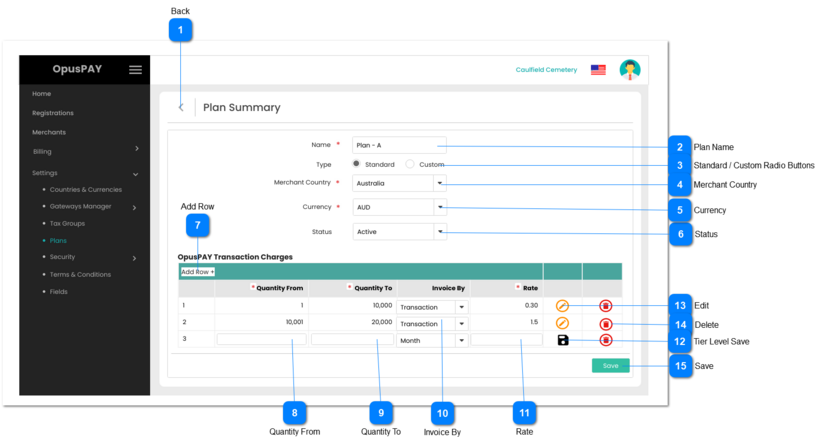
2. If user clicks on Save without entering a Plan name, display inline error message.
3. Plan name must be unique. Check Plan name against other plans in the database. If Plan name matches the name of another plan, display inline error message.
Y
-
Y
255
-
2. Please enter the name of Plan.
3. A Plan with this name already exists. Please enter a new Plan name.
1. Allows the user to switch Plan Type and specify if this is a Standard or Custom Plan.
2. If user switches the Plan from Standard to Custom or Custom to Standard, and a merchant is assigned to this plan any changes to the Tier-Level rows will be applied to the next invoice and will be effective for all transactions not yet invoiced.
3. Tier-Level rows will be deleted. Display a popup modal informing user that Tier-Level rows will be deleted. Refer to the specifications for that modal screen here.
4. If user clicks on Continue from popup modal screen, delete all Tier-Level rows and switch the transaction table to match the Plan Type selected.
5. If user clicks Cancel from popup modal screen, do not change Plan Type and make no other changes.
1. If merchants are linked to current Plan, Merchant Country cannot be changed until all merchants have been switched to another Plan. Display inline error message.
2. Allows the user to switch the country that this Plan applies to.
3. The country selected determines which merchants the Plan is available for. If a merchant is not in the country selected, this Plan cannot be linked to the merchant.
4. If user clicks on Save without selecting a Merchant Country, display inline error message.
Y
-
Y
-
-
1. Cannot switch Merchant Country until all merchants currently attached to this Plan are switched to another Plan.
If the Plan Status = Active, the Plan can be assigned to merchants.
If the Plan Status = Inactive, it cannot be assigned to merchants.
1. Allows the user to set the Status of the Plan to Active or Inactive.
2. If Plan is changed to Inactive, merchants will no longer be able to be assigned to this plan going forward. Existing merchants assigned to this Plan will not be changed and invoicing will continue to apply for the inactive Plan until the merchant is assigned a different Plan.
1. Allows the user to save the Tier Level row of volumes and rates for a Plan.
2. Check the rules mentioned in each input element, starting with Quantity From, Quantity To, and Rate. Show inline error message for the first invalid / unpopulated input the check comes across, stop the check, allow the user to make changes and do not save this new Tier-Level row.
3. If all validation checks are successful, save the Tier-Level row.
If a merchant is assigned to this plan any changes to the Tier-Level row will be applied to the next invoice and will be effective for all transactions not yet invoiced.
1. Allows the user to update Tier-level row of volume and rates.
2. When clicked change Edit button to Save button.
1. Allows the user to delete Tier-level row of volume and rates.
2. If a merchant is assigned to this plan any changes to the Tier-Level row will be applied to the next invoice and will be effective for all transactions not yet invoiced.
If there are any merchants who have a greater number of transactions than the maximum number entered in Quantity To field, all transactions will be charged as per Tier-Level row with the highest Quantity To number.
1. Check the rules mentioned in each input element, starting with Plan Name, then Merchant Country. Show inline error message for the first invalid / unpopulated input the check comes across, stop the check, allow the user to make changes and do not save this Plan.
2. If there are no Tier-Level rows, display an inline error message.
3. If all validation checks are successful, save the Plan.
4. Navigate the user back to the Plans Grid screen. Refer to the specification for that page here.