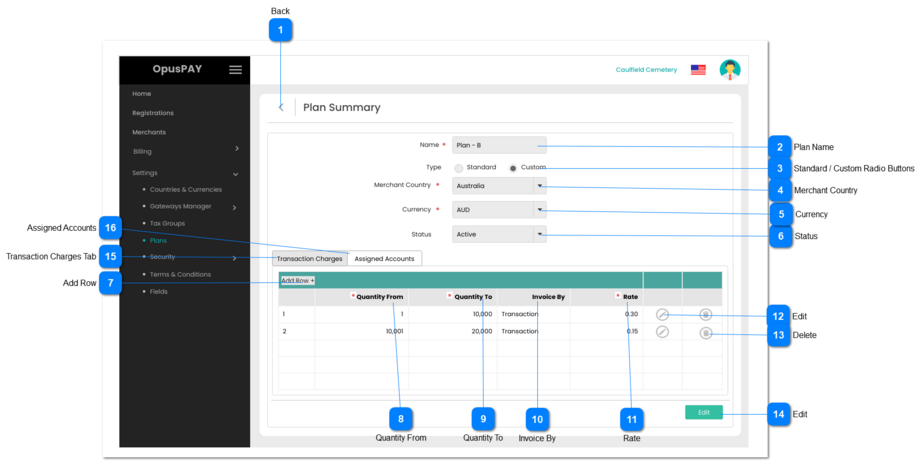
Plan Summary - Custom - Trans View
This page allows the user to view a Custom Plan for merchants.
 Back
|
Type
|
Notes
|
Rules
|
Compulsory
|
Format
|
Edit
|
Size
|
Default
|
Error Message
|
|
Button
|
-
|
1. Allows the user to navigate back to the Plans Grid screen. Refer to the specification for that page here.
|
-
|
-
|
-
|
-
|
-
|
-
| |
|
 Plan Name
|
Type
|
Notes
|
Rules
|
Compulsory
|
Format
|
Edit
|
Size
|
Default
|
Error Message
|
|
Text
|
-
|
1. Displays the name
of a Plan.
|
Y
|
-
|
N
|
255
|
-
|
-
| |
|
 Standard / Custom Radio Buttons
|
Type
|
Notes
|
Rules
|
Compulsory
|
Format
|
Edit
|
Size
|
Default
|
Error Message
|
|
Radio Buttons
|
Standard Plan means OpusXenta is invoicing the merchant.
Custom Plan means Gateway is paying OpusXenta.
|
1. Displays if the plan is a Standard or Custom Plan.
|
-
|
-
|
N
|
-
|
Standard
|
-
| |
|
 Merchant Country
|
Type
|
Notes
|
Rules
|
Compulsory
|
Format
|
Edit
|
Size
|
Default
|
Error Message
|
|
Combo-Box
|
-
|
1. Displays the country that this Plan applies to.
|
-
|
-
|
-
|
-
|
-
|
-
| |
|
 Currency
|
Type
|
Notes
|
Rules
|
Compulsory
|
Format
|
Edit
|
Size
|
Default
|
Error Message
|
|
Combo-Box
|
-
|
1. Allows the user to select the billing currency for this Plan. Merchants assigned to this plan will be billed in the currency selected.
2. The country selected determines which currency is available for the Plan. Refer to the specification for this screen here.
3. If only one currency is available for the country selected, set this field to the currency by default.
4. If user clicks on Save without selecting a Currency, display inline error message.
|
Y
|
-
|
Y
|
-
|
-
|
4. Please select a Currency
| |
|
 Status
|
Type
|
Notes
|
Rules
|
Compulsory
|
Format
|
Edit
|
Size
|
Default
|
Error Message
|
|
Combo-Box
|
If the Plan Status = Active, the Plan can be assigned to merchants.
If the Plan Status = Inactive, it cannot be assigned to merchants.
|
1. Displays the Status of the Plan (Active or Inactive).
|
-
|
-
|
N
|
-
|
-
|
-
| |
|
 Add Row
|
Type
|
Notes
|
Rules
|
Compulsory
|
Format
|
Edit
|
Size
|
Default
|
Error Message
|
|
Button
|
At least one Tier-Level row is required.
|
1. Allows the user to add Tier-Level volume and rates.
|
-
|
-
|
N
|
-
|
-
|
-
| |
|
 Quantity From
|
Type
|
Notes
|
Rules
|
Compulsory
|
Format
|
Edit
|
Size
|
Default
|
Error Message
|
|
Number
|
-
|
1. Displays the minimum number of transactions required for this Tier-Level.
2. Number only, no decimals.
|
Y
|
-
|
N
|
-
|
-
|
-
| |
|
 Quantity To
|
Type
|
Notes
|
Rules
|
Compulsory
|
Format
|
Edit
|
Size
|
Default
|
Error Message
|
|
Number
|
-
|
1. Displays the maxiumum number of transactions required for this Tier-Level.
2. Number only, no decimals.
|
Y
|
-
|
N
|
-
|
-
|
-
| |
|
 Invoice By
|
Type
|
Notes
|
Rules
|
Compulsory
|
Format
|
Edit
|
Size
|
Default
|
Error Message
|
|
Combo-Box
|
-
Transaction means that invoicing = Rate X number of transactions.
-
Month means invoicing = Rate each month.
|
1. Displays what the invoicing will be based on.
2. Should be pre-populated with below options:
|
Y
|
-
|
N
|
-
|
Transaction
|
-
| |
|
 Rate
|
Type
|
Notes
|
Rules
|
Compulsory
|
Format
|
Edit
|
Size
|
Default
|
Error Message
|
|
Number/Decimal
|
-
|
1. Displays the Fixed Rate for a Tier Level.
2. Format should allow two decimal places.
|
Y
|
-
|
N
|
-
|
-
|
-
| |
|
 Edit
|
Type
|
Notes
|
Rules
|
Compulsory
|
Format
|
Edit
|
Size
|
Default
|
Error Message
|
|
Button
|
-
|
1. Allows the user to update Tier-level row of volume and rates.
2. When clicked change Edit button to Save button.
|
-
|
-
|
N
|
-
|
-
|
-
| |
|
 Delete
|
Type
|
Notes
|
Rules
|
Compulsory
|
Format
|
Edit
|
Size
|
Default
|
Error Message
|
|
Button
|
-
|
1. Allows the user to delete Tier-level row of volume and rates.
|
-
|
-
|
N
|
-
|
-
|
-
| |
|
 Edit
|
Type
|
Notes
|
Rules
|
Compulsory
|
Format
|
Edit
|
Size
|
Default
|
Error Message
|
|
Button
|
-
|
1. This should open the Plan Summary in Edit mode. Refer to the specification for the modal here.
|
-
|
-
|
Y
|
-
|
-
|
-
| |
|
 Transaction Charges Tab
|
Type
|
Notes
|
Rules
|
Compulsory
|
Format
|
Edit
|
Size
|
Default
|
Error Message
|
|
Tab
|
-
|
1. This displays the Tier levels for this Plan.
2. This tab should be highlighted to identify the tab the user is on.
|
-
|
-
|
Y
|
-
|
-
|
-
| |
|
 Assigned Accounts
|
Type
|
Notes
|
Rules
|
Compulsory
|
Format
|
Edit
|
Size
|
Default
|
Error Message
|
|
Tab
|
-
|
1. This tab will display the selection of all Parent Merchant Accounts added to this group plan.
|
-
|
-
|
Y
|
-
|
-
|
-
| |
|