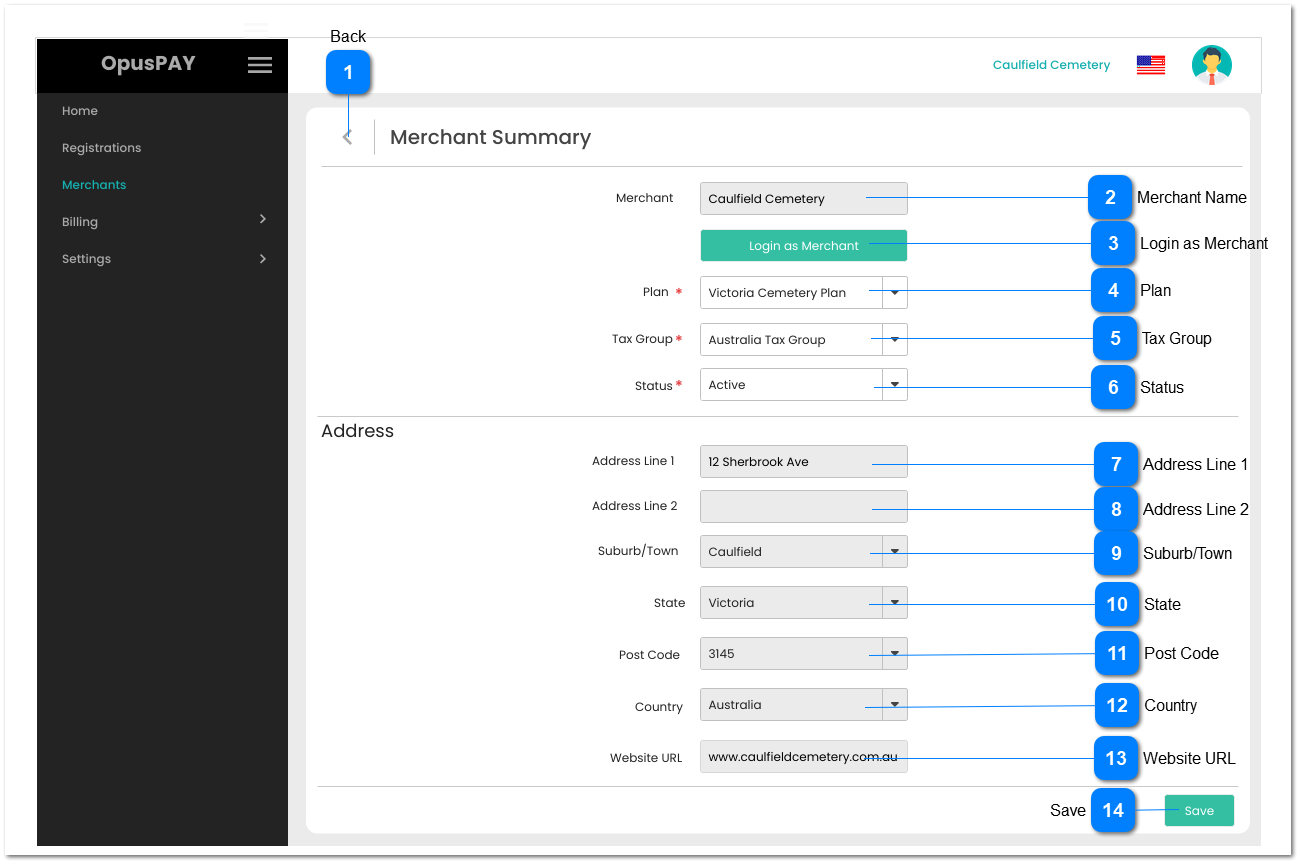
1. This should be only visible to users linked to a profile having access to this function.
2. The user is able to log into a merchant's portal after clicking this button. The level of access to the merchant's portal will be dependent on the Security Profile assigned to the user. Refer to the specifications for Security Profiles here.
3. When logged in as Merchant, display "Logged in as: " before Organisation name at top of window. Refer to the specification for this screen here.
1. Active merchants should be able to be transactions via OpusPAY.
2. When a merchant is inactivate they will no longer be able to process transactions via opuspay. However, they will still be able to log into the Merchant Portal.
1. This will allow for the updating of the Status of the merchant. If for any reason the merchant needs to be prevented from processing further transactions, this should be set to Inactive.
2. If Status is changed to Inactive, this should send a 'your merchant account has been suspended' email to the merchant user advising them that they can no longer process transactions via opuspay. Refer to the email body content here. byondpro should also be updated to show that the merchant account is inactive (which would display as On-Hold in byondpro).
3. Merchant Status cannot be set to Inactive if they are linked to a Custom Plan. If Merchant is linked to a Custom Plan display an inline error message if user attempts to set the Status to Inactive.
Y
-
Y
-
Default to merchant Status as in the database.
3. Merchant is linked to a Custom Plan. Remove Merchant from the Custom Plan before setting status to Inactive.