To properly display this page you need a browser with JavaScript support.
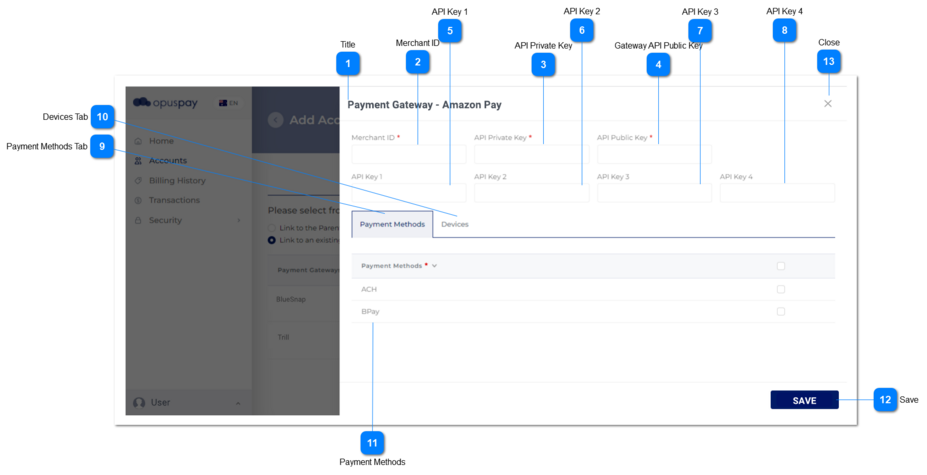
Add Account - Enter Gateway Details - PM This screen allows the user to configure the payment methods of the selected gateway.
MERCHANT ID IS DIFFERENT REGARD
Title
Type
Notes
Rules
Compulsory
Format
Edit
Size
Default
Error Message
Text
-
1. This displays the title of the screen.
1a. By default, the text 'Payment Gateway' should be shown followed by a hyphen and the name of the selected gateway.
Eg.
Payment Gateway - Payrix
Y
-
N
-
-
-
Merchant ID
Type
Notes
Rules
Compulsory
Format
Edit
Size
Default
Error Message
Text
-
1. If the Account will have it's own Gateway account, allow the user to enter the Gateway Merchant ID.
2. This should display an inline error message if the user clicks the Save button without populating this field.
Y
-
Y
255
Enabled
2. Please enter the Gateway Merchant ID.
API Private Key
Type
Notes
Rules
Compulsory
Format
Edit
Size
Default
Error Message
Text
-
1. If the Account will have it's own Gateway account, allow the user to enter the Gateway API Private Key.
2. This should display an inline error message if the user clicks the Save button without populating this field.
Y
-
Y
-
Enabled
2. Please enter the Gateway API Private Key.
Gateway API Public Key
Type
Notes
Rules
Compulsory
Format
Edit
Size
Default
Error Message
Text
-
1. If the Account will have it's own Gateway account, allow the user to enter the Gateway API Public Key.
2. This should display an inline error message if the user clicks the Save button without populating this field.
Y
-
Y
-
Disabled
2. Please enter the Gateway API Public Key.
API Key 1
Type
Notes
Rules
Compulsory
Format
Edit
Size
Default
Error Message
Text
-
1. Allow the user to enter an additional API key.
-
-
Y
-
Enabled
-
API Key 2
Type
Notes
Rules
Compulsory
Format
Edit
Size
Default
Error Message
Text
-
1. Allow the user to enter an additional API key.
-
-
Y
-
Enabled
-
API Key 3
Type
Notes
Rules
Compulsory
Format
Edit
Size
Default
Error Message
Text
-
1. Allow the user to enter an additional API key.
-
-
Y
-
Enabled
-
API Key 4
Type
Notes
Rules
Compulsory
Format
Edit
Size
Default
Error Message
Text
-
1. Allow the user to enter an additional API key.
-
-
Y
-
Enabled
-
Payment Methods Tab
Type
Notes
Rules
Compulsory
Format
Edit
Size
Default
Error Message
Tab
-
1. This displays the Payment Method options allowed by the Gateway. These options are set in the Payment Methods Tab in the Admin Portal. Refer to the specifications for that screen here .
2. This tab should be highlighted to identify the tab the user is on.
Y
-
Y
-
-
-
Devices Tab
Type
Notes
Rules
Compulsory
Format
Edit
Size
Default
Error Message
Text
-
1. This tab allows the user to select the Gateway devices the Account has. Refer to the specifications for that screen here .
-
-
Y
-
-
-
Payment Methods
Type
Notes
Rules
Compulsory
Format
Edit
Size
Default
Error Message
Text
-
1. This displays the Payment Method options the Gateway allows. These options are set in the Payment Methods Tab in the Admin Portal. Refer to the specifications for that screen here .
2. If the user clicks on the Save button without selecting at least one Payment Method, display an inline error message and do not create the record.
Y
-
Y
-
-
2. Please select at least one Payment Method.
Save
Type
Notes
Rules
Compulsory
Format
Edit
Size
Default
Error Message
Button
-
1. Check the rules mentioned in each input element on both the Payment Methods and Devices tabs, and show inline error messages for invalid / unpopulated inputs.
2. If the validation results are successful save all Gateway options selected.
3. Navigate the user to Add Account - Enter Gateway Details screen. Refer to the specification for that page here .
-
-
-
-
-
-
Close
Type
Notes
Rules
Compulsory
Format
Edit
Size
Default
Error Message
Button
-
1. When clicked this should navigate the user to Add Account - Enter Gateway Details screen. Refer to the specification for that page here .
-
-
Y
-
-
-