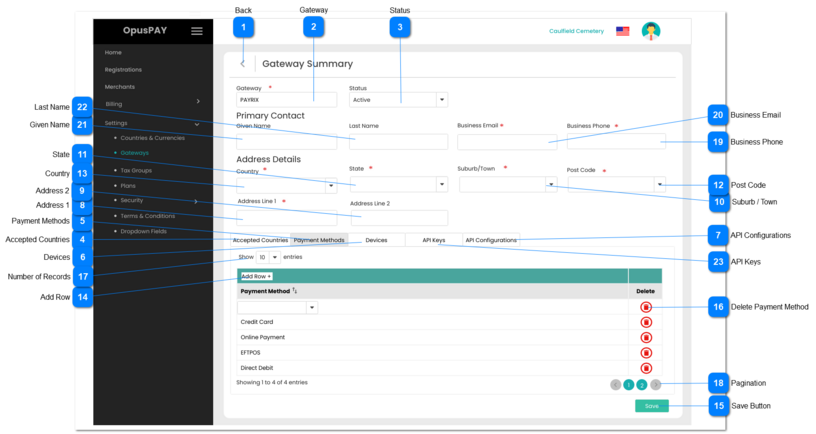
1. If the Edit button has been clicked (Save button is displayed in the bottom right corner), display a popup modal warning user that continuing will cause them to lose any changes they have made. Refer to the specification for that screen here.
2. If the Edit button has not been clicked (Edit button is displayed in the bottom right corner), this should navigate the user to the Gateways screen when clicked. Refer to the specification for that screen here.
1. Active Gateways should be allowed to be selected and used by Merchants in their portal for transactions.
2. Gateways cannot be set to Inactive if they are linked to at least one Merchant.
1. This should display the status of a Gateway, either Active or Inactive.
2. If in edit mode, the user will be able to change the Gateway's status.
3. If in edit mode and the user changes the status to Inactive. Check the database to see if there are any Merchants attached to this Gateway. If there is, do not change the status to Inactive and display an inline error message.
-
-
Y
-
Disabled
3. Gateway cannot be set to Inactive because it is linked to a Merchant. Please change all Merchants to another Gateway before setting this Gateway to Inactive.
1. This should allow the user to view existing Accepted Countries & Currencies. If in edit mode users can also update existing, or add new, countries & currencies as required. Refer specification for that tab here.
1. This should allow the user to view existing Gateway Payment Methods. If in edit mode, users can also update existing and add new Payment Methods as required.
1. This should allow the user to view existing Gateway Devices. If in edit mode, users can also update existing and add new Devices as required. Refer specification for that tab here.
1. This should allow the user to view existing Gateway APIs. If in edit mode, users can also update existing and add new APIs as required. Refer specification for that tab here.
1. This should allow the user to enter an email address. Could be the email address of the primary contact or a general email address such as info@gateway.com
2. This should display an inline error message if the user clicks the Submit button without populating this field.
Y
Email
Y
255
Disabled
2. Please enter the Primary Contact's Email Address.
1. This should allow the user to view existing Gateway API Keys. If in edit mode, users can also update existing and add new API Keys as required. Refer specification for that tab here.