OpusPAY
User guide
×
Menu
Index

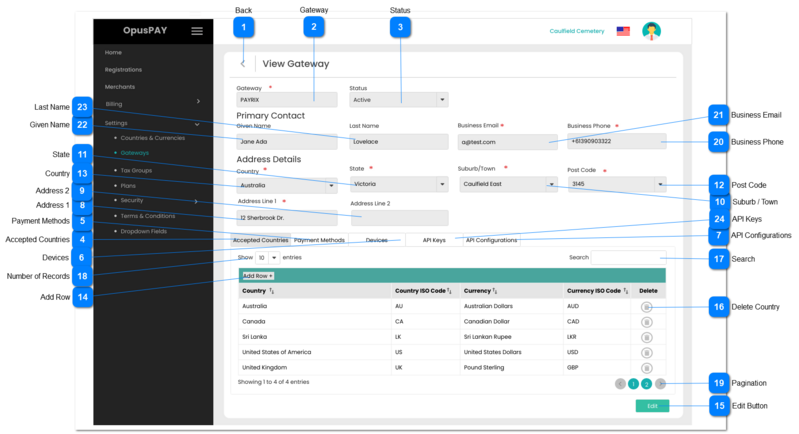
Gateway Summary - Accepted Countries

Gateway Summary - Accepted Countries
1

Back

 
Type
Notes
Rules
Compulsory
Format
Edit
Size
Default
Error Message
Button
-
1. If the Edit button has been clicked (Save button is displayed in the bottom right corner), display a popup modal warning user that continuing will cause them to lose any changes they have made. Refer to the specification for that screen here.
 
2. If the Edit button has not been clicked (Edit button is displayed in the bottom right corner), this should navigate the user to the Gateways screen when clicked. Refer to the specification for that screen here.
-
-
Y
-
-
-
2

Gateway

 
Type
Notes
Rules
Compulsory
Format
Edit
Size
Default
Error Message
Text
-
1. This should display a Gateway's name.
 
2. If in edit mode, the user is able to update a Gateway's name.
 
3. If the user clicks on Save without entering a value in this field, display an inline error message.
Y
-
Y
255
Disabled
3. Please enter the Gateway's name.
3

Status

 
Type
Notes
Rules
Compulsory
Format
Edit
Size
Default
Error Message
Combo-Box
1. Active Gateways should be allowed to be selected and used by Merchants in their portal for transactions.
 
2. Gateways cannot be set to Inactive if they are linked to at least one Merchant.
1. This should display the status of a Gateway, either Active or Inactive.
 
2. If in edit mode, the user will be able to change the Gateway's status.
 
3. If in edit mode and the user changes the status to Inactive. Check the database to see if there are any Merchants attached to this Gateway. If there is, do not change the status to Inactive and display an inline error message.
-
-
Y
-
Disabled
3. Gateway cannot be set to Inactive because it is linked to a Merchant. Please change all Merchants to another Gateway before setting this Gateway to Inactive.
4

Accepted Countries

 
Type
Notes
Rules
Compulsory
Format
Edit
Size
Default
Error Message
Tab
-
1. This should allow the user to view existing Accepted Countries & Currencies. If in edit mode users can also update existing, or add new, countries & currencies as required.
-
-
-
-
-
-
5

Payment Methods

 
Type
Notes
Rules
Compulsory
Format
Edit
Size
Default
Error Message
Tab
-
1. This should allow the user to view existing Gateway Payment Methods. If in edit mode, users can also update existing and add new Payment Methods as required. Refer specification for that tab here.
-
-
-
-
-
-
6

Devices

 
Type
Notes
Rules
Compulsory
Format
Edit
Size
Default
Error Message
Tab
-
1. This should allow the user to view existing Gateway Devices. If in edit mode, users can also update existing and add new Devices as required. Refer specification for that tab here.
-
-
-
-
-
-
7

API Configurations

 
Type
Notes
Rules
Compulsory
Format
Edit
Size
Default
Error Message
Tab
-
1. This should allow the user to view existing Gateway APIs. If in edit mode, users can also update existing and add new APIs as required. Refer specification for that tab here.
-
-
-
-
-
-
8

Address 1

 
Type
Notes
Rules
Compulsory
Format
Edit
Size
Default
Error Message
Text
-
1. This should display Address 1 for the Gateway. If in edit mode, users can also update this field.
 
2. If the user clicks on Save without entering a value in this field, display an inline error message.
Y
-
Y
-
Disabled
2. Please enter an Address 1.
9

Address 2

 
Type
Notes
Rules
Compulsory
Format
Edit
Size
Default
Error Message
Text
-
1. This should display Address 2 for the Gateway.  If in edit mode, users can also update this field.
-
-
Y
-
Disabled
-
10

Suburb / Town

 
Type
Notes
Rules
Compulsory
Format
Edit
Size
Default
Error Message
Text
-
1. This should display the Suburb/Town for the Gateway. If in edit mode, users can also update this field.
 
2. If the user clicks on Save without entering a value in this field, display an inline error message.
Y
-
Y
-
Disabled
2. Please enter a Suburb / Town.
11

State

 
Type
Notes
Rules
Compulsory
Format
Edit
Size
Default
Error Message
Text
-
1. This should display State for the Gateway. If in edit mode, users can also update this field.
 
2. If the user clicks on Save without entering a value in this field, display an inline error message.
Y
-
Y
-
Disabled
Please enter a State.
12

Post Code

 
Type
Notes
Rules
Compulsory
Format
Edit
Size
Default
Error Message
Text
-
1. This should display the Post Code for the Gateway. If in edit mode, users can also update this field.
 
2. If the user clicks on Save without entering a value in this field, display an inline error message.
Y
-
Y
-
Disabled
Please enter a Post Code.
13

Country

 
Type
Notes
Rules
Compulsory
Format
Edit
Size
Default
Error Message
Text
-
1. This should display Country for the Gateway. If in edit mode, users can also update this field.
 
2. If the user clicks on Save without entering a value in this field, display an inline error message.
Y
-
Y
-
Disabled
2. Please enter a Country.
14

Add Row

 
Type
Notes
Rules
Compulsory
Format
Edit
Size
Default
Error Message
Button
-
1. When enabled, clicking this button will allow the user to add a Country to the grid.
-
-
Y
-
Disabled
-
15

Edit Button

 
Type
Notes
Rules
Compulsory
Format
Edit
Size
Default
Error Message
Button
-
1. Clicking this button will enable all fields on all tabs to be edited and change the Edit button to a Save button.
-
-
Y
-
-
-
16

Delete Country

 
Type
Notes
Rules
Compulsory
Format
Edit
Size
Default
Error Message
Button
-
1. When enabled, clicking this button will delete the Country for this row.
-
-
N
-
Disabled
-
17

Search

 
Type
Notes
Rules
Compulsory
Format
Edit
Size
Default
Error Message
Text
-
1. Filters the grid by matching the input entered by the user across the "Country", "Country ISO Code", "Currency" and "Currency ISO Code" grid columns.
 
2. Filter results based on each character entered. For example:
  • if "u" is entered, only the second and third rows in the on screen example will be displayed. This is based on "United" in the Country column as well as "US" and "UK" in the Country ISO and Currency ISO columns for both rows
  • If "uk" is entered only the third row in the on screen example will be displayed based on "UK" in the Country ISO Code column
-
-
Y
-
-
-
18

Number of Records

 
Type
Notes
Rules
Compulsory
Format
Edit
Size
Default
Error Message
Combo-Box
-
1. This should allow the user to select an option to control the number of countries and currencies records visible in the grid.
 
2. Displays following options to select from:
 
  • 10
  • 25
  • 50
  • 100
 
-
-
Y
-
10
-
19

Pagination

 
Type
Notes
Rules
Compulsory
Format
Edit
Size
Default
Error Message
Button
-
1. This should allow the users to paginate through the Device grid records.
 
2. To determine the number of pagination buttons to display please follow the current logic that is being used in byondcloud.
-
-
-
-
-
-
20

Business Phone

 
Type
Notes
Rules
Compulsory
Format
Edit
Size
Default
Error Message
Text
-
1. This should allow the user to enter the Phone Number for the Gateway.
 
2. This should display an inline error message if the user clicks the Submit button without populating this field.
Y
-
Y
255
Disabled
2. Please enter the Business Phone Number.
21

Business Email

 
Type
Notes
Rules
Compulsory
Format
Edit
Size
Default
Error Message
Text
-
1. This should allow the user to enter an email address. Could be the email address of the primary contact or a general email address such as info@gateway.com
 
2. This should display an inline error message if the user clicks the Submit button without populating this field.
Y
Email
Y
255
Disabled
2. Please enter the Primary Contact's Email Address.
 
22

Given Name

 
Type
Notes
Rules
Compulsory
Format
Edit
Size
Default
Error Message
Text
-
1. This should allow the user to enter the Given Name of the primary contact of the Gateway.
N
-
Y
255
Disabled
-
23

Last Name

 
Type
Notes
Rules
Compulsory
Format
Edit
Size
Default
Error Message
Text
-
1. This should allow the user to enter the Last Name of the primary contact of the Gateway.
N
-
Y
255
-
-
24

API Keys

 
Type
Notes
Rules
Compulsory
Format
Edit
Size
Default
Error Message
Tab
-
1. This should allow the user to view existing Gateway API Keys. If in edit mode, users can also update existing and add new API Keys as required. Refer specification for that tab here.
-
-
-
-
-
-