To properly display this page you need a browser with JavaScript support.
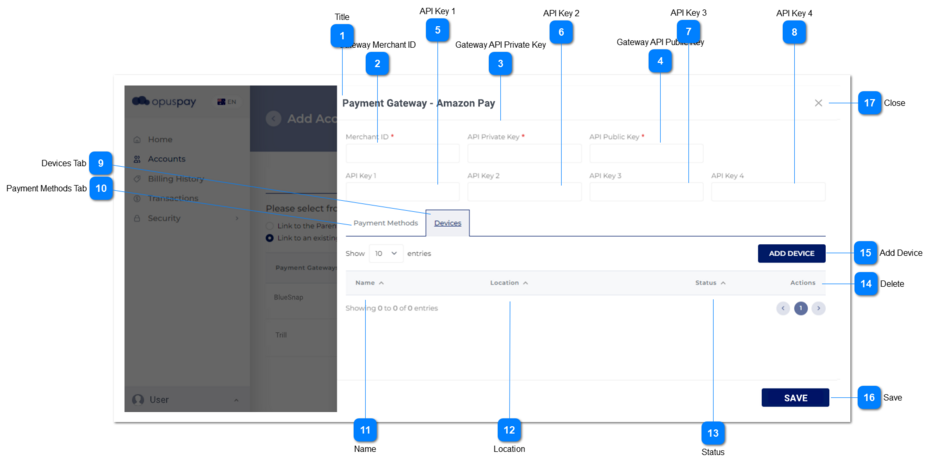
Add Account - Enter Gateway Details - Devices This screen allows the user to configure the devices related to the selected gateway.
Title
Type
Notes
Rules
Compulsory
Format
Edit
Size
Default
Error Message
Text
-
1. This displays the title of the screen.
1a. By default, the text 'Payment Gateway' should be shown followed by a hyphen and the name of the selected gateway.
Eg.
Payment Gateway - Payrix
Y
-
N
-
-
-
Gateway Merchant ID
Type
Notes
Rules
Compulsory
Format
Edit
Size
Default
Error Message
Text
-
1. If the Account will have it's own Gateway account, allow the user to enter the Gateway Merchant ID.
2. This should display an inline error message if the user clicks the Save button without populating this field.
Y
-
Y
255
Enabled
2. Please enter the Gateway Merchant ID.
Gateway API Private Key
Type
Notes
Rules
Compulsory
Format
Edit
Size
Default
Error Message
Text
-
1. If the Account will have it's own Gateway account, allow the user to enter the Gateway API Private Key.
2. This should display an inline error message if the user clicks the Save button without populating this field.
Y
-
Y
-
Enabled
2. Please enter the Gateway API Private Key.
Gateway API Public Key
Type
Notes
Rules
Compulsory
Format
Edit
Size
Default
Error Message
Text
-
1. If the Account will have it's own Gateway account, allow the user to enter the Gateway API Public Key.
2. This should display an inline error message if the user clicks the Save button without populating this field.
Y
-
Y
-
Disabled
2. Please enter the Gateway API Public Key.
API Key 1
Type
Notes
Rules
Compulsory
Format
Edit
Size
Default
Error Message
Text
-
1. Allow the user to enter an additional API key.
-
-
Y
-
Enabled
-
API Key 2
Type
Notes
Rules
Compulsory
Format
Edit
Size
Default
Error Message
Text
-
1. Allow the user to enter an additional API key.
-
-
Y
-
Enabled
-
API Key 3
Type
Notes
Rules
Compulsory
Format
Edit
Size
Default
Error Message
Text
-
1. Allow the user to enter an additional API key.
-
-
Y
-
Enabled
-
API Key 4
Type
Notes
Rules
Compulsory
Format
Edit
Size
Default
Error Message
Text
-
1. Allow the user to enter an additional API key.
-
-
Y
-
Enabled
-
Devices Tab
Type
Notes
Rules
Compulsory
Format
Edit
Size
Default
Error Message
Tab
-
1. This tab allows the user to select the Gateway devices the Account has
2. This tab should be highlighted to identify the tab the user is on.
-
-
Y
-
-
-
Payment Methods Tab
Type
Notes
Rules
Compulsory
Format
Edit
Size
Default
Error Message
Tab
-
1. This displays the Payment Method options the Gateway allows. Refer to the specifications for that screen here .
-
-
Y
-
-
-
Name
Type
Notes
Rules
Compulsory
Format
Edit
Size
Default
Error Message
Hyperlink
-
1. This will display the Device Names as a hyperlink.
2. Clicking on the hyperlink will navigate the user to the Add/Edit Device details screen. Refer to the specifications for that screen here .
3. The column should be sortable
-
-
N
-
-
-
Location
Type
Notes
Rules
Compulsory
Format
Edit
Size
Default
Error Message
Column
-
1. This will display details related to the location of the device.
2. This should be sortable.
-
-
N
-
-
-
Status
Type
Notes
Rules
Compulsory
Format
Edit
Size
Default
Error Message
Column
-
1. This will display the Status of the Device (active or inactive).
2. This should be sortable.
-
-
N
-
-
-
Delete
Type
Notes
Rules
Compulsory
Format
Edit
Size
Default
Error Message
Button
-
1. This will allow the user to "delete" a Device from this table.
2. Devices should never be deleted from the database, only from this list. Deleted Devices will still need to be used for any reports, etc. where the Device is linked to a transaction.
-
-
-
-
-
-
Add Device
Type
Notes
Rules
Compulsory
Format
Edit
Size
Default
Error Message
Button
-
1. This will navigate the user to the add/edit device screen allowing the user to enter details for a new Device. Refer to the specification for that device here .
-
-
Y
-
-
-
Save
Type
Notes
Rules
Compulsory
Format
Edit
Size
Default
Error Message
Button
-
1. Check the rules mentioned in each input element on both the Payment Methods and Devices tabs, and show inline error messages for invalid / unpopulated inputs.
2. If the validation results are successful save all Gateway options selected. Also, if the account will have it's own Gateway accounts, automatically generate OpusPAY API credentials and assign them to this merchant.
3. Navigate the user to Enter Gateway Details screen. Refer to the specification for that page here .
-
-
-
-
-
-
Close
Type
Notes
Rules
Compulsory
Format
Edit
Size
Default
Error Message
Button
-
1. When clicked this should navigate the user to Add Account - Enter Gateway Details screen. Refer to the specification for that page here .
-
-
Y
-
-
-