OpusPAY
User guide
×
Menu
Index

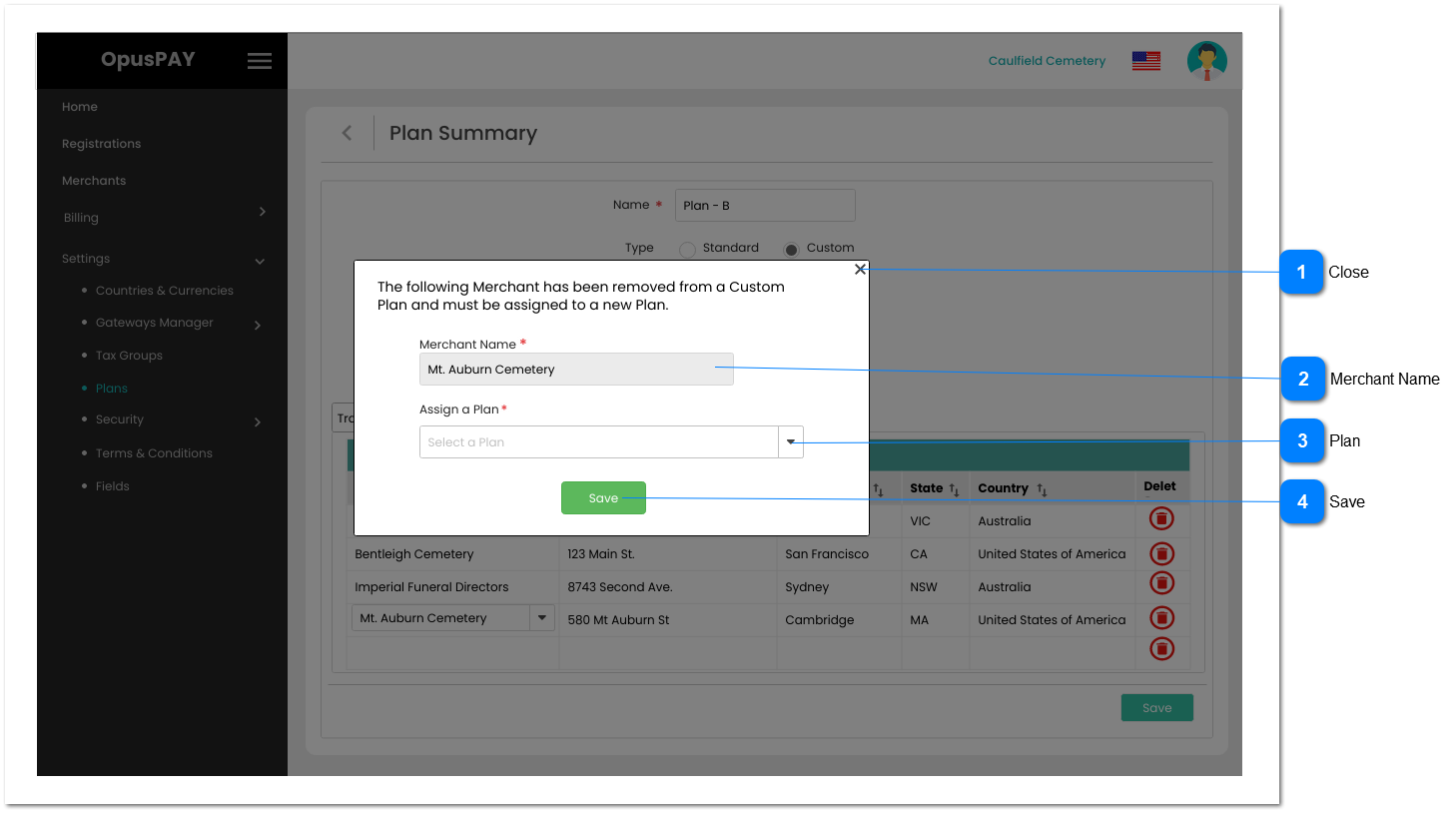
Plan Summary - Custom - Assign A Plan

Plan Summary - Custom - Assign A Plan
1

Close

 
Type
Notes
Rules
Compulsory
Format
Edit
Size
Default
Error Message
Grid
-
1. This should close the Assign a Plan pop-up and navigate the user to the Plan Summary - Custom - Groups Edit screen. Refer to the specification for that screen here.
-
-
N
-
-
-
2

Merchant Name

 
Type
Notes
Rules
Compulsory
Format
Edit
Size
Default
Error Message
Text
-
1. This displays the Merchant name for this Plan.
Y
-
N
-
-
-
3

Plan

 
Type
Notes
Rules
Compulsory
Format
Edit
Size
Default
Error Message
Combo-Box
Pre-conditions:
There should be at least one active Plan created within Settings -> Plans.
1. Filter options to display ONLY Active plans AND those that match the merchant Country.
 
2. This should allow user to select a plan from this list.
 
3. This should display an inline error message if the user clicks the 'Approve' button without populating this field.
Y
-
Y
-
-
3. Please assign a plan to the merchant
4

Save

 
Type
Notes
Rules
Compulsory
Format
Edit
Size
Default
Error Message
Button
-
1. Check the rules mentioned in each input element. If there is an error, show inline error message, stop the check, allow the user to make changes and do not close this window. 
 
2. If all validation checks are successful, assign the Plan to the Merchant.
 
3. Navigate the user back to the Plan Summary - Custom - Groups Edit screen. Refer to the specification for that screen here.
-
-
Y
-
-
-