To properly display this page you need a browser with JavaScript support.
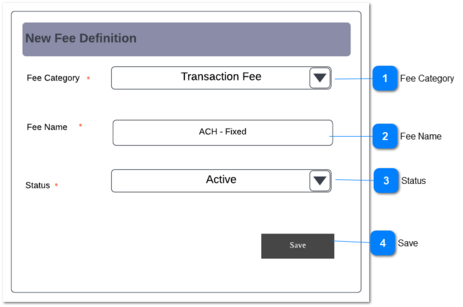
Fee Category
Type
Notes
Rules
Compulsory
Format
Edit
Size
Default
Error Message
Single - select Dropdown
-
1. This drop-down should contain the below hard coded values.
2. If the user tries to save without selecting a 'Fee Category', then an error message should be displayed in red.
Y
-
-
-
Select Fee Category
2.Please select a Fee Category
Fee Name
Type
Notes
Rules
Compulsory
Format
Edit
Size
Default
Error Message
Text field
-
1. The user can manually enter a fee name here.
1a. This is a text field which allows the user to enter numerals and characters.
2. If the user tries to save without selecting a 'Fee Name', then an error message should be displayed in red.
Y
-
-
20
Type Fee Name
2.Please enter a Fee Name
Status
Type
Notes
Rules
Compulsory
Format
Edit
Size
Default
Error Message
Button
-
1. In the status drop-down there are two options to select as per below.
1a. Active
If a record is active, that can be used by a gateway for mapping.
But an active record may or may not be used by a gateway. (All active records may / may not be mapped to a gateway)
1b. Inactive
If a record is inactive, that cannot be used for gateway mapping.
(All inactive records cannot be mapped to a gateway)
3. If the user tries to save without selecting a Status, then an error message should be displayed in red.
-
-
-
-
2.Please select a Status
Save
Type
Notes
Rules
Compulsory
Format
Edit
Size
Default
Error Message
Button
-
1. Once the user clicks on 'Save' button, the system should check whether the above validations are met and display appropriate messages.
2. These records created will be displayed within the Fee Definition screen (Fee Category and Fee Name columns) and also displayed in Gateway Fee Mapping tab within the Fee Type and Fee Name drop downs.
-
-
-
-
-