OpusPAY
User guide
×
Menu
Index

Edit User's Own Details

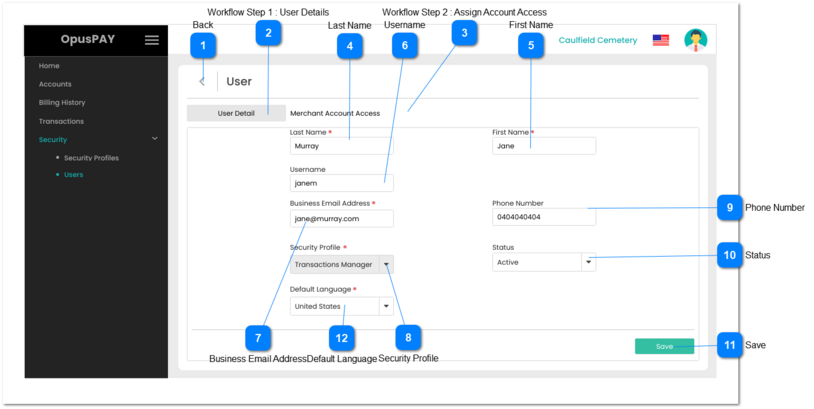
This screen allows the user to view and update user details.
 
Edit User's Own Details
1

Back

 
Type
Notes
Rules
Compulsory
Format
Edit
Size
Default
Error Message
Button
-
1. Do not save any changes made.
 
2. If the user has arrived to this screen from the Users screen then navigate the user to the Users screen when clicked. Refer to the specification for that screen here.
 
3. If the user has arrived to this screen from the View User screen then navigate the user to View User screen. Refer to the specification for that screen here.
-
-
-
-
-
-
2

Workflow Step 1 : User Details

 
Type
Notes
Rules
Compulsory
Format
Edit
Size
Default
Error Message
Tab
-
1. This displays the User Detail Tab.
 
2. The tab should be highlighted to identify the tab.
-
-
-
-
-
-
3

Workflow Step 2 : Assign Account Access

 
Type
Notes
Rules
Compulsory
Format
Edit
Size
Default
Error Message
Tab
Users cannot edit their own Merchant Account Access.
1. This is the second tab allowing the user to view and edit their Merchant Account Access.
 
2. Clicking on this tab will navigate the user to the View Merchant Account Access screen. Refer to the specification for that screen here.
-
-
Y
-
-
-
4

Last Name

 
Type
Notes
Rules
Compulsory
Format
Edit
Size
Default
Error Message
Text
-
1. This should allow for the entry of the last name of the user.
 
2. If the user clicks on the Save button without entering a value in this field, display an inline error message.
Y
-
Y
255
-
2. Please enter the user's Last Name
5

First Name

 
Type
Notes
Rules
Compulsory
Format
Edit
Size
Default
Error Message
Text
-
1. This should allow for the entry of the first name of the user.
 
2. If the user clicks on the Save button without entering a value in this field, display an inline error message.
Y
-
Y
255
-
2. Please enter the user's First Name
6

Username

 
Type
Notes
Rules
Compulsory
Format
Edit
Size
Default
Error Message
Text
-
1. This should allow for the entry of the username of the user.
 
2. If the user clicks on the Save button without entering a value in this field, display an inline error message.
Y
-
Y
255
-
2. Please enter the user's Username
7

Business Email Address

 
Type
Notes
Rules
Compulsory
Format
Edit
Size
Default
Error Message
Text
-
1. This should allow for the entry of the business email address of the user.
 
2. If the user clicks on the Save button without entering a value in this field, display an inline error message.
 
3. Use OpusXenta standard email validation rules to verify email address is valid.
 
4. If the user clicks on the Save button without a valid email address, display an inline error message.
Y
-
Y
255
-
2. Please enter the user's Business Email Address.
 
4. Please enter a valid Business Email Address.
8

Security Profile

 
Type
Notes
Rules
Compulsory
Format
Edit
Size
Default
Error Message
Combo-Box
Only Admin user can edit their own Security Profile.
1. This should display the user's Security Profile.
 
2. ONLY if the user is assigned as an Admin Security Profile can this field be edited.
Y
-
N
-
-
-
9

Phone Number

 
Type
Notes
Rules
Compulsory
Format
Edit
Size
Default
Error Message
Text
-
1. This should allow the user to update the user's Phone Number.
N
-
Y
255
-
-
10

Status

 
Type
Notes
Rules
Compulsory
Format
Edit
Size
Default
Error Message
Combo-Box
Inactive users should not be allowed to login to the system.
1. This should allow the user to update the user's Status.
-
-
Y
-
-
-
11

Save

 
Type
Notes
Rules
Compulsory
Format
Edit
Size
Default
Error Message
Button
-
1. Check the rule mentioned in each input elements and show inline error messages for invalid / unpopulated inputs.
 
2. Check User profiles and ensure that at least one profile is still set as Admin. There must be at least one Admin user at all times. If this user was set as an Admin, they change their Security Profile to something other than Admin and there are no other Admin users, display an inline error message and do not save the record.
 
3. If all validation checks are successful then user details are saved after the user clicks this button. Navigate the user to the View User (Details) screen. Refer to the specifications for that screen here.
-
-
-
-
-
2. There must be at least one Admin user at all times. Another user has to be set to Admin before being able to change the Security Profile.
12

Default Language

 
Type
Notes
Rules
Compulsory
Format
Edit
Size
Default
Error Message
Combo-Box
-
1. This should allow the user to select their desired Default Language from the list of available languages based on the language file for all labels in OpusPAY.
Y
-
Y
255
First language in the list
-