OpusPAY
User guide
×
Menu
Index

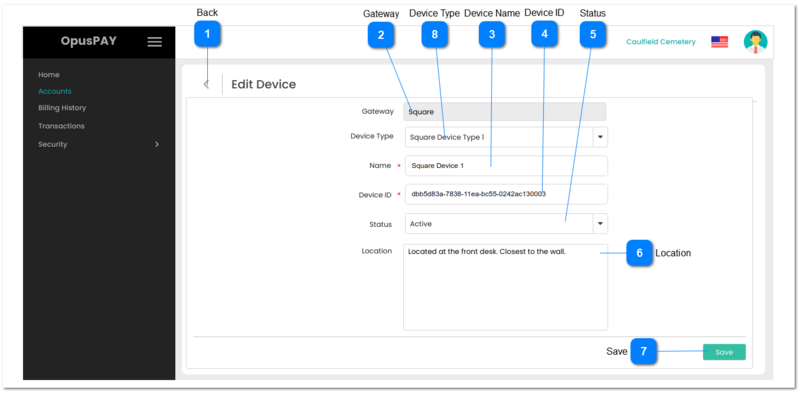
Edit Device

 
Edit Device
1

Back

 
Type
Notes
Rules
Compulsory
Format
Edit
Size
Default
Error Message
Button
-
1. When clicked this should navigate the user back to the screen they arrived from:
 
If the user arrived at this screen from the Add Account - Enter Gateway Details - Device screen, send them back to this screen. Refer to the specification for that screen here.
 
If the user arrived at this screen from the Edit Account - Gateway Details - Devices screen, send them back to this screen. Refer to the specification for that screen here.
-
-
Y
-
-
-
2

Gateway

 
Type
Notes
Rules
Compulsory
Format
Edit
Size
Default
Error Message
Text
-
1. This should display the Gateway for the Account.
-
-
N
-
-
-
3

Device Name

 
Type
Notes
Rules
Compulsory
Format
Edit
Size
Default
Error Message
Text
-
1. This will allow the user to edit the name of a Device.
 
2. Device name must be unique per account. Display an inline error message if user enters a Device Name that matches an already existing Device Name for this account.
 
3. This should display an inline error message if the user clicks the Save button without populating this field.
Y
-
Y
255
-
2. Device Name already exists for this account. Please enter a unique Device Name.
 
3. Please select or enter a Device Name.
4

Device ID

 
Type
Notes
Rules
Compulsory
Format
Edit
Size
Default
Error Message
Text
-
1. This will allow the user to enter a Device ID provided by the Gateway.
 
2. This should display an inline error message if the user clicks the Save button without populating this field.
Y
-
Y
255
-
2. Please enter a Device ID.
5

Status

 
Type
Notes
Rules
Compulsory
Format
Edit
Size
Default
Error Message
Column
-
1. This will allow the user to set the Status of the Device (active or inactive).
-
-
Y
-
Active
-
6

Location

 
Type
Notes
Rules
Compulsory
Format
Edit
Size
Default
Error Message
Multiline Text
-
1. This will display details as to the location of the device and if the row is in Edit mode, will allow the user to change the Location.
Y
-
Y
255
-
-
7

Save

 
Type
Notes
Rules
Compulsory
Format
Edit
Size
Default
Error Message
Button
-
1. Check the rules mentioned in each input element and show inline error messages for invalid / unpopulated inputs.
 
2. If the validation results are successful save all Device details entered.
 
4. Navigate the user back to the screen they arrived from:
 
If the user arrived at this screen from the Add Account - Enter Gateway Details - Device screen, send them back to this screen. Refer to the specification for that screen here.
 
If the user arrived at this screen from the Edit Account - Gateway Details - Devices screen, send them back to this screen. Refer to the specification for that screen here.
-
-
Y
-
-
-
8

Device Type

 
Type
Notes
Rules
Compulsory
Format
Edit
Size
Default
Error Message
Dropdown
-
1. This should allow the user to select an active Device Type as the one provided by the Gateway for the Account.
 
2. This should display an inline error message if the user clicks the Save button without selecting a Device Type.
Y
-
Y
-
-
2. Please select a Device Type.