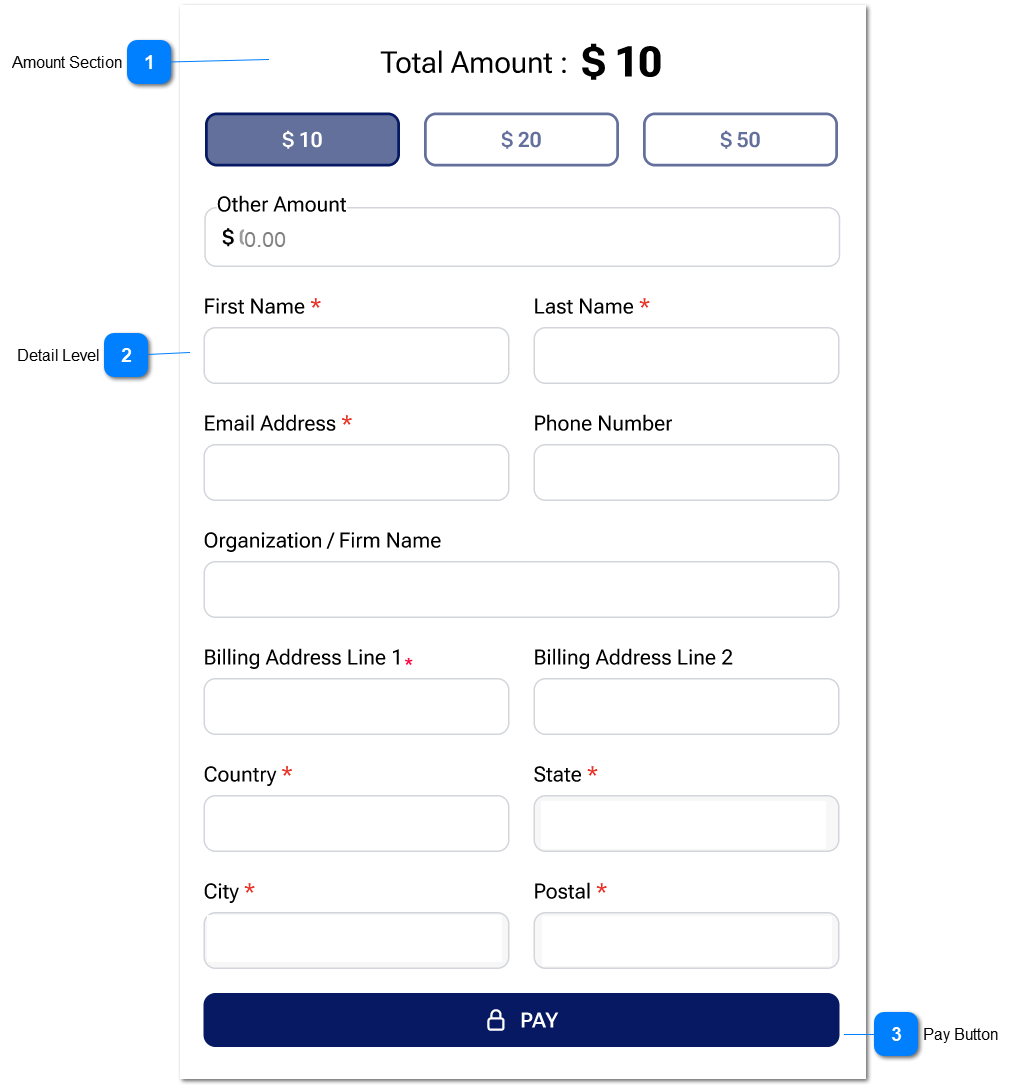
1. At the point when QR is generating successfully, the widget is auto generating to that QR program.
2. This widget can be used to link the QR program with 3rd party application.
Once the QR is scanned, the user will be directed to the widget linked URL.
3. One QR program has 1:1 mapping with the widget.
4. The widget is written in Javascript.
Once the QR is scanned successfully, it would load the widget in the lading page.
Amount Section
Type
Notes
Rules
Compulsory
Format
Edit
Size
Default
Error Message
Text
The selected / given value would be shown as the total amount.
Name of the text is ' Total Amount : <<Amount >>'
-
-
-
-
-
-
Buttons
Amounts
If the user gives an amount through the buttons, then that button should be highlighted.
Once after user gives value through button and then if the user tries to give values through the other amount field, the highlighted amount button would be deselected.
Note: When the user types values for other fields (name, address etc) then the selected amount button should be highlighted.
Amount should be available as buttons to select. (This come through the Add QR Payment Program slider- Amount Filed)
Following would be happened when the user give a value for the payment.
1. That value would be shown as as the total amount.
2. If the amount is not given, then below error message would display.
0.00
2. Please select or enter an amount.
6. Other amount should be greater than or equal to 5.
7. Other amount should be less than or equal to 100,000.
Text-field
Other Amount
If the user want to give another amount, then it should be given in the 'other amount' text-filed.
Following would be happened when the user give a value for the payment.
1. That value would be shown as as the total amount.
Currency sign should be automatically picked and shown in the text-field. (This was given at the QR Program creation).
2. If the amount is not given, then below error message would display.
3. Whatever the latest value given from either Text-box or button should be taken as Total Amount.
4. If the given length is not complying, then below message would display.
5. If the user gives a value through a button, and then if the user gives a value through other amount text-field, then the selected amount button should be deselected.
5A. If the user gives a value through amount text-field, and then if the user gives a value through a button, then the given value in text-field should be reset to default value.
6. Other amount value should be more than or equal 5.
7.Other amount value should be less than or equal to 100,000.
1. The user needs to select the county code and give the phone number.
2. The user can enter only numbers in this field. If user enters something more than numbers (wild characters, letters etc), then a validation message should be entered.
No
-
2. Please enter a valid phone number.
Text-field
Organization / Firm Name
The user needs to give the name of the 'Organization / Firm Name'
No
-
Text-field
Billing Address Line 1
The user gives the value for Billing Address Line 1.
Yes
-
Billing Address Line 1 is required
Text-field
Billing Address Line 2
The user gives the value for Billing Address Line 2.
No
-
Text-field
Country
1. The user needs to type the country.
2. If the user clicks on pay button, without giving the country, then following validation message would display.
Yes
-
Country is required
Text-field
State
1. The user needs to enter the state.
2. If the user clicks on pay button, without giving the state, then following validation message would display.
Yes
-
State is required
Text-field
City
1. The user needs to give the city.
2. If the user clicks on pay button, without giving the city, then following validation message would display.
Yes
-
City is required
Text-field
Postal
1. The user needs to give the city.
2. If the user clicks on pay button, without giving the postal, then following validation message would display.
Once the user clicks on pay-button, it will direct to the payment gateway screen on the same browser tab.
-
-
-
-
-
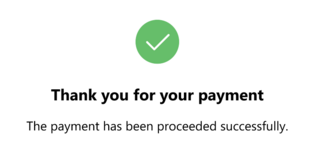
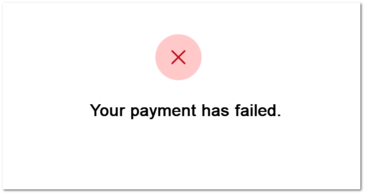
Once the user fills relevant information on the payment acquirer page and proceed payment, then it will redirect to the landing page with payment success or failed message.
1. Please refer below for success message.
2. If the payment was not success due to acquire failure, then below message would be shown.
2. If the payment was not success due to opuspay failure, then below message would be shown.
Note: In transaction summary, Status and Due To will be updated.
3. When the user is directing to the payment gateway, it would show below message:
Message -> Please wait while you are redirecting to the payment gateway.
3. When the system is processing the payment then it would show below message:
Message -> Please wait... Your payment is processing.
When user does a payment, the system displays a successful or unsuccessful message. After waiting time of 4 seconds, user automatically redirects back to the widget.