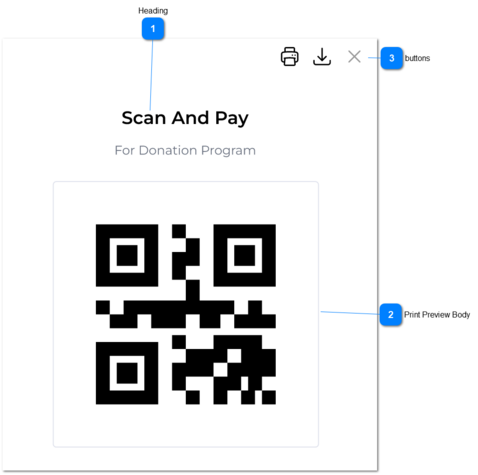
Once the user clicks on Print Preview button from View QR Payment screen, the user would be directed to 'QR Print Preview' screen.
If the user go back from this page, then the user would be directed to the 'View QR Payment Screen'.
 Heading
|
Type
|
Notes
|
Rules
|
Compulsory
|
Format
|
Edit
|
Size
|
Default
|
Error Message
|
|
Text
|
|
Name of the heading would be given name in the QR Program.
|
-
|
-
|
-
|
-
|
-
|
-
| |
|
 Print Preview Body
|
Type
|
Notes
|
Rules
|
Compulsory
|
Format
|
Edit
|
Size
|
Default
|
Error Message
|
|
|
|
Print Preview body would visible in three sections.
1. Program Name
2. Program Description
3. QR image
|
-
|
-
|
-
|
-
|
-
|
-
|
|
Text
|
Program Name
|
Relevant program name would be visible here as a centered heading and this is underlined.
|
-
|
-
|
-
|
|
|
|
|
Text
|
Description
|
Relevant program description would be visible here.
|
-
|
-
|
-
|
|
|
|
|
Image
|
QR
|
Relevant QR would be visible here as a image.
|
-
|
-
|
-
|
|
|
| |
|
 buttons
|
Type
|
Notes
|
Rules
|
Compulsory
|
Format
|
Edit
|
Size
|
Default
|
Error Message
|
|
Following buttons should be given.
|
|
Button
|
Print
|
Once the user clicks on this, QR would be printed.
|
-
|
-
|
-
|
-
|
-
|
-
|
|
Button
|
Download
|
Once the user clicks on this, QR would be downloaded as a PDF.
|
-
|
-
|
-
|
-
|
-
|
-
|
|
Button
|
Close
|
Once the user clicks on this, this popup would be closed and the user would be directed to 'View QR Payment Program'.
|
-
|
-
|
-
|
-
|
-
|
-
| |
|