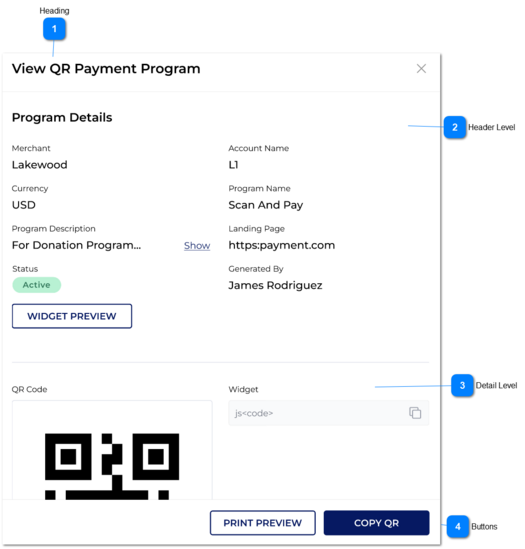
Once the user clicks on View icon from action column in QR payment screen, the user can login to 'View QR Payment Program'.
If the user go back from this page, then the user would be directed to the 'QR Payment Screen'.
 Heading
|
Type
|
Notes
|
Rules
|
Compulsory
|
Format
|
Edit
|
Size
|
Default
|
Error Message
|
|
Text
|
|
Name of the page is 'View QR Payment Program'.
|
-
|
-
|
-
|
-
|
-
|
-
| |
|
 Header LevelAny of these fields cannot be edited.
|
Type
|
Notes
|
Rules
|
Compulsory
|
Format
|
Edit
|
Size
|
Default
|
Error Message
|
|
Under Program Details, following would be shown:
|
|
Text-field
|
Program Name
|
The user can view the given program name here.
|
-
|
-
|
-
|
-
|
-
|
-
|
|
Text-field
|
Program Description
|
The user can view the given program description here.
|
-
|
-
|
-
|
-
|
-
|
-
|
|
Text-field
|
Merchant
|
User cannot edit this field value.
|
-
|
-
|
-
|
-
|
-
|
-
|
|
Text-field
|
Account Name
|
User cannot edit this field value.
|
-
|
-
|
-
|
-
|
-
|
-
|
|
Text-field
|
Currency
|
User cannot edit this field value.
|
-
|
-
|
-
|
-
|
-
|
-
|
|
Text-field
|
Landing Page
|
User cannot edit this field value.
|
-
|
-
|
-
|
-
|
-
|
-
|
|
Text-field
|
Program Status
|
The user can view the given status here.
|
-
|
-
|
-
|
-
|
-
|
-
|
|
Text-field
|
Generated By
|
The user account which generated the QR program captured here.
|
-
|
-
|
-
|
-
|
-
|
-
|
|
Button
|
|
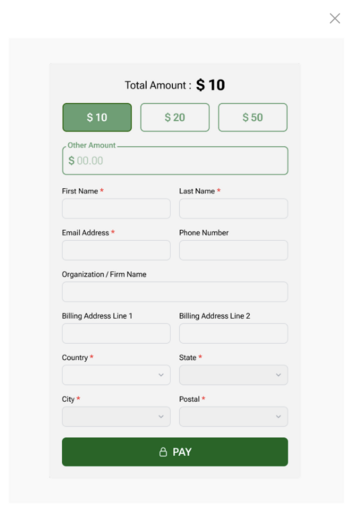
If the user clicks this button then the system pop up the screen for previewing the customised widget.
|
-
|
-
|
-
|
-
|
-
|
-
|
|
|
 Detail LevelAny of these fields cannot be edited.
|
Type
|
Notes
|
Rules
|
Compulsory
|
Format
|
Edit
|
Size
|
Default
|
Error Message
|
|
Image
|
QR Image
|
1. Generated QR would be displayed as an image.
2. Heading of the QR image would be 'QR Code'.
|
-
|
-
|
-
|
-
|
-
|
-
|
|
Text-field
|
Widget
|
1. This widget can be viewed.
2. If the copy Icon is clicked then, the widget can be copied and an informational message would be shown.
|
-
|
-
|
-
|
-
|
-
|
2. Widget Copied.
| |
|
 Buttons
|
Type
|
Notes
|
Rules
|
Compulsory
|
Format
|
Edit
|
Size
|
Default
|
Error Message
|
|
Buttons
|
Print Preview
|
Once the user clicks on this button, then 'Print Preview' screen would be loaded through the browser.
|
-
|
-
|
-
|
-
|
-
|
-
|
|
Buttons
|
Copy QR
Status of the QR program would not be affected for copying the QR.
|
1A. Once the user clicks on this button, QR would be copied as an image (in .png format).
|
-
|
-
|
-
|
-
|
-
|
1A. QR copied as an image successfully.
| |
|