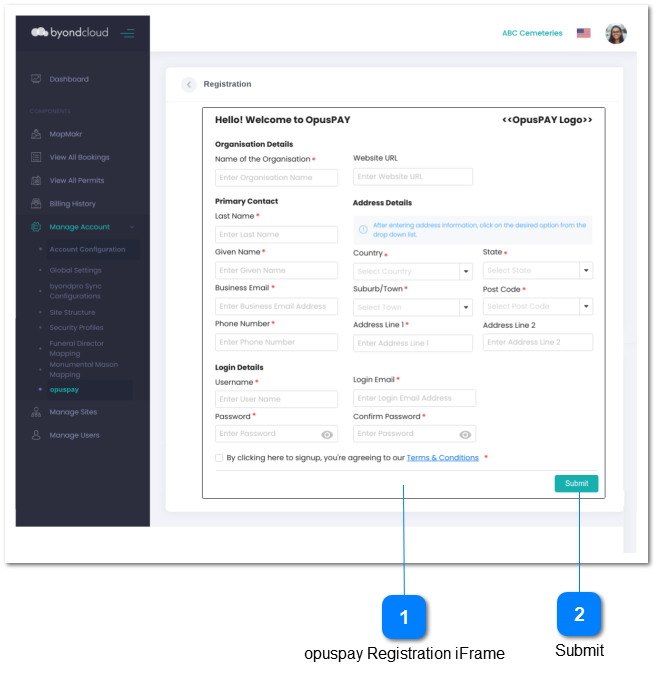
Function to allow the byondcloud administrator to register with opuspay.
As per the business rules related to the opuspay registration form, if the registration form is launched from byondcloud, registration details should be read from the Account Configuration section of the Cemetery/ FH portal to savethe user from re-entering their business details again.
If registration form is launched from byondcloud, a function is needed to update byondcloud with registration details. First update is on registration to update the "Registration Status" to "Pending". Then, on approval, send the Merchant ID and API Credentials. If rejected, update "Registration Status" to "Rejected".
1. Check the rules mentioned in each input element:
(a) If more than one element is blank, highlight all blank elements and show inline error message
(b) When finding the first element with incorrect/invalid data, produce the appropriate error message related to that element and stop checking remaining elements. User must correct the element and click Submit button again.
2. The captured opuspay registration details are written to the database.
3. Set Merchant Status to Pending.
opuspay --> Registrations --> Status
4. If the form is launched from byondcloud, send Registration Status of "Pending" to byondcloud and indicate in the opuspay database that the registration came from byondcloud.
4a. If the byondcloud account is synced with byondpro, the 'Registration' button within byondpro should be deactivated and the user should not be allowed to re-register since registration has already been initiated/ completed through byondcloud.
4b. The 'Registration' button within byondcloud should also be deactivated once the user's registration has been approved.
5. If the form is launched from byondpro, send Registration Status of "Pending" to byondpro and indicate in the opuspay database that the registration came from byondpro.
4a. If the byondpro account is synced with to byondcloud, the 'Registration' button within byondcloud should be deactivated and the user should not be allowed to re-register since registration has already been initiated/ completed through byondpro.
4b. The 'Registration' button within byondpro should also be deactivated once the user's registration has been approved.
6. A 'thank you for registering' email is sent by opuspay to the provided business email address. Content of the email body can be found here.
7. Display Registration Thank You screen. Refer to the specification for this screen here.
-
-
-
-
1(a). Highlighted fields are required, please fill in the appropriate details in the highlighted fields.
1(b). Check the rule mentioned in each input elements and show inline error message for first invalid input found.