OpusPAY
User guide
×
Menu
Index

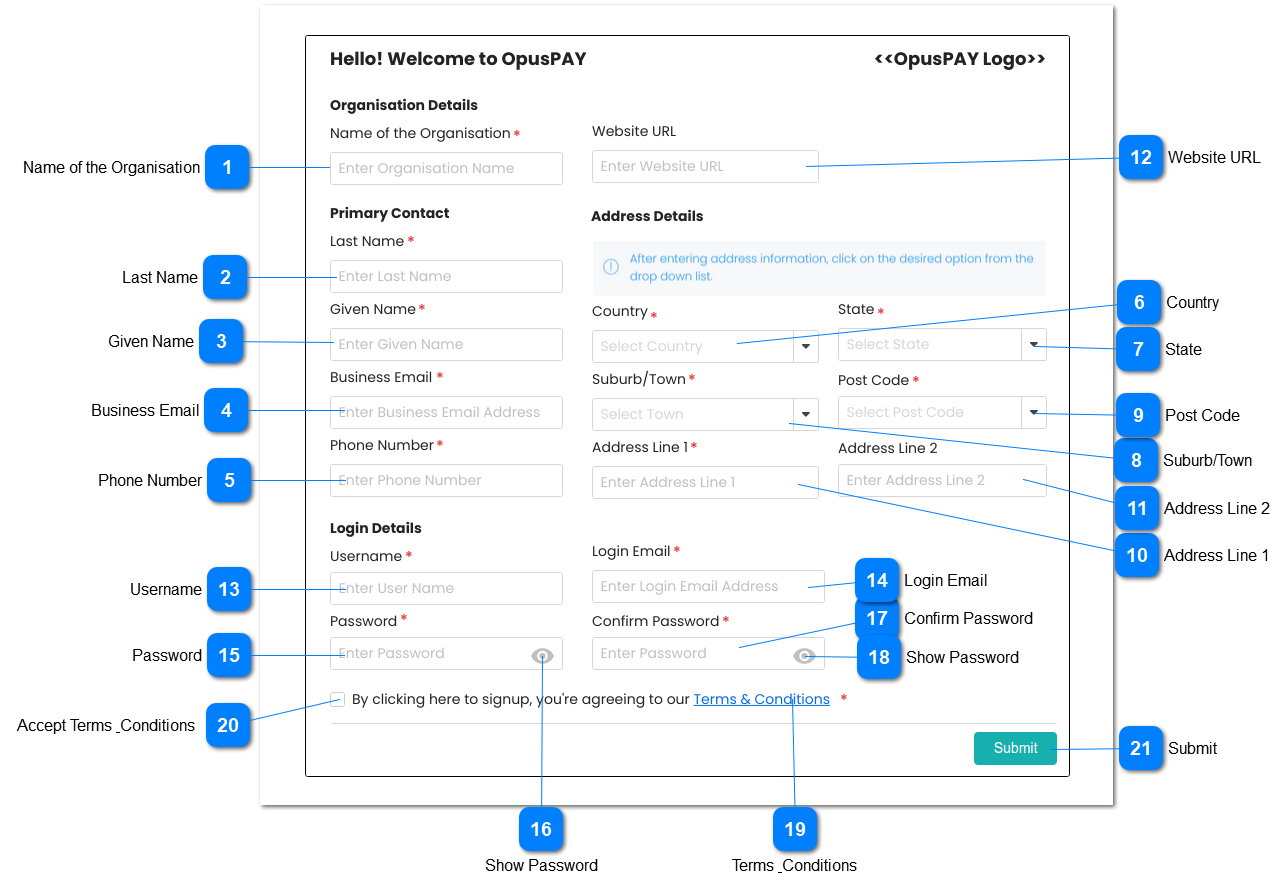
opuspay Registration Form

The opuspay registration form allows any organisation FD/CEM/CREM to register for a merchant account with opuspay. The form should load as a secure pop-up from the opuspay app/server
 
If the registration form is launched from byondpro, registration details should be read from the Contact Details block within the Licence Key Details section in byondpro to save the user from re-entering their business details again. The Licence Key Details section in byondpro can be accessed using the following navigation path in byondpro: Administration -> System -> Licence Key Details.
 
If the registration form is launched from byondcloud, registration details should be read from the Account Configuration section of the Cemetery portal to save the user from re-entering their business details again.
 
If registration form is launched from either byondpro or byondcloud, a function is needed to update byondpro or byondcloud with registration details. First update is on registration to update the "Registration Status" to "Pending". Then, on approval, send the Merchant ID and API Credentials. If rejected, update "Registration Status" to "Rejected".
 
 
opuspay Registration Form
1

Name of the Organisation

 
Type
Notes
Rules
Compulsory
Format
Edit
Size
Default
Error Message
Text
-
1. This should allow the user to enter the name of the organisation.
 
2. This should display an inline error message if the user clicks the Submit button without populating this field.
Y
-
Y
255
1. This should default to the name of the organisation from the Account Configuration section if the form is launched from byondcloud.
 
2. This should default to the name of the organisation from the Licence Key Details section if the form is launched from byondpro.
2. Please enter the organisation's name.
2

Last Name

 
Type
Notes
Rules
Compulsory
Format
Edit
Size
Default
Error Message
Text
-
1. This should allow the user to enter the Last Name of the primary contact of the organisation.
 
2. This should display an inline error message if the user clicks the Submit button without populating this field.
Y
-
Y
255
1. This should default to the Last Name of the primary contact from the Account Configuration section if the form is launched from byondcloud.
 
2. This should default to the Last Name of the primary contact from the Licence Key Details section if the form is launched from byondpro.
2. Please enter the primary contact's Last Name.
3

Given Name

 
Type
Notes
Rules
Compulsory
Format
Edit
Size
Default
Error Message
Text
-
1. This should allow the user to enter the Given Name of the primary contact of the organisation.
 
2. This should display an inline error message if the user clicks the Submit button without populating this field.
 
 
Y
-
Y
255
1. This should default to the Given Name of the primary contact from the Account Configuration if the form is launched from byondcloud.
 
2. This should default to Given Name of the primary contact from the Licence Key Details section if the form is launched from byondpro.
2. Please enter the primary contact's Given Name.
4

Business Email

 
Type
Notes
Rules
Compulsory
Format
Edit
Size
Default
Error Message
Text
-
1. This should allow the user to enter an email address. Could be the email address of the primary contact or a general email address such as info@organisation.com
 
2. This email address will be the one used when sending emails to the merchant from opuspay.
 
3. This should display an inline error message if the user clicks the Submit button without populating this field.
Y
Email
Y
255
1. This should default to the Email Address of the account contact from the Account Configuration if the form is launched from byondcloud.
 
2. This should default to the Email of the primary contact from the Licence Key Details section if the form is launched from byondpro.
3. Please enter the business email address.
5

Phone Number

 
Type
Notes
Rules
Compulsory
Format
Edit
Size
Default
Error Message
Text
-
1. This should allow the user to enter the Phone Number of the primary contact of the organisation.
 
2. This should display an inline error message if the user clicks the Submit button without populating this field.
Y
-
Y
255
1. This should default to the Phone Number of the account contact from the Account Configuration if the form is launched from byondcloud.
 
2. This should default to the Phone of the primary contact from the Licence Key Details section if the form is launched from byondpro.
2. Please enter the primary contact's phone number.
6

Country

 
Type
Notes
Rules
Compulsory
Format
Edit
Size
Default
Error Message
Combo-Box
Copy country/state/town/postcode database currently used in byondcloud to opuspay so that we can utilize the same logic and code when selecting/adding address details.
1. This should allow the user to select a Country. List of available countries comes from the Countries & Currencies list set in the Admin Portal. Refer to the specifications for that screen here.
 
2. This should display an inline error message if the user clicks the Submit button without populating this field.
Y
-
Y
255
1. This should default to the Country of the organisation from the Account Configuration if the form is launched from byondcloud.
 
2. This should default to the Country of the organisation from the Licence Key Details section if the form is launched from byondpro.
2. Please enter the organisation's Country.
7

State

 
Type
Notes
Rules
Compulsory
Format
Edit
Size
Default
Error Message
Combo-Box
-
1. This should allow the user to select a State.
 
2. Use the same Address Component and logic as per byondcloud registration page.
 
3. This should display an inline error message if the user clicks the Submit button without populating this field.
Y
-
Y
255
1. This should default to the State of the organisation from the Account Configuration if the form is launched from byondcloud.
 
2. This should default to the State of the organisation from the Licence Key Details section if the form is launched from byondpro.
3. Please enter the organisation's State.
8

Suburb/Town

 
Type
Notes
Rules
Compulsory
Format
Edit
Size
Default
Error Message
Combo-Box
-
1. This should allow the user to select a Suburb/Town.
 
2. Use the same Address Component and logic as per byondcloud registration page.
 
3. This should display an inline error message if the user clicks the Submit button without populating this field.
Y
-
Y
255
1. This should default to the Suburb/Town of the organisation from the Account Configuration if the form is launched from byondcloud.
 
2. This should default to the Suburb/Town of the organisation from the Licence Key Details section if the form is launched from byondpro.
3. Please enter the organisation's Suburb/Town.
9

Post Code

 
Type
Notes
Rules
Compulsory
Format
Edit
Size
Default
Error Message
Combo-Box
-
1. This should allow the user to select a Post Code.
 
2. Use the same Address Component and logic as per byondcloud registration page.
 
3. This should display an inline error message if the user clicks the Submit button without populating this field.
Y
-
Y
255
1. This should default to the Post Code of the organisation from the Account Configuration if the form is launched from byondcloud.
 
2. This should default to the Post Code of the organisation from the Licence Key Details section if the form is launched from byondpro.
3. Please enter the organisation's Post Code.
10

Address Line 1

 
Type
Notes
Rules
Compulsory
Format
Edit
Size
Default
Error Message
Text
-
1. This should allow the user to enter Address Line 1.
 
2. This should display an inline error message if the user clicks the Submit button without populating this field.
Y
-
Y
255
1. This should default to the Address Line 1 of the organisation from the Account Configuration if the form is launched from byondcloud.
 
2. This should default to the Address Line 1 of the organisation from the Licence Key Details section if the form is launched from byondpro.
2. Please enter the organisation's Address Line 1.
11

Address Line 2

 
Type
Notes
Rules
Compulsory
Format
Edit
Size
Default
Error Message
Text
-
1. This should allow the user to enter Address Line 2.
 
 
N
-
Y
255
1. This should default to the Address Line 2 of the organisation from the Account Configuration if the form is launched from byondcloud.
 
2. This should default to the Address Line 2 of the organisation from the Licence Key Details section if the form is launched from byondpro.
-
12

Website URL

 
Type
Notes
Rules
Compulsory
Format
Edit
Size
Default
Error Message
Text
-
1. This should allow the user to enter website URL.
N
Web URL
Y
255
-
-
13

Username

 
Type
Notes
Rules
Compulsory
Format
Edit
Size
Default
Error Message
Text
-
1. This should allow the user to enter a desired username for an organisation's opuspay administrator.
 
2. A username must be unique.
 
3. This should display an inline error message if the user clicks the Submit button without populating this field.
 
4. This should display an inline error message if the user clicks the Submit button and the desired username already exists.
Y
-
Y
255
-
3. Please enter a Username.
 
4. Username already exists. Please enter a different username.
14

Login Email

 
Type
Notes
Rules
Compulsory
Format
Edit
Size
Default
Error Message
Text
-
1. This should allow the user to enter an email address. Could be the same as business email in control #4.
 
2. This email address will be the one used when the user logs into opuspay.
 
3. This should display an inline error message if the user clicks the Submit button without populating this field.
Y
Email
Y
255
1. If this form is launched from the email sent via the initial registration screen, this should default to the Email Address used in the initial registration screen. Refer to the specification of this screen here.
 
3. Please enter the login email address.
15

Password

 
Type
Notes
Rules
Compulsory
Format
Edit
Size
Default
Error Message
Text
-
1. This allows the user to enter a desired password for an organisation's opuspay administrator
 
2. Passwords must be salted and hashed
 
3. This should display an inline error message if the user clicks the Submit button without populating this field.
Y
-
Y
255
-
3. Please enter a Password.
16

Show Password

 
Type
Notes
Rules
Compulsory
Format
Edit
Size
Default
Error Message
Icon
 
1. This should allow the user to view their hashed password in a readable format if clicked.
 
2. This should allow the user to revert to hashed password from readable format if clicked.
-
-
-
-
-
-
17

Confirm Password

 
Type
Notes
Rules
Compulsory
Format
Edit
Size
Default
Error Message
Text
-
1. This allows the user to re-enter and confirm the desired user password for an organisation's opuspay administrator
 
2. Passwords must be salted and hashed
 
3. This should display an inline error message if the user clicks the Submit button without populating this field.
 
4. This should display an inline error message if the user clicks the Submit button and the password entered in the Password field (control #15) does not match with the password entered in this field.
Y
-
Y
255
-
3. Please enter a Password.
 
4. Passwords don't match. Please confirm your password again.
18

Show Password

 
Type
Notes
Rules
Compulsory
Format
Edit
Size
Default
Error Message
Icon
-
1. This should allow the user to view their hashed password in a readable format if clicked.
 
2. This should allow the user to revert to hashed password from readable format if clicked.
-
-
-
-
-
-
19

Terms & Conditions

 
Type
Notes
Rules
Compulsory
Format
Edit
Size
Default
Error Message
Hyperlink
-
1. This should open the published (latest active version) Terms & Conditions in a modal for the user to read. The Terms and Conditions are set in the opuspay Administrator portal and the specification for that function can be found here.
-
-
-
-
-
-
20

Accept Terms & Conditions

 
Type
Notes
Rules
Compulsory
Format
Edit
Size
Default
Error Message
Checkbox
-
1. This should allow the user to check the box indicating that they have read and understood the opuspay terms and conditions.
 
2. This should display an inline error message if the user clicks the Submit button without checking the check-box.
Y
-
Y
-
-
2. The terms and conditions must be accepted before the registration can be submitted
21

Submit

 
Type
Notes
Rules
Compulsory
Format
Edit
Size
Default
Error Message
Button
 
1. Check the rules mentioned in each input element:
(a) If more than one element is blank, highlight all blank elements and show inline error message
 
(b)When finding the first element with incorrect/invalid data, produce the appropriate error message related to that element and stop checking remaining elements. User must correct the element and click Submit button again.
 
2. The captured opuspay registration details are written to the database.
 
3. Set Merchant Status to Pending.
 
4. If the form is launched from byondcloud, send Registration Status of "Pending" to byondcloud and indicate in the opuspay database that the registration came from byondcloud.
 
5. If the form is launched from byondpro, send Registration Status of "Pending" to byondpro and indicate in the opuspay database that the registration came from byondpro.
 
6. A 'thank you for registering' email is sent by opuspay to the provided business email address. Content of the email body can be found here.
 
7. Display Registration Thank You screen. Refer to the specification for this screen here.
-
-
-
-
 
1(a). Highlighted fields are required, please fill in the appropriate details in the highlighted fields.
 
1(b). Check the rule mentioned in each input elements and show inline error message for first invalid input found.