OpusPAY
User guide
×
Menu
Index

Merchant Reports

 
Merchant Reports
1

Reports Menu

1. Reports Menu
Type
Notes
Rules
Compulsory
Format
Edit
Size
Default
Error Message
Menu
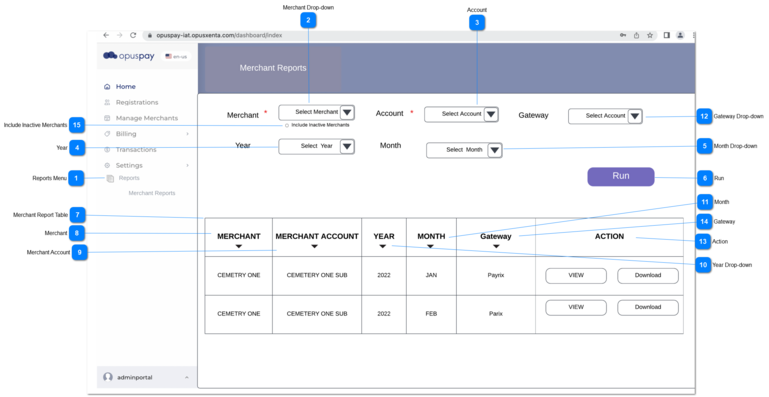
The merchant statement will be created per merchant (including parent merchant), regardless the status of  'Invoice Account Directly' is checked or not in merchant account details (opuspay merchant login -> accounts -> view account).
1. There should be a new menu called Reports in the Admin login.
 
2. Once the user clicks on 'Reports' then it will expand to display a 'Merchant Reports' sub menu.
 
3. The user should click on 'Merchant Reports' sub menu to load its screen.
-
-
-
-
-
-
2

Merchant Drop-down


Type
Notes
Rules
Compulsory
Format
Edit
Size
Default
Error Message
Single select Drop-down
-
1. All the active merchants will be listed in the drop-down.
 
a. By default all active merchants will be listed in the drop-down, if the user wants to have inactive users in drop-down, then the user needs to check the checkbox of 'Include Inactive Users'.
 
2. The user should to pick a merchant from the given list.
 
3. According to the selected merchant, relevant accounts will be loaded to Account drop down.
 
4. If the merchant is not selected, then the system shows an error message.
Y
-
-
-
-
4. Please select the merchant.
3

Account


Type
Notes
Rules
Compulsory
Format
Edit
Size
Default
Error Message
Single Select Drop-down
-
1. According to the selected merchant, relevant active accounts will be loaded to Account drop down.
 
1a. For the account selection, both parent and sub accounts should be displayed under drop-down selection.
 
2. The user should pick an account from the given list.
 
3. If the Account is not selected, then the system shows an error message.
Y
-
-
-
-
3.Please select the account.
4

Year


Type
Notes
Rules
Compulsory
Format
Edit
Size
Default
Error Message
Single Select Drop-down
-
1. The current year will be listed in the drop down.
 
1a. If data exists for past years, then the past year(s) should also be listed.
 
2. The user can select a relevant year in order to check the report status.
N
-
-
-
-
-
5

Month Drop-down


Type
Notes
Rules
Compulsory
Format
Edit
Size
Default
Error Message
Single Select Drop-down
-
1. Merchant statements are generated in the first week of every month for the prior month, therefore a month will be displayed in the drop-down once the first week of following month is passed.
 
Ex:
January will be displayed once the first week of February has passed.
N
-
-
-
-
-
6

Run


Type
Notes
Rules
Compulsory
Format
Edit
Size
Default
Error Message
Button
-
1. Once the user clicks on RUN button, system checks the all the validations mentioned above and shows the relevant message if required.
 
1a. If all the mandatory selections are given, then data is loaded to the table.
N
-
-
-
-
-
7

Merchant Report Table

7. Merchant Report Table
Type
Notes
Rules
Compulsory
Format
Edit
Size
Default
Error Message
Table
-
 
2. Merchant , Merchant Account, Year, Month and Gateway columns can be sort-able according to ascending and descending order.
N
-
-
-
-
-
8

Merchant


Type
Notes
Rules
Compulsory
Format
Edit
Size
Default
Error Message
Table Column
-
1. The table will be filtered/ display records based on the merchant selected.
-
-
-
-
-
-
9

Merchant Account


Type
Notes
Rules
Compulsory
Format
Edit
Size
Default
Error Message
Table Column
-
1. The table will be filtered/ display records based on the merchant account.
-
-
-
-
-
-
10

Year Drop-down


Type
Notes
Rules
Compulsory
Format
Edit
Size
Default
Error Message
Table Column
-
1.  The table will be filtered/ display records based on the year.
-
-
-
-
-
-
11

Month


Type
Notes
Rules
Compulsory
Format
Edit
Size
Default
Error Message
Table Column
-
 1.  The table will be filtered/ display records based on the month.
-
-
-
-
-
-
12

Gateway Drop-down


Type
Notes
Rules
Compulsory
Format
Edit
Size
Default
Error Message
Multi- select drop-down
-
 1. According to the values selected within the Merchant and Account drop-downs, the values for the 'Gateway' drop-down will be populated.
 
2. Multiple gateways can be selected at a time.
N
-
-
-
-
-
13

Action


Type
Notes
Rules
Compulsory
Format
Edit
Size
Default
Error Message
Table Column
-
1. Two buttons will be displayed within the action column buttons will be displayed as follows.
 
1a. If the report is generated then a 'View' button and a download button should both be displayed. Once the user clicks on view button the merchant report will open in View mode. If the user clicks on download button then the PDF version will be downloaded to the user's PC.
-
-
-
-
-
-
14

Gateway

14. Gateway
Type
Notes
Rules
Compulsory
Format
Edit
Size
Default
Error Message
Table Column
-
1. The table will be filtered/ display records based on the gateway selected through the 'Gateway' filter.
-
-
-
-
-
-
15

Include Inactive Merchants

 
Type
Notes
Rules
Compulsory
Format
Edit
Size
Default
Error Message
Check-Box
-
1. If the user checks this check box, inactive merchants will be loaded in merchant dropdown
-
-
-
-
-
-