To properly display this page you need a browser with JavaScript support.
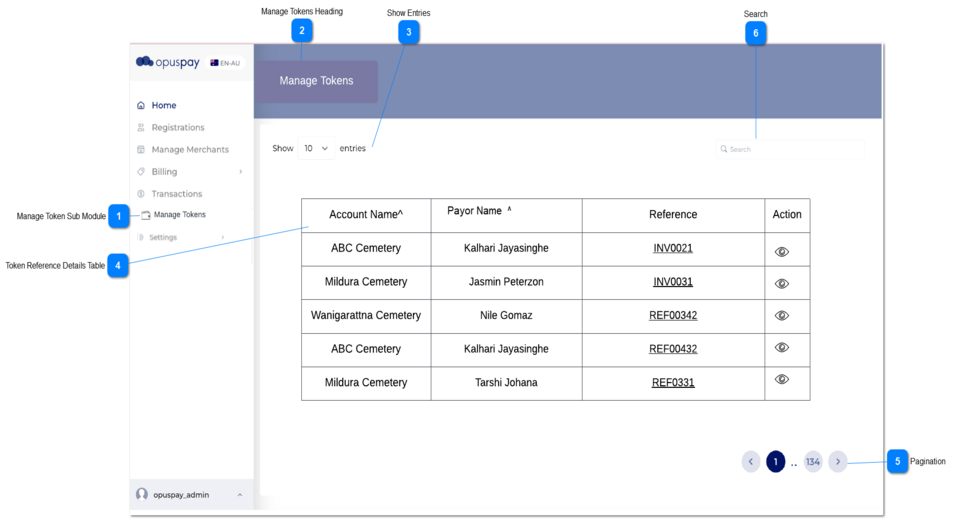
Manage Token Sub Module
Type
Notes
Rules
Compulsory
Format
Edit
Size
Default
Error Message
Sub Module
Pre - Condition
The user should have registered with opuspay.
The user should have used recurring payment through an opuspay integrated application (byondcloud/ byondpro)
Note: This sub module should come under security profile functions.
Path: Settings -> Security -> Security Profiles (Select a security profile ) -> Functions (The user can either check or uncheck 'Manage Token' function from here)
Existing security profile behavior would apply.
1. If the 'Manage Token' module is assigned to admin through a user profile, then the 'Manage Token' sub module would display in the navigation panel.
2. Once the user clicks on 'Manage Tokens' from the navigation panel, then the manage token screen would load.
2.a By Default, newest records would be displayed in the grid.
-
-
-
-
-
-
Manage Tokens Heading
Type
Notes
Rules
Compulsory
Format
Edit
Size
Default
Error Message
Text
1. This is the heading of the page.
-
-
-
-
-
-
Show Entries
Type
Notes
Rules
Compulsory
Format
Edit
Size
Default
Error Message
drop-down
1. This drop-down is used to filter the no. of records to be displayed in the table.
1.a Existing show entries rule in opuspay would apply here.
-
-
-
-
-
-
Token Reference Details Table
Type
Notes
Rules
Compulsory
Format
Edit
Size
Default
Error Message
Table
1. By default, the recording would load to a following criteria:
1.A If the account doesn't have any records related to tokenized payments, then the table would not display.
The screen would load and following informative message would display.
2. When the records loads, the document number which was recently performed for a recurring payment transaction would load here.
2a. When the user clicks on sorting icon in column, the data can be sorted according to ascending and descending order.
1.This table shows the following information related to a tokenized payments.
2.The columns can be sorted by clicking the sorting icon in column name.
-
-
-
-
-
1.A " Recurring payments records are not available."
Column
Name of the column: Account Name
The account names would display here.
The accounts which should be shown in the grid would be limited according to the account hierarchy .
Column
Name of the column: Payer Name
The payer names would display here.
Column
Name of the column: Reference
the transaction reference number will be displayed
If the user clicks on the reference number, /the open transaction summary of the particular transaction is displayed
Column
Name of the column: Action
Pagination
Type
Notes
Rules
Compulsory
Format
Edit
Size
Default
Error Message
Button
-
1. This allows the users to paginate through the merchant account grid records.
2. To determine the number of pagination buttons to display please follow the current logic that is being used in opuspay.
-
-
-
-
-
-
Search
Type
Notes
Rules
Compulsory
Format
Edit
Size
Default
Error Message
Button
-
1. Whatever given value here would be searched.
2. If there is no records, system would show a validation message.
-
-
-
-
-
No Records available