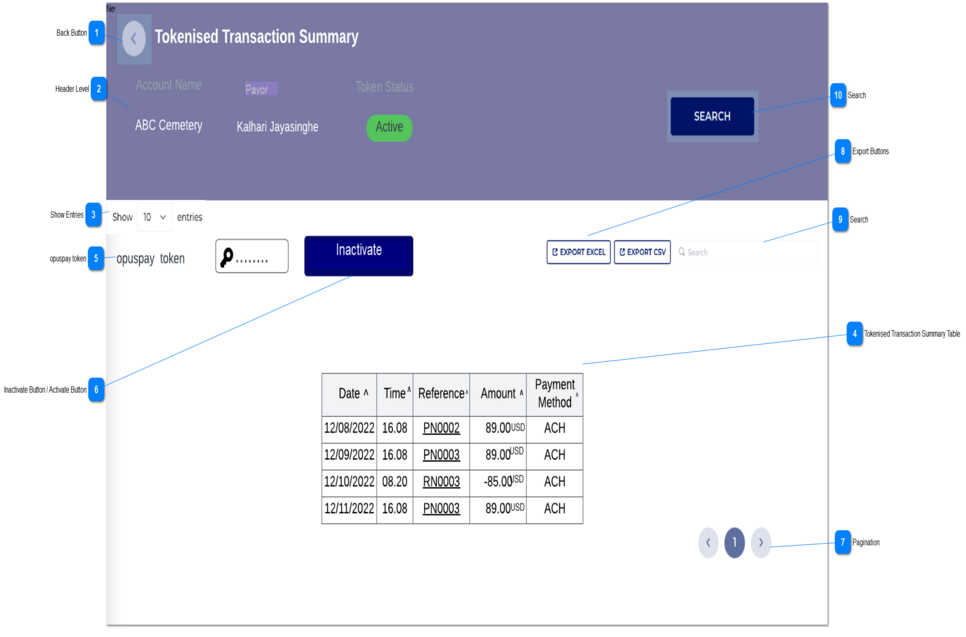
1. The Name of the page is ' Tokenised Transaction Summary'.
2. In the header level the following information is displayed.
Account Name
Payor
Status
-
-
-
-
-
-
Account Name
Text-filed
The relevant account name is displayed here.
Payer
The relevant payer of the transaction is displayed here.
Status
The relevant status of the token is displayed here.
The token status values are as follows.
1. Active - The token is in the activated state and can be used for recurring payment transactions.
2. Inactive - The token is inactivated through an API call to avoid further tokenised transactions. This inactive token can be re-activated through an API call if necessary.
3. Expired - The token is expired automatically and can not be used for tokenised transactions.
All the columns are sort-able according to ascending and descending order.
By default the data would load from newest to oldest.
1. The tokenised transaction summary table shows below columns.
Date
Time
Reference
Amount
Payment Method
-
-
-
-
-
-
Column
Name of the column: Date
The date when the transaction is processed displays in the Tokenised Transaction Summary screen needs to update the date formate as 'dd-mm-yyyy' format.
Column
Name of the column: Time
The transaction processed time uses the 24hr clock format
The time format would be HH.MM.
Column
Name of the column: Reference
The transaction related reference is captured here.
This is a hyperlink, once the user clicks on this hyperlink, it loads the 'Transaction Summary' Screen.
Column
Name of the column: Amount
The amount relevant to a particular transaction is displayed here.
The relevant currency and related amount is displayed here to two decimal places. Example USD 85.00.
If there is a refund based on the token, a minus value captured and is displayed as an example -USD 85.00
Column
Name of the column: Payment Method
The transaction based on payment method is displayed here.
The following conditions apply to the 'Activate/Inactivate Button' . or 'Inactive Button'.
1. The 'Inactivate" button is displayed when the token status is 'Active'.
2. The 'Activate' button will display when the token status is 'Inactive' and 'not expired'.
3. If the token status is 'Expired', then the Action Button is not displayed.
Overview. The state of the token determines the action to be displayed on the button. This is a decision button. If the the token is "active" the button presents the "Inactivate" option. If the Token status in "inactive" the button presents the "activate" button. If the token has expired no button is displayed
In all cases all selection and decision activity needs to be captured in the transaction change audit log
1. If the Status of the Token is "active" and the user selects the " inactivate" action, a warning message is displayed. Refer here.
The warning message presents two buttons "Yes" and "No"
Yes -> If the user clicks on the "yes " button the token state is set to "inactive." (the status is updated in the Database and the token status in header level is also updated.)
No-> If the user clicks on the "No" button, the token remains in its current status.
2. If the Token is "inactive" the user is presented with the "Activate" option. If the user selects the "Activate" option the following warning message will be displayed:
"You are about to activate a token.
Are you sure you want to continue?"
With the warning message two option button are presented ; "Yes" and "No"
Yes -> If the user selects "Yes" then the token is Activated. The status is updated in the Database the token status in header level is updated to reflect the change.
No-> If the user selects the "No option", then the token maintains its current status.
The transaction audit log is updated to capture the "activate" transaction