To properly display this page you need a browser with JavaScript support.
Accounts
Type
Notes
Rules
Compulsory
Format
Edit
Size
Default
Error Message
Button
-
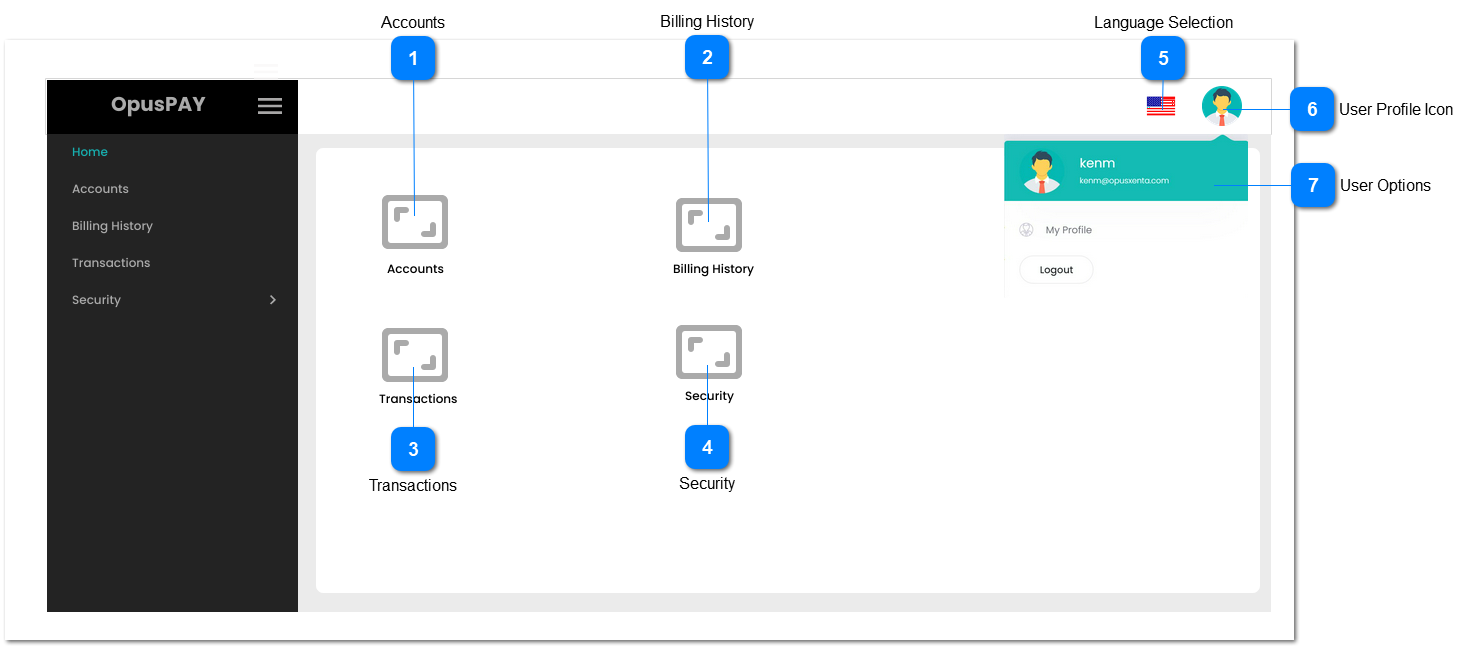
1. This should navigate user to Accounts function when clicked. Refer to the specification for that screen here .
-
-
-
-
-
-
Billing History
Type
Notes
Rules
Compulsory
Format
Edit
Size
Default
Error Message
Button
-
1. This should navigate user to Billing History function when clicked. Refer to the specification for that screen here .
-
-
-
-
-
-
Transactions
Type
Notes
Rules
Compulsory
Format
Edit
Size
Default
Error Message
Button
-
1. This should navigate user to Transactions function when clicked. Refer to the specification for that screen here .
-
-
-
-
-
-
Security
Type
Notes
Rules
Compulsory
Format
Edit
Size
Default
Error Message
Button
-
1. This should navigate user to Security Profile function when clicked. Refer to the specification for that screen here .
-
-
-
-
-
-
Language Selection
Type
Notes
Rules
Compulsory
Format
Edit
Size
Default
Error Message
Icon
-
1. Click this to display available language options.
2. When selecting a language option from the list, change labels to display values as per the linked file.
3. Should function the same as per byondcloud language selection.
-
-
-
-
-
-
User Profile Icon
Type
Notes
Rules
Compulsory
Format
Edit
Size
Default
Error Message
Icon
-
1. This should display profile image selected in the Security -> Users -> View User (Details) screen. Refer to the specification for that screen here .
2. Click this to display user options. Refer to number 8.
3. Click this to hide the user options if they are showing.
-
-
-
-
-
-
User Options
Type
Notes
Rules
Compulsory
Format
Edit
Size
Default
Error Message
Menu with hyperlink and button
-
1. This menu will display the username and email address of the user logged in.
2. Will display a hyperlink called "My Profile" that when clicked will take the user to their profile details. Refer to the specification for that screen here .
3. Clicking on the Logout button will log the user out of OpusPay and will display the login page. Refer to the specification for that screen here .
-
-
-
-
-
-