OpusPAY
User guide
×
Menu
Index

Gateway Fee Mapping

Gateway Fee Mapping
1

Fee Mapping


Type
Notes
Rules
Compulsory
Format
Edit
Size
Default
Error Message
Tab
-
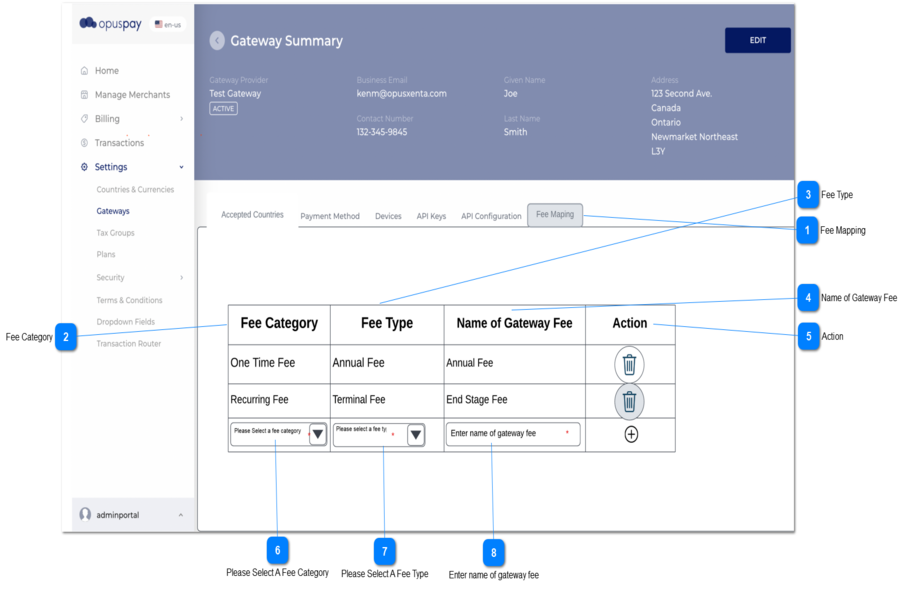
1. Once the user clicks on Gateways sub-menu in Settings side menu, then Fee Mapping tab will be visible.
-
-
-
-
-
-
2

Fee Category


Type
Notes
Rules
Compulsory
Format
Edit
Size
Default
Error Message
Column
-
1. The Fee Category defined in Fee Definition will appear here.
 
2. Existing records will be shown in the table.
Y
-
-
-
-
-
3

Fee Type


Type
Notes
Rules
Compulsory
Format
Edit
Size
Default
Error Message
Column
 
1. Fee Type defined in Fee Definition will appear here.
 
2. System will show relevant values under Fee Type drop down once the user select a Fee Category.
Y
-
-
-
 
-
4

Name of Gateway Fee


Type
Notes
Rules
Compulsory
Format
Edit
Size
Default
Error Message
Column
-
1. Existing Name of Gateway Fees according to the Fee Category and Fee Type should be shown in the grid.
 
2. The admin should give the name which the merchant uses for the gateway as the name of gateway fee.
Y
-
-
-
-
-
5

Action


Type
Notes
Rules
Compulsory
Format
Edit
Size
Default
Error Message
Column
-
1. The Delete button will be shown against each existing record in the table.
 
1a. From the back-end, the system will check whether a record is currently using in the gateway, if it is using then the delete button should be inactive else it should be active.
 
1b. A notification message should also be displayed once the user hovers over a disabled delete button.
 
1c. Once the user clicks on the delete button, then Delete confirmation message will be displayed.
 
2. Add button will be always be shown as the last row of the table.
 
2a. This last row can be used to add a new record to the table by adding the Fee Category, Fee Type and Name of the Gateway.
 
2b. To add a record to the table, the user should click on Add button in last row once the Fee Category, Fee Type and Name of the Gateway are added to the relevant fields.
 
3. Above conditions will be checked and  warning messages will be displayed once the user clicks on Add button.
--
-
-
-
-
1b. You won't be able to delete this record, as it is linked with a gateway.
6

Please Select A Fee Category


Type
Notes
Rules
Compulsory
Format
Edit
Size
Default
Error Message
Dropdown
Fee Categories are hard coded in the dropdown.
1. Under Fee Category column, there should be a dropdown called 'Please select a fee category', the user can select an option from the dropdown list.
 
2. Values come from Fee Definition.
 
3. If the user is trying to Save a record without selecting the Fee Category, then a message will be displayed.
Y
-
-
-
Select Fee Category
3. Please select fee category.
7

Please Select A Fee Type


Type
Notes
Rules
Compulsory
Format
Edit
Size
Default
Error Message
Dropdown
 
1.Under Fee Type column, there should be a dropdown called 'please select a Fee Type', the user can select an option from the dropdown list. Dropdown list has following hard - coded fee types:
 
  • Transaction Fee
  • Event Based Fee
  • Recurring Fee
  • One Time Fee
 
2. If the user is trying to Save a record without selecting the Fee Category, then a message will be displayed.
Y
-
-
-
Select Fee Type
Please select fee type   .
8

Enter name of gateway fee


Type
Notes
Rules
Compulsory
Format
Edit
Size
Default
Error Message
Text field
-
1.The last row of the table should be used enter a new record to the table.
 
2. Under name of gateway fee column, there should be a text field, the user can enter letter or character there.
 
3. If the user tries to Save a record without giving entering a value to the Gateway Fee, then a message will be displayed.
Y
-
-
20
Enter Name of Gateway Fee
3. Please enter the name of gateway fee.