OpusPAY
User guide
×
Menu
Index

Fee Definition


Fee Definition
1

Fee Definition Sub-Menu


Type
Notes
Rules
Compulsory
Format
Edit
Size
Default
Error Message
Menu Option
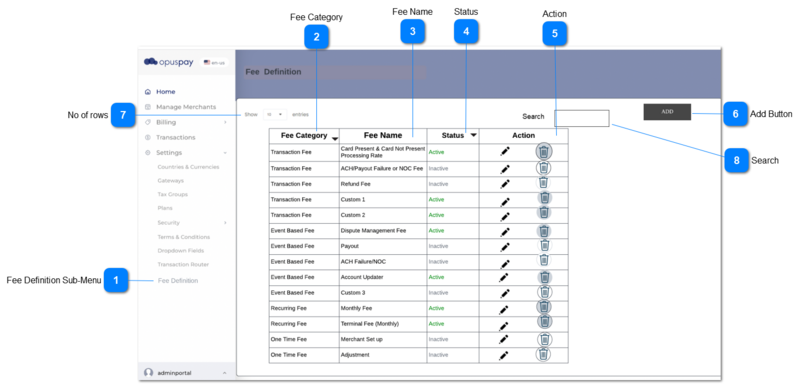
'Fee Category' is mapped with 'Fee Name' in New Fee definition side panel, and those records are shown row wise in this table.
1. A new sub-menu called 'Fee Definition' is added under Settings.
 
1a. This will load as a sub menu once the user clicks on Settings.
 
2. Once the user clicks on Fee Definition sub-menu, 'Fee Definition' screen will be loaded.
 
-
-
-
-
-
-
 
2

Fee Category


Type
Notes
Rules
Compulsory
Format
Edit
Size
Default
Error Message
Column
-
1. This should display all existing Fee categories configured through ‘New Fee Definition’.
 
2. This column should be sort-able according to ascending and descending order.
 
-
-
N
-
-
-
3

Fee Name


Type
Notes
Rules
Compulsory
Format
Edit
Size
Default
Error Message
Column
 
1. This should display all existing Fee categories configured through ‘New Fee Definition’.
 
2. This column should be sort-able.
 
-
-
N
-
-
-
4

Status


Type
Notes
Rules
Compulsory
Format
Edit
Size
Default
Error Message
Column
-
1.This should display all existing Fee categories configured through ‘New Fee Definition’.
 
2. This column should be sort-able.
 
II. All fee definition records that have an 'Active' status may not be used by gateways but some may be mapped to gateway(s).
 
III. Inactive fee definition cannot be used to map gateways.
 
IV. Active color code is green and inactive color code is gray.
-
-
Y
-
-
-
5

Action


Type
Notes
Rules
Compulsory
Format
Edit
Size
Default
Error Message
Column
-
1. There will be following buttons in action column.
 
1a. Delete
  • This should display a button to delete rows from the grid.
     
  • Once the user clicks on delete button in  a row, the system should pop up a delete confirmation message.
     
  • If the fee is mapped with a gateway, then the system disable the delete button, once the user hover the cursor over the disabled delete button, a warning message (tool Tip) should be displayed.
 
1b. Edit
 
I. Once the user clicks on the Edit button, the record will open in New Fee Definition side panel and that record is editable there, therefore the user can edit 'Fee Category', 'Fee Name' and 'Status'.
User can edit only records which are not in use by a gateway. (System should check wether a record is linked to a gateway or not from the back-end)
 
a. All active fee definition records may / may not be used by a gateway but definitely an inactive record cannot be used for gateways
 
b. Therefore when editing a record,
if it is active, the system should check whether it is in use by a gateway from the back-end.
 
II. After editing the user should click on the save button to save the record in database.
-
-
N
-
-
1a. II. ''You are about to delete a record. This cannot be undone. Are you sure want to continue?'
 
1a. III. You won't be able to delete this record, as it is linked with a gateway.


6

Add Button


Type
Notes
Rules
Compulsory
Format
Edit
Size
Default
Error Message
Button
-
1. This should load New Fee Definition side panel.
-
-
N
-
-
-
7

No of rows


Type
Notes
Rules
Compulsory
Format
Edit
Size
Default
Error Message
Dropdown
-
1. This should allow the user to select an option to control the number of records visible in the grid.
 
2. Displays following options to select from:
 
  • 10
  • 25
  • 50
  • 100
-
-
Y
-
10
-
8

Search

 
Type
Notes
Rules
Compulsory
Format
Edit
Size
Default
Error Message
Text
-
1. Filters the grid by matching the input entered by the user across the "Fee Category" and "Fee Name" grid columns.
 
2. Filter results based on each character entered.
For example:
  • if "c" is entered, only the first row in the on screen example will be displayed.
-
-
Y
-
-
-