To properly display this page you need a browser with JavaScript support.
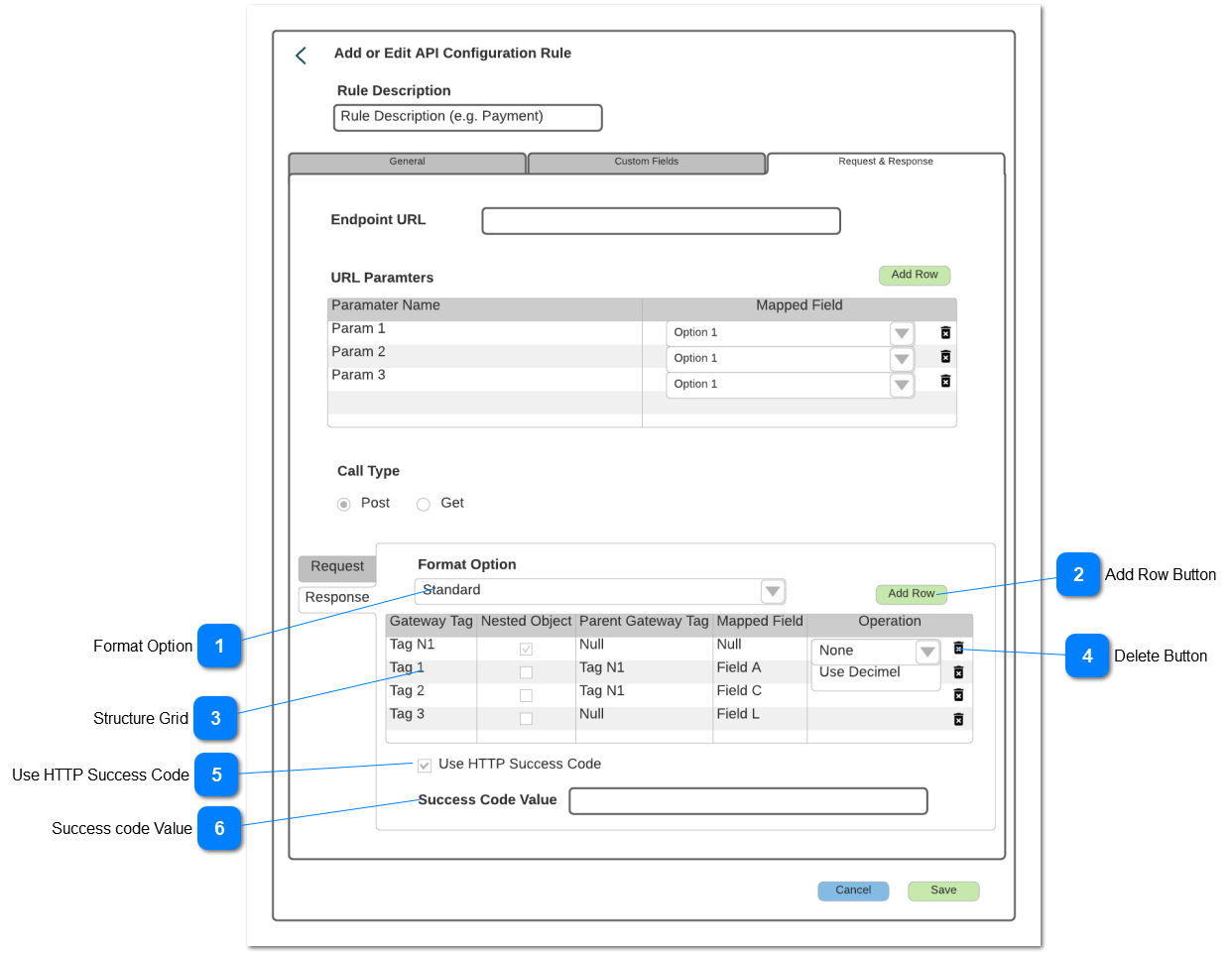
This page allows user to configure the response structure for a Gateway API.
Format Option
Defines the format of the response
Type
Notes
Rules
Compulsory
Format
Edit
Size
Default
Error Message
ComboBox
Will include the following options:
Y
Y
Standard Format
Please select a format
Add Row Button
Add a row to the grid
Type
Notes
Rules
Compulsory
Format
Edit
Size
Default
Error Message
Button
When selected add a new row into the grid in edit mode
Structure Grid
Defines the structure of the response
Type
Notes
Rules
Compulsory
Format
Edit
Size
Default
Error Message
Grid
Allow for sort on any column
Text
Gateway Tag
Entry of a gateway field name
Do not allow duplicate gateway tags
Y
Y
Null
Please enter a gateway tag
Checkbox
Nested
If the request uses nested tag, then this box will be checked if the row is the gateway parent tag
If not a parent tag, then this is unchecked
N
Y
Unchecked
ComboBox
Parent Gateway Tag
If the gateway field is a child of a parent tag, then select the parent tag linked to this row
Show the parent tags created in this request structure in the dropdown
If the gateway field is not a child of a parent tag then the field would be null
N
Y
Null
ComboBox
Mapped Field
Allows for the selection of any OpusPAY field
Allows for the selection of any Custom Field defined in the API Configuration Rule for that specific gateway
Y
Y
Null
Please select a mapped field
ComboBox
Operation
Select an option from the dropdown
Use Decimal. This is used in rows that defines a value and if selected it will put a decimal character before the last to digits of the value
Y
Y
None
Please select an operation
Delete Button
Delete a row from the grid
Type
Notes
Rules
Compulsory
Format
Edit
Size
Default
Error Message
Button
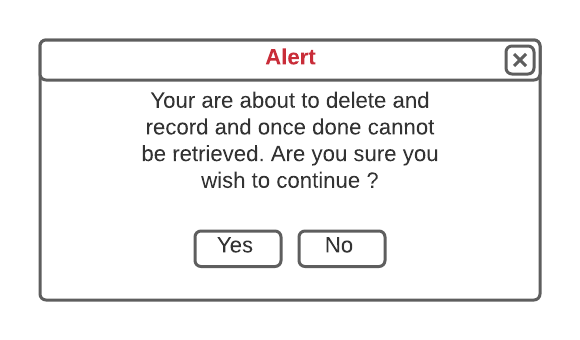
When selected pop-up the Delete message
Delete Alert Pop-Up
Type
Notes
Rules
Compulsory
Format
Edit
Size
Default
Error Message
Pop-Up
If Yes is selected then delete the row, close pop-up and return to the active tab (the tab that the user was in at the time of pressing the cancel button) in view mode
If No, close pop-up and continue to edit the Active tab
Use HTTP Success Code
Defines if the gateway uses an HHTP response to indicate success of a transaction
Type
Notes
Rules
Compulsory
Format
Edit
Size
Default
Error Message
CheckBox
N
Y
Unchecked
Success code Value
Provides the value to be expected from the gateway for a successful transaction
Type
Notes
Rules
Compulsory
Format
Edit
Size
Default
Error Message
TextBox
Gray out if Use HTTP Success Code is not checked
Enter a text value if Use HTTP Success Code is checked
Y if the Use HTTP Success Code is checked, otherwise N
Y
Null
Please enter a success value/code