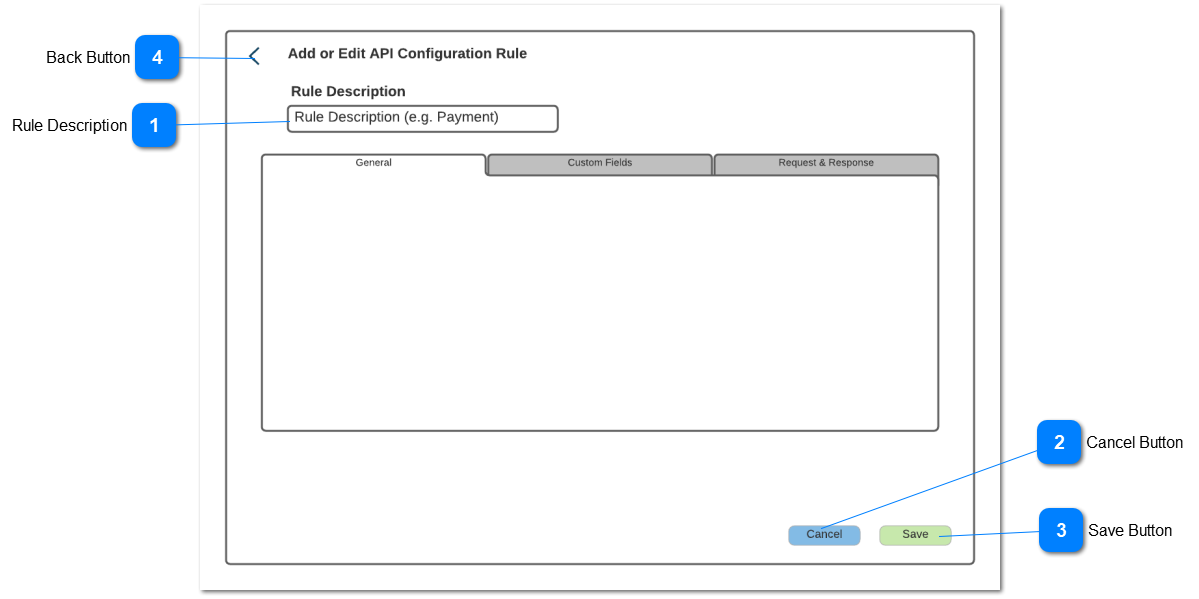
When saving all tabs, the grids will likely need to have already save records. Any records created in the current session should be removed from the DB if the Cancel option is selected
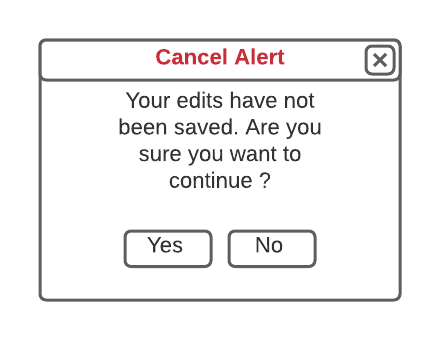
If Yes is selected then discard all edits, close pop-up and return to the active tab (the tab that the user was in at the time of pressing the cancel button) in view mode
If No, then retain all edits, close pop-up and continue to edit the Active tab
When saving all tabs, the grids will likely need to have already save records. Any records created in the current session should be removed from the DB if the Cancel option is selected
Run all validations
If the validations pass then save the transaction and save all data on all tabs
If the validations fail then highlight the Tab that has errors in Red and highlight each of the fields that have errors. Show the error messages on the fields with errors
Pop-up a message which does not require any user interaction saying "Saved Successfully"
Cancels data entered and returns user to the Gateway Summary - APIs screen. Refer to the details for this screen here.
Type
Notes
Rules
Compulsory
Format
Edit
Size
Default
Error Message
Button
When selected pop-up the Cancel message
Cancel Alert Pop-Up
Type
Notes
Rules
Compulsory
Format
Edit
Size
Default
Error Message
Pop-Up
When saving all tabs, the grids will likely need to have already save records. Any records created in the current session should be removed from the DB if the Cancel option is selected
If Yes is selected then discard all edits, close pop-up and navigate the user to the Gateway Summary - APIs screen. Refer to the details for this screen here.
If No, then retain all edits, close pop-up and continue to edit the Active tab