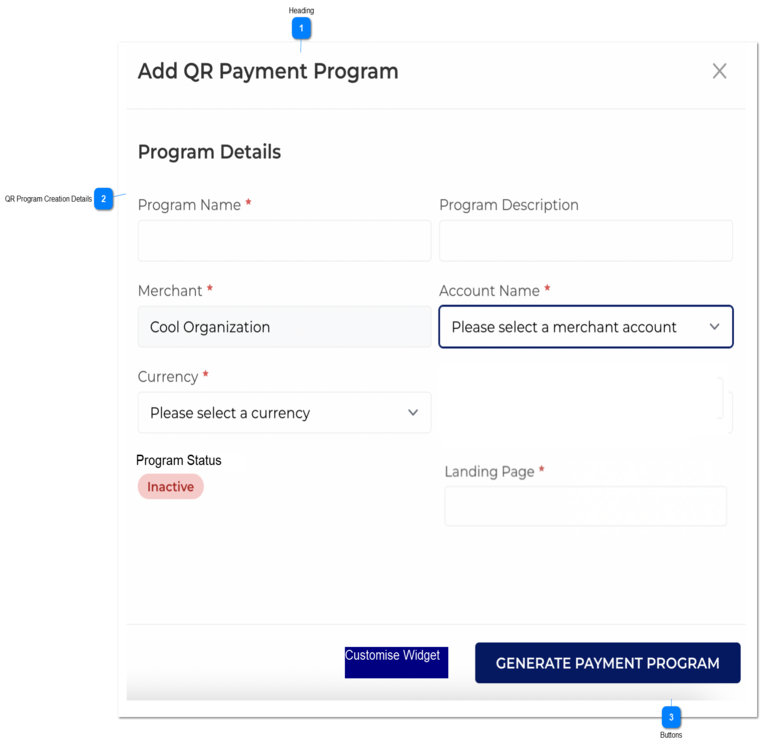
2. If the user clicks on generate QR button, without giving the program name, then following validation message would display.
Yes
-
-
-
2. Please enter a program name.
Text-box
Program Description
1. Description is given here.
2. Below validation message would show, if the maximum length is exceeded.
No
-
-
-
-
2. Maximum length for program description is 255.
Drop-down
Merchant
1. The merchant who currently logged in opuspay would come here.
2. This value cannot be editable.
-
-
-
Drop-down
Account Name
1. The user will select the account from the drop-down.
2.A. All accounts which are Active and which is relevant to the selected merchant from the 'Merchant' drop-down, would be coming under this drop-down.
3. The user can select one account at a time.
4. If the user clicks on generate QR button, without giving the account name, then following validation message would display.
Yes
Please select a sub account
4. Please select a Account Name.
Drop-down
Currency
Note: For dollars (Canadian Dollars, Australian Dollar etc. Only dollar sign would be displayed.)
1. For currency drop-down, below currencies would come to select.
1A. Currency which are in gateways as online payments related to the account selected in 'Account Name' drop-down, would come here.
2. If the user clicks on generate QR button, without giving the currency, then following validation message would display.
Yes
Please select a currency.
2. Please select a currency.
Text-box
Landing page
1. Landing page URL should be given here. Once the user clicks on 'Generate QR' button, then system would check if this field is having a valid URL or not.
1A. If it doesn't show a valid URL, then it would show a warning message.
2. If the user clicks on generate QR button, without giving the landing page, then following validation message would display.
3. There is a 1:1 mapping with Merchant and landing page.
3A. If the user uses landing page URL of existing QR program, then system should give a validate message under landing page text-field.
4. If the maximum length of the landing page is exceeding, the the validation message would display.
Yes
varchar
256
1A. Please enter a valid URL.
2. Please enter a landing page.
3A. The landing page has already been taken for this merchant.
4. Maximum length for landing page is 255.
Text
Program status
1. By default, 'Inactive' status would be given in the system.
2.A. Only if the payment program is in active status, the payment can be done.
once the user scan the QR it would load landing page with the wiidget generated.
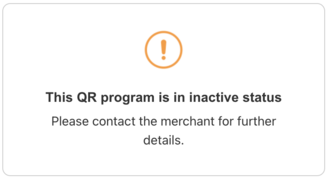
2.B. If the program is in inactive status, once the user scan the QR it would load the landing page with below warning message.
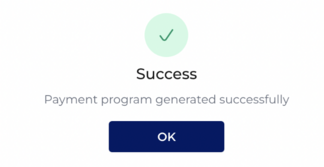
1. Once the user clicks on this, the system would check above validations and if all the validations are success then, throw below successful message.
1B. If the QR is not generated successfully, then a record would not be added to the table and relevant warning message would be displayed.
2. Without doing a customisation, 'Generate Payment Program' button remains as inactive.
2A. The user would direct back to the Add QR Payment Screen after saving the customisation. The customise design will be available in Add QR Program screen. (Refer Add QR Payment With Widget)
-
-
-
-
By default this button should be frozen.
1. Payment program generated successfully.
OK. - Once the user clicks on this, popup message box would close. (Then system would direct the user to Edit QR Payment Program Slider.)
1B. Payment program is not generated successfully, please contact your administrator.
OK. - Once the user clicks on this, popup message box would close.( Then system would keep the slider of 'Add QR Payment Programs' with existing field values)
Button
Customize Widget
Once the user clicks on this button, It would directs to the customise Widget screen.