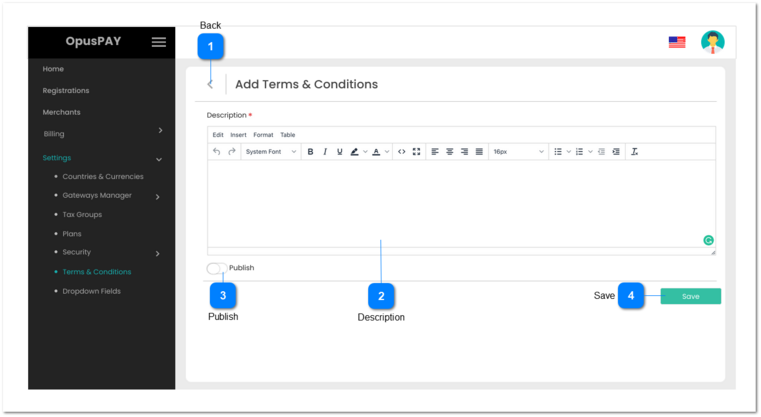
This page allows the user to edit an existing (unpublished) Terms & Conditions record or to enter a new Terms & Condition record for merchants.
Back
Type
Notes
Rules
Compulsory
Format
Edit
Size
Default
Error Message
Button
-
1. When clicked this should navigate the user to the Terms & Conditions screen without saving any changes. Refer to the specification for that screen here.
Upon Publishing and Saving the Terms & Conditions it cannot be modified. If such requirement arise, new Terms & Conditions will have to be created and published.
1. If Description is blank, display an inline error message.
2. If Publish switch control is enabled:
2a) The new Terms & Conditions status is set to Published and other Terms & Conditions status are set to Unpublished.
2b) Current date and time is stamped as published date and time on the new Terms & Conditions.
Format: yyyy-mm-dd hh:mm:ss
2c) Unique version number is formed and assigned to the new Terms & Conditions. Format: yyyymmddhhmmss.
2d) Send email notification to merchants that our Terms & Conditions have changed and they should log into the OpusPAY portal to review them. Refer to the specifications of the email here.
2e) Save Terms & Conditions and return to Terms & Conditions grid screen. Refer to the specification for that screen here.
3. If Publish switch control is disabled:
3a) Unique version number is formed and assigned to the new Terms & Conditions based on date and time the Save button is clicked.
Format: yyyymmddhhmmss.
3b) The new Terms & Conditions are set to Unpublished.
3c) Save Terms & Conditions and return to Terms & Conditions grid screen. Refer to the specification for that screen here.