To properly display this page you need a browser with JavaScript support.
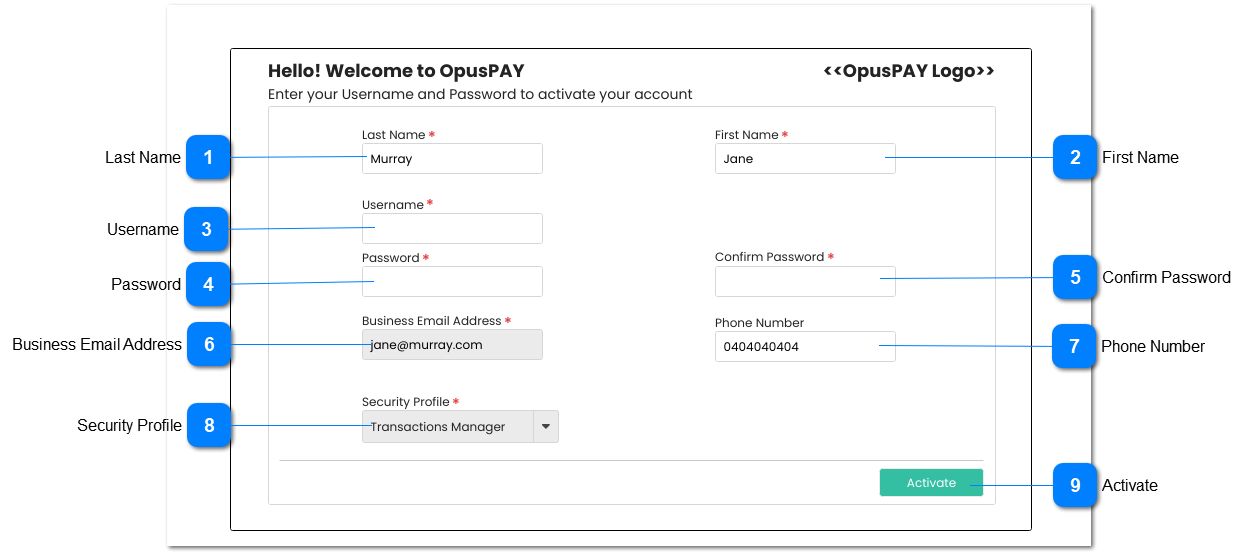
This screen allows the user to add further details before saving and activating their account in OpusPAY merchant portal. The user is directed to this screen by clicking the link in an email they receive after the administrator has created the user. Refer to the body of the email
here .
Last Name
Type
Notes
Rules
Compulsory
Format
Edit
Size
Default
Error Message
Text
-
1. This should allow the user to enter/update their last name
2. If the user clicks on the Save button without entering a value in this field, display an inline error message.
Y
-
Y
255
Should default to the last name that was populated by the OpusPAY administrator at the time of creating the user.
2. Please enter the Last Name.
First Name
Type
Notes
Rules
Compulsory
Format
Edit
Size
Default
Error Message
Text
-
1. This should allow the user to enter/update their first name
2. If the user clicks on the Save button without entering a value in this field, display an inline error message.
Y
-
Y
255
Should default to the first name that was populated by the OpusPAY administrator at the time of creating the user.
2. Please enter the First Name.
Username
Type
Notes
Rules
Compulsory
Format
Edit
Size
Default
Error Message
Text
-
1. This should allow the user to assign a username to themselves.
2. The Username should be unique across all OpusPAY usernames. If the user enters a username that is already used, display an inline error message.
3. If the user clicks on the Save button without entering a value in this field, display an inline error message.
Y
-
Y
255
2. Username already exists. Please enter a different username.
3. Please enter a Username.
Password
Type
Notes
Rules
Compulsory
Format
Edit
Size
Default
Error Message
Text
1. This should allow the user to assign a password to themselves.
2. If the user clicks on the Save button without entering a value in this field, display an inline error message.
3. 8 characters minimum
1 uppercase
1 special character
1 numerical
If passwords do not meet this criteria, display an inline error message.
4. Passwords must be hashed and salted.
Y
-
Y
255
2. Please enter a Password.
3. Passwords must be a minimum of 8 characters, must contain 1 uppercase, 1 special character, and 1 numerical value. Please enter a valid password.
Confirm Password
Type
Notes
Rules
Compulsory
Format
Edit
Size
Default
Error Message
Text
-
1. This should allow the user to confirm the previously chosen password.
2. If the user clicks on the Save button without entering a value in this field, display an inline error message.
3. Passwords must be hashed and salted.
4. If Password and Confirm Password do not match, display an inline error message.
Y
-
Y
255
2. Please confirm the password entered.
4. Passwords do not match.
Business Email Address
Type
Notes
Rules
Compulsory
Format
Edit
Size
Default
Error Message
Text
-
1. This should display the business email address of the user.
2. User cannot change the business email address on this screen.
Y
Email
N
255
Should default to the business email address of the user assigned to them by the OpusPAY administrator at the time of creating the user.
Phone Number
Type
Notes
Rules
Compulsory
Format
Edit
Size
Default
Error Message
Text
-
1. This should allow the user to enter/update their phone number
N
-
Y
255
-
Security Profile
Type
Notes
Rules
Compulsory
Format
Edit
Size
Default
Error Message
Combo-Box
-
1. This should display the security profile assigned to the user by OpusPAY Administrator.
2. User cannot change the Security Profile assigned by the OpusPAY Administrator.
Y
-
N
255
-
Activate
Type
Notes
Rules
Compulsory
Format
Edit
Size
Default
Error Message
Button
-
1. Check the rule mentioned in each input elements and show inline error messages for invalid inputs.
2. Update the user account based on the information provided and activate with login credentials to OpusPAY merchant portal after clicking this button.
3. Navigate the user to the OpusPAY Login screen. Refer to the specifications here .
-
-
-
-
-