To properly display this page you need a browser with JavaScript support.
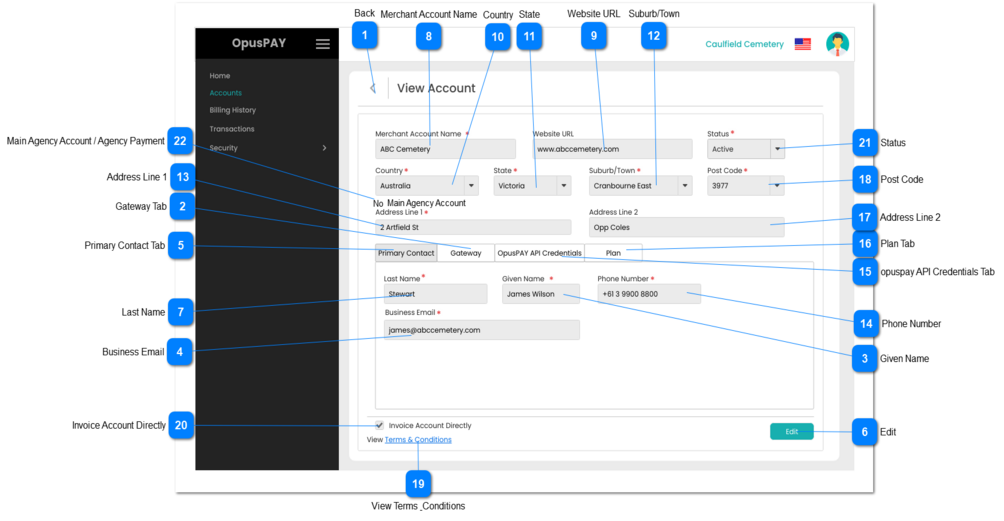
View Account - Primary Contact
This screen allows the user to add sub-accounts to their merchant portal.
Back
Type
Notes
Rules
Compulsory
Format
Edit
Size
Default
Error Message
Button
-
1. When clicked this should navigate the user to the Accounts screen without saving any changes. Refer to the specification for that page here .
-
-
Y
-
-
-
Gateway Tab
Type
Notes
Rules
Compulsory
Format
Edit
Size
Default
Error Message
Tab
-
1. This should display the Gateway details.Refer to the specifications for this screen here .
-
-
Y
-
-
-
Given Name
Type
Notes
Rules
Compulsory
Format
Edit
Size
Default
Error Message
Text
-
1. This should display the Primary Contact's Given Name.
Y
-
N
255
-
-
Business Email
Type
Notes
Rules
Compulsory
Format
Edit
Size
Default
Error Message
Text
-
1. This should display the Primary Contact's Business Email.
Y
-
N
255
-
-
Primary Contact Tab
Type
Notes
Rules
Compulsory
Format
Edit
Size
Default
Error Message
Tab
-
1. This displays and allows the user to edit the Primary Contact of the Account.
2. This tab should be highlighted to identify the tab the user is on.
-
-
Y
-
-
-
Edit
Type
Notes
Rules
Compulsory
Format
Edit
Size
Default
Error Message
Button
-
1. Navigate the user to the Edit Account - Primary Contact screen. Refer to the specifications for that screen here .
-
-
-
-
-
-
Last Name
Type
Notes
Rules
Compulsory
Format
Edit
Size
Default
Error Message
Text
-
1. This should display the Primary Contact's Last Name.
Y
-
N
255
-
-
Merchant Account Name
Type
Notes
Rules
Compulsory
Format
Edit
Size
Default
Error Message
Text
-
1. This should display the Merchant Account name.
Y
-
N
255
-
-
Website URL
Type
Notes
Rules
Compulsory
Format
Edit
Size
Default
Error Message
Text
-
1. This should display the website of the organisation.
-
-
N
255
-
-
Country
Type
Notes
Rules
Compulsory
Format
Edit
Size
Default
Error Message
Combo-Box
-
1. This should display the Country for the organisation.
Y
-
N
255
-
-
State
Type
Notes
Rules
Compulsory
Format
Edit
Size
Default
Error Message
Combo-Box
-
1. This should display the State for the organisation.
Y
-
N
255
-
-
Suburb/Town
Type
Notes
Rules
Compulsory
Format
Edit
Size
Default
Error Message
Combo-Box
-
1. This should display the Suburb/Town for the organisation.
Y
-
N
255
-
-
Address Line 1
Type
Notes
Rules
Compulsory
Format
Edit
Size
Default
Error Message
Text
-
1. This should display Address Line 1 for the organisation.
Y
-
N
255
-
-
Phone Number
Type
Notes
Rules
Compulsory
Format
Edit
Size
Default
Error Message
Text
-
1. This should display the Primary Contact's Phone Number.
Y
-
N
255
-
-
opuspay API Credentials Tab
Type
Notes
Rules
Compulsory
Format
Edit
Size
Default
Error Message
Tab
-
1. This displays the Accounts API Credentials. Refer to the specifications for that screen here .
-
-
Y
-
-
-
Plan Tab
Type
Notes
Rules
Compulsory
Format
Edit
Size
Default
Error Message
Tab
-
1. This displays the Plan assigned to the Parent Entity. Refer to the specifications for that screen here .
-
-
Y
-
-
-
Address Line 2
Type
Notes
Rules
Compulsory
Format
Edit
Size
Default
Error Message
Text
-
1. This should display the Address Line 2 for the organisation.
-
-
N
255
-
-
Post Code
Type
Notes
Rules
Compulsory
Format
Edit
Size
Default
Error Message
Combo-Box
-
1. This should display the Post Code for the organisation.
Y
-
N
255
-
-
View Terms & Conditions
Type
Notes
Rules
Compulsory
Format
Edit
Size
Default
Error Message
Hyperlink
-
1. Clicking on the Terms & Conditions hyperlink will navigate the user to the published Terms & Conditions. Refer to the specifications for this screen here .
-
-
-
-
-
-
Invoice Account Directly
Type
Notes
Rules
Compulsory
Format
Edit
Size
Default
Error Message
Checkbox
-
1. If checked, indicate in the database that this account is to be invoiced directly for it's transactions.
N
-
N
-
-
-
Status
Type
Notes
Rules
Compulsory
Format
Edit
Size
Default
Error Message
Combo-Box
-
1. This should display the Status for the organisation.
Y
-
N
255
-
-
Main Agency Account / Agency Payment
Type
Notes
Rules
Compulsory
Format
Edit
Size
Default
Error Message
Main Agency Account
Note: If the parent account = yes, then 'Main Agency Account' would display
Text
This value can be come in two different ways.
1. At new merchant registration in opuspay.
2. Enabling agency payment for existing merchant through edit merchant.
1. If main agency account is YES, then this account would act as an agent and its sub account would inherits its payment gateways which are compatible for the sub account accepted countries.
2. If main agency account is NO, then this account would not act as an agent.
N
-
Y
-
-
-
Agency Payment
Note: If the parent account = No, then ' Agency Payment' would display
Text
1. If the sub account have agency payment then 'Agency Payment' value would be Yes.
1A. If the sub account have not agency payment then 'Agency Payment' value would be No.
2. This value come via follwoings:
A. Ethier admin needs to give Main ageny account fucntioanlity to the parent account of the sub account via registration module.
B. Or the admin needs to give Main agency account functionality to parent account via manage merchant account module, then sub account would inherit agency payment.