To properly display this page you need a browser with JavaScript support.
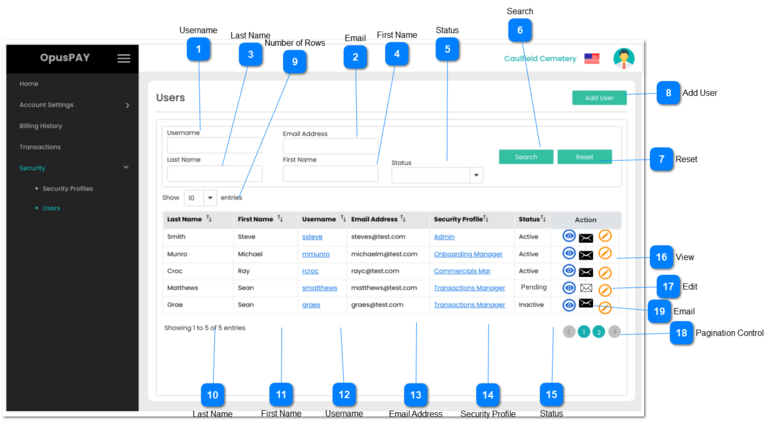
This page allows the user to search and create users in the opuspay merchant portal.
Username
Type
Notes
Rules
Compulsory
Format
Edit
Size
Default
Error Message
Text
-
1. Anything entered into this field will be used to search/filter users based on their Username.
N
-
Y
255
Empty
-
Email
Type
Notes
Rules
Compulsory
Format
Edit
Size
Default
Error Message
Text
-
1. Anything entered into this field will be used to search/filter users based on their email address.
N
-
Y
255
Empty
-
Last Name
Type
Notes
Rules
Compulsory
Format
Edit
Size
Default
Error Message
Text
-
1. Anything entered into this field will be used to search/filter users based on their Last Name
N
-
Y
255
Empty
-
First Name
Type
Notes
Rules
Compulsory
Format
Edit
Size
Default
Error Message
Text
-
1. Anything entered into this field will be used to search/filter users based on their First Name
N
-
Y
255
Empty
-
Status
Type
Notes
Rules
Compulsory
Format
Edit
Size
Default
Error Message
Combo-Box
-
1. Anything entered into this field will be used to search/filter users based on their Active / Inactive status.
N
-
Y
-
Nothing selected
-
Search
Type
Notes
Rules
Compulsory
Format
Edit
Size
Default
Error Message
Button
-
1. Clicking on this button will search for users by applying the filter criteria and populate the grid with returned results.
2. If all of the search/filter fields are blank, display all users.
-
-
Y
-
-
-
Reset
Type
Notes
Rules
Compulsory
Format
Edit
Size
Default
Error Message
Button
-
1. This should allow the user to clear all the values from the filter fields.
-
-
Y
-
-
-
Add User
Type
Notes
Rules
Compulsory
Format
Edit
Size
Default
Error Message
Button
-
1. This should allow the user to add a new user by navigating them to the Add user page. Refer to the specification for that page here .
-
-
Y
-
-
-
Number of Rows
Type
Notes
Rules
Compulsory
Format
Edit
Size
Default
Error Message
Combo-Box
-
1. This should allow the user to select an option to control the number of User records visible in the grid.
2. Displays following options to select from:
-
-
Y
-
10
-
Last Name
Type
Notes
Rules
Compulsory
Format
Edit
Size
Default
Error Message
Column
-
1. When populated by the Search button, this will display the users' Last Names.
2. This should be sortable.
-
-
N
-
-
-
First Name
Type
Notes
Rules
Compulsory
Format
Edit
Size
Default
Error Message
Column
-
1. When populated by the Search button, this will display the users' First Names.
2. This should be sortable.
-
-
N
-
-
-
Username
Type
Notes
Rules
Compulsory
Format
Edit
Size
Default
Error Message
Column
-
1. When populated by the Search button, this will display the users' Username.
2. This should be sortable.
-
-
N
-
-
-
Email Address
Type
Notes
Rules
Compulsory
Format
Edit
Size
Default
Error Message
Column
-
1. When populated by the Search button, this will display the users' Email Addresses.
2. This should be sortable.
-
-
N
-
-
-
Security Profile
Type
Notes
Rules
Compulsory
Format
Edit
Size
Default
Error Message
Column
-
1. When populated by the Search button, this will display the users' Security Profiles.
2. This should be sortable.
-
-
N
-
-
-
Status
Type
Notes
Rules
Compulsory
Format
Edit
Size
Default
Error Message
Column
-
1. When populated by the Search button, this will display the users' Statuses.
2. This should be sortable.
-
-
N
-
-
-
View
Type
Notes
Rules
Compulsory
Format
Edit
Size
Default
Error Message
Button
-
1. This will navigate the user to the View User screen. Refer to the specification for that screen here .
-
-
Y
-
-
-
Edit
Type
Notes
Rules
Compulsory
Format
Edit
Size
Default
Error Message
Button
-
1. This will navigate the user to the Edit User screen in order to update user details. Refer to the specification for that screen here .
-
-
Y
-
-
-
Pagination Control
Type
Notes
Rules
Compulsory
Format
Edit
Size
Default
Error Message
Button
-
1. This should allow the users to paginate through the User grid records.
2. To determine the number of pagination buttons to display please follow the current logic that is being used in byondcloud.
-
-
-
-
-
-
Email
Type
Notes
Rules
Compulsory
Format
Edit
Size
Default
Error Message
Button
Once the user is added, an email would be generated to given business email for further registration and it would be expired after 24 hours.
1. This button actively available for only pending users, for other status type users (Inactive/ Active) email button would be displayed in inactive users.
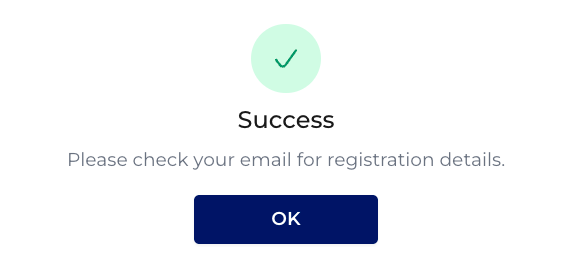
2. Once the user clicks on email button, an email would regenerate to the given business email address and informative message would display.
2A. If the previously sent email is not expired, then it should be expired once the user regenerate a new email.
-
-
Y
-
-
2. Success
Please check your email for registration details.
Refer below image for success message.