To properly display this page you need a browser with JavaScript support.
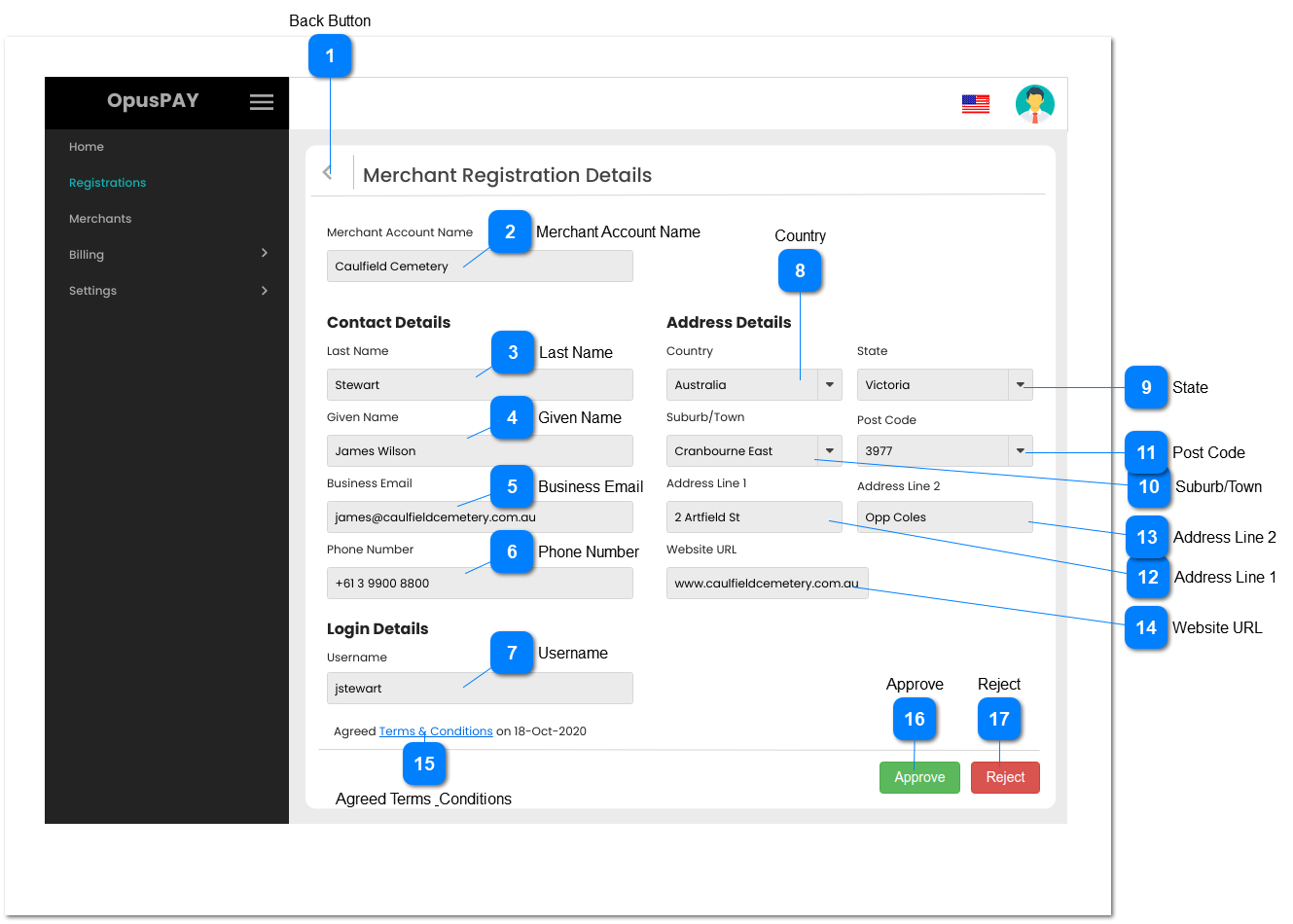
This page displays an organisation's business details submitted for registering with OpusPAY.
Back Button
Type
Notes
Rules
Compulsory
Format
Edit
Size
Default
Error Message
Button
-
1. This should navigate the user to the registration grid screen. Refer to the specification for that screen here .
-
-
-
-
-
-
Merchant Account Name
Type
Notes
Rules
Compulsory
Format
Edit
Size
Default
Error Message
Text
-
1. This should display the Merchant Account Name.
Y
-
N
-
-
-
Last Name
Type
Notes
Rules
Compulsory
Format
Edit
Size
Default
Error Message
Text
-
1. This should display the Last Name of the organisation's primary contact.
Y
-
N
-
-
-
Given Name
Type
Notes
Rules
Compulsory
Format
Edit
Size
Default
Error Message
Text
-
1. This should display the Given Name of the organisation's primary contact.
Y
-
N
-
-
-
Business Email
Type
Notes
Rules
Compulsory
Format
Edit
Size
Default
Error Message
Text
-
1. This should display the Business Email address of the organisation.
Y
-
N
-
-
-
Phone Number
Type
Notes
Rules
Compulsory
Format
Edit
Size
Default
Error Message
Text
-
1. This should display the Phone Number of the organisation.
Y
-
N
-
-
-
Username
Type
Notes
Rules
Compulsory
Format
Edit
Size
Default
Error Message
Text
-
1. This should display the chosen Username for organisation's OpusPAY administrator.
Y
-
N
-
-
-
Country
Type
Notes
Rules
Compulsory
Format
Edit
Size
Default
Error Message
Combo-box
-
1. This should display the organisation's Country
Y
-
N
-
-
-
State
Type
Notes
Rules
Compulsory
Format
Edit
Size
Default
Error Message
Combo-Box
-
1. This should display the organisation's State.
Y
-
N
-
-
-
Suburb/Town
Type
Notes
Rules
Compulsory
Format
Edit
Size
Default
Error Message
Combo-Box
-
1. This should display the organisation's Suburb/Town.
Y
-
N
-
-
-
Post Code
Type
Notes
Rules
Compulsory
Format
Edit
Size
Default
Error Message
Combo-Box
-
1. This should display the organisation's Post Code.
Y
-
N
-
-
-
Address Line 1
Type
Notes
Rules
Compulsory
Format
Edit
Size
Default
Error Message
Text
-
1. This should display the organisation's Address Line 1.
Y
-
N
-
-
-
Address Line 2
Type
Notes
Rules
Compulsory
Format
Edit
Size
Default
Error Message
Text
-
1. This should display the organisation's Address Line 2.
N
-
N
-
-
-
Website URL
Type
Notes
Rules
Compulsory
Format
Edit
Size
Default
Error Message
Text
-
1. This should display the organisation's website URL.
N
URL
N
-
-
-
Agreed Terms & Conditions
Type
Notes
Rules
Compulsory
Format
Edit
Size
Default
Error Message
Hyperlink
-
1. Clicking on the Terms & Conditions hyperlink should display a pop-up of the terms & conditions that the merchant has accepted.
2. Display the date the organisation accepted the terms & conditions at the end of this line (replace "18-OCT-2020" with the appropriate date)
-
-
-
-
-
-
Approve
Type
Notes
Rules
Compulsory
Format
Edit
Size
Default
Error Message
Button
-
1. Selecting this button will approve the registration and will pop up the approval modal. Refer to the specification for the modal and subsequent steps here .
-
-
-
-
-
-
Reject
Type
Notes
Rules
Compulsory
Format
Edit
Size
Default
Error Message
Button
-
1. Selecting this button will pop up the rejection modal. Refer to the specification for the modal and subsequent steps here .
-
-
-
-
-
-