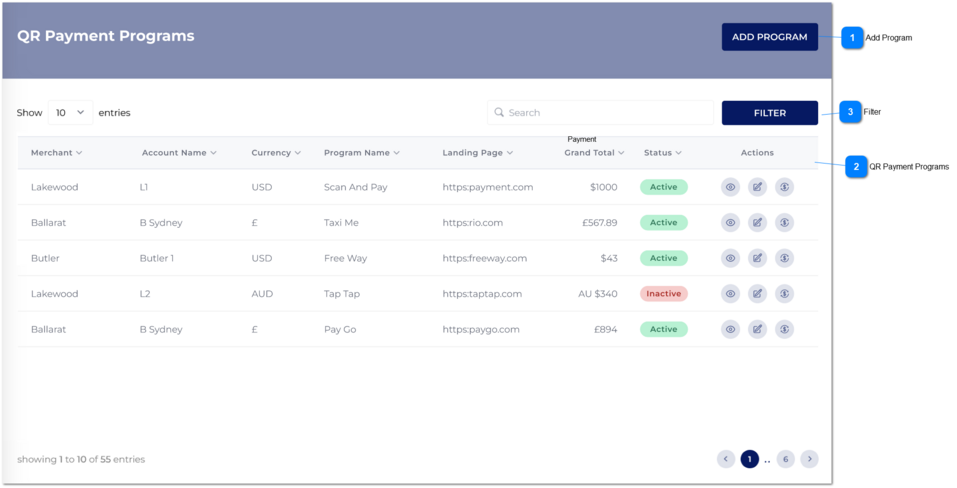
The merchant user can access to QR Payment module via clicking 'QR Payments' in Home or clicking 'QR Payments' in navigation.
Latest records which were created would be displayed in this table.
 Add Program
|
Type
|
Notes
|
Rules
|
Compulsory
|
Format
|
Edit
|
Size
|
Default
|
Error Message
|
|
Button
|
|
|
-
|
-
|
-
|
-
|
-
|
-
| |
|
 QR Payment Programs
|
Type
|
Notes
|
Rules
|
Compulsory
|
Format
|
Edit
|
Size
|
Default
|
Error Message
|
|
Table
|
|
In this table, previously created QR Payment Programs details would be reflected.
In this table, following columns are shown.
These values would be captured through Add QR payment program screen.
|
-
|
-
|
-
|
-
|
-
|
-
|
|
Program Name
|
Column
|
Program Name would be captured
|
|
|
|
|
|
|
|
Merchant
|
Column
|
Merchant would be displayed here.
|
|
|
|
|
|
|
|
Account Name
|
Column
|
Account Name should be displayed here.
|
|
|
|
|
|
|
|
Total Value
|
Column
|
The total amount which is occurred through the QR payment program displayed here.
|
|
|
|
|
|
|
|
Payment Status
|
Column
|
Payment Status would be captured.
|
|
|
|
|
|
|
|
Action
|
Column
|
Under action column, there are three actions.
This button should be
View Button
Edit Button
Transactions
|
|
|
|
|
|
|
|
|
 Filter
|
Type
|
Notes
|
Rules
|
Compulsory
|
Format
|
Edit
|
Size
|
Default
|
Error Message
|
|
Button
|
|
Once the user clicks on this button then, QR Record searching filtration slide over will appear.
|
-
|
-
|
-
|
-
|
-
|
|
|
|