To properly display this page you need a browser with JavaScript support.
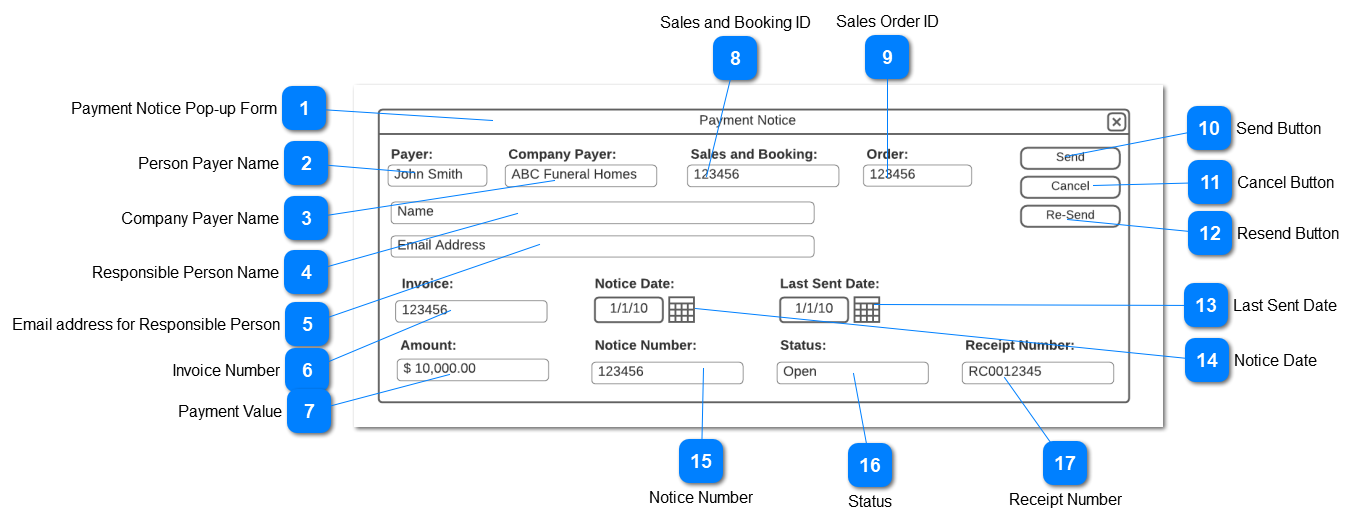
This is the pop-up when the Create Payment Notice button is selected on a Sales Order or when an existing Payment Notice is selected to be viewed from the Payment Notice List. Multiple Payment Notices can be created for each Sales Order.
Payment Notice Pop-up Form
Used to create or edit a payment notice.
Type
Notes
Rules
Compulsory
Format
Edit
Size
Default
Error Message
Pop-Up Form
Multiple Payment Notices an be created for each Sales Order
The UI performs as standard pop-up form
The form is not editable if the Status is Pending, Paid or Expired
Y
Person Payer Name
Select the person responsible for making the payment
Type
Notes
Rules
Compulsory
Format
Edit
Size
Default
Error Message
ComboBox
Default the Sales Order "Bill to Applicant" Applicant person if used in the Sales Order
Allow override to Search for and select a person from the persons records
If there is a Company Payer selected then gray out this field
If the Company Payer is deleted, then allow access to this field and allow for selection of a person
Y if no Company Payer Selected
Y
"Bill to Applicant" from Sales Order
A company payer has already been selected. Please remove the company first before selecting a payer
Company Payer Name
Select the company responsible for making the payment
Type
Notes
Rules
Compulsory
Format
Edit
Size
Default
Error Message
ComboBox
Default the Sales Order "Bill to Company" if used in the Sales Order
Allow override to Search for and select a company from the company records
If there is a Payer selected then gray out this field
If the Payer is deleted, then allow access to this field and allow for selection of a company
Y if no Payer Selected
Y
"Bill to Company" from Sales Order
Please select a Company Payer
A Payer has already been selected. Please remove the Payer first before selecting a Company Payer
Responsible Person Name
Enter or display the name of the contact person for the payment.
Type
Notes
Rules
Compulsory
Format
Edit
Size
Default
Error Message
TextBox
If a Company Payer has been selected then add the First and Last name of the main contact for that company
If a Payer has been selected then add that persons First and Last name to this field
Allow for override of the name in this field
Y
Y
Company payer main contact
Please enter the Payer Name
Email address for Responsible Person
Enter or display the email address for the contact person for the payment
Type
Notes
Rules
Compulsory
Format
Edit
Size
Default
Error Message
TextBox
If a Company Payer has been selected then add the email address of the main contact for that company
If a Payer has been selected then add that persons email address to this field
Allow for override of the email in this field
Validate email for a valid email address format
Y
Email
Y
Company payer main contact
Please enter a valid email address
Invoice Number
The invoice number for the selected Sales Order
Type
Notes
Rules
Compulsory
Format
Edit
Size
Default
Error Message
TextBox
Use the Invoice document number from the selected sales order
Y
N
Invoice number from selected Sales Order
Payment Value
Enter the value to be paid
Type
Notes
Rules
Compulsory
Format
Edit
Size
Default
Error Message
NumericField
Total payments cannot exceed the total amount of the Invoice.
Payment Value cannot exceed the Balance Owing minus any outstanding Payment Notices on the Invoice.
Y
numeric with 2 decimals
Y
Zero
Please enter a payment value
Sales and Booking ID
Display the Sales and Booking Number for the selected Sales Order
Type
Notes
Rules
Compulsory
Format
Edit
Size
Default
Error Message
TextBox
Use the Sales and Booking number from the selected sales order
Y
N
Sales and Booking number from selected Sales Order
Sales Order ID
Display the Sales Order Number for the selected Sales Order
Type
Notes
Rules
Compulsory
Format
Edit
Size
Default
Error Message
TextBox
Use the Sales Order number from the selected sales order
Y
N
Sales Order number from selected Sales Order
Send Button
Process the payment notice
Type
Notes
Rules
Compulsory
Format
Edit
Size
Default
Error Message
Button
Validate all rules on the form
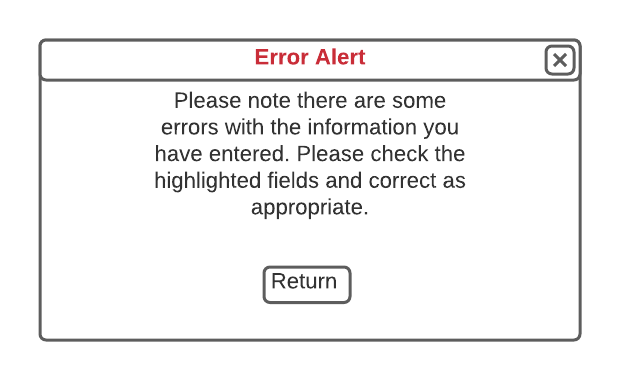
If validation fails, pop-up the failure alert
Send an email to the email address of responsible person on the payment notice
On successful completion of sending, change the Status of the payment notice to "Pending"
Update the Last Sent Date with the current date
Add the Payment Notice Number
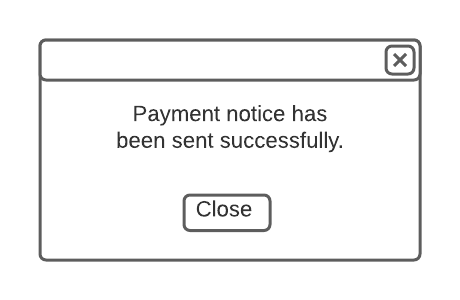
Pop-up the success message
Make the payment notice form non-editable and return the user to the payment notice form
Failure Alert Pop-UP
Type
Notes
Rules
Compulsory
Format
Edit
Size
Default
Error Message
Pop-Up
When the Return button is selected, close the pop-up and return the user to the Payment Notice form
Success Alert Pop-UP
Type
Notes
Rules
Compulsory
Format
Edit
Size
Default
Error Message
Pop-Up
When the Close button is selected, close the pop-up and return the user to the Payment Notice in View mode
Cancel Button
Cancel all changes and/or edits made
Type
Notes
Rules
Compulsory
Format
Edit
Size
Default
Error Message
Button
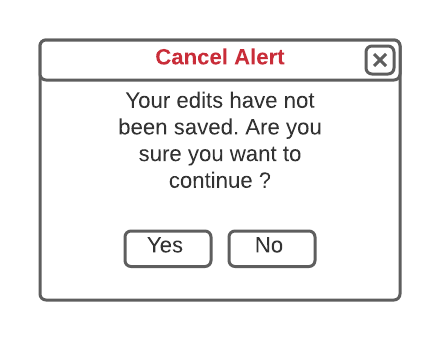
When selected pop-up the Cancel message
Cancel Alert Pop-Up
Type
Notes
Rules
Compulsory
Format
Edit
Size
Default
Error Message
Pop-Up
If Yes is selected then discard all edits, close pop-up and return to the Sales Order UI in view mode
If No, then retain all edits, close pop-up and continue to edit the Payment Notice Form
Resend Button
For resending an existing Payment Notice to the responsible person
Type
Notes
Rules
Compulsory
Format
Edit
Size
Default
Error Message
Button
When a user clicks on this button, check the status of current payment. If a successful payment has been made, display an inline error message and disable this button.
Disable the button where the payment notice status is not equal to Pending or Expired.
Update the Last Sent Date with the date the resend was performed.
When resending a payment notice, the link in the (any) previous payment notice email should be disabled so that a person cannot pay the same payment notice twice.
1. Payment has already been made. Cannot resend the Payment Notice.
Last Sent Date
The date that the payment notice was last sent to the responsible person
Type
Notes
Rules
Compulsory
Format
Edit
Size
Default
Error Message
DateField
Update when the payment notice is Sent or Resent with the current date
Y
N
Processing Date
Notice Date
The date the payment notice was created
Type
Notes
Rules
Compulsory
Format
Edit
Size
Default
Error Message
DateField
The date that the payment notice is created
Y
N
Today
Notice Number
The payment notice number
Type
Notes
Rules
Compulsory
Format
Edit
Size
Default
Error Message
TextBox
When the send function is selected, add the payment notice number
The payment notice number will be the next sequential number available
The prefix for the number will be PN
Y
N
The next sequential number available
Status
This is the payment notice status
Type
Notes
Rules
Compulsory
Format
Edit
Size
Default
Error Message
TextBox
The status will be as follows:
Open : when first created
Pending : after Send completed
Expired : 14 days after the Last Sent Date
Completed : payment has been received
Y
N
Open
Receipt Number
The receipt number where the payment has been received and the receipt has been created
Type
Notes
Rules
Compulsory
Format
Edit
Size
Default
Error Message
TextBox
On creation of a payment notice, the field will be null.
will be populated when the receipt record is created by the payment notice on successful completion of the payment transaction
Shows the receipt number from the receipt record
Y
N
From the related receipt record
Workflows