To properly display this page you need a browser with JavaScript support.
Payment Notice Monitoring
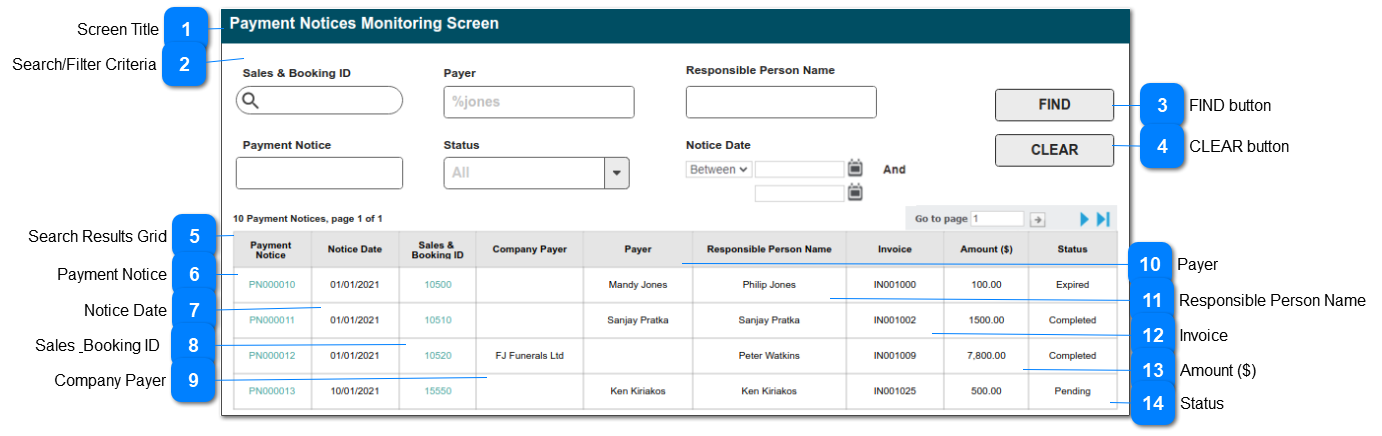
This screen is designed to show users all payment notices issued, showing their current status and links to source Sales & Booking transactions. It is accessed from the My CRM menu in byondpro.
This screen re-uses the Payment Notice List, with the inclusion of the Sales & Booking ID, and the ability to search for results using a range of filter criteria.
Screen Title
This is the screen title: Payment Notices Monitoring Screen
Type
Notes
Rules
Compulsory
Format
Edit
Size
Default
Error Message
Title
1) This screen / menu item will be made available in My CRM to all users with Security Rights to VIEW Receipts.
N
Search/Filter Criteria
The fields shown here will be provided as standard search criteria.
Type
Notes
Rules
Compulsory
Format
Edit
Size
Default
Error Message
Search Criteria
The fields listed will be stored with the Payment Notices entries in byondpro.
SALES & BOOKING ID: search select
PAYMENT NOTICE: text
PAYER: text
RESPONSIBLE PERSON NAME: text
STATUS: selection list of payment notice statuses
NOTICE DATE: payment notice date
N
FIND button
This is an action button to initiate a new search based on the filter crriteria selected
Type
Notes
Rules
Compulsory
Format
Edit
Size
Default
Error Message
Button
1.Selecting the FIND button will initiate a search of the Payment Notice entries, filtered according to the selections made in (2).
2. Search results to be listed in the grid shown below.
3. Records will be based on the "AND" operation among the search filters.
N
CLEAR button
This is an action button to clear all search results
Type
Notes
Rules
Compulsory
Format
Edit
Size
Default
Error Message
Button
1. Selecting the CLEAR button, will clear all search parameter selections previously made in (2).
1a. Will empty the search results grid of previous results.
N
Search Results Grid
This is the list of search results, including (standard CRM) number of results found and page navigation objects.
Payment Notice
This column in the search results grid will show the Payment Notice Number
Type
Notes
Rules
Compulsory
Format
Edit
Size
Default
Error Message
String
Column header to be sortable
1. Payment Notice number.
2. Click-through to open corresponding payment notice summary screen
Y
hyperlink
N
Notice Date
This column in the search results grid will show the date the payment notice was created
Type
Notes
Rules
Compulsory
Format
Edit
Size
Default
Error Message
Date/Time
Column header to be sortable
1. Date of the Payment Notice
Y
N
Sales & Booking ID
This column in the search results grid will show the originating Sales & Booking transaction number.
Type
Notes
Rules
Compulsory
Format
Edit
Size
Default
Error Message
String
Column header to be sortable
1. Sales & Booking ID
2. Click-through to open corresponding Sales & Booking summary screen
Y
hyperlink
N
Company Payer
This column in the search results grid will show the name of the Company Payer on the payment notice
Type
Notes
Rules
Compulsory
Format
Edit
Size
Default
Error Message
String
Column header to be sortable
1. Name of Company Payer
N
N
Payer
This column in the search results grid will show the name of the (person) Payer on the payment notice
Type
Notes
Rules
Compulsory
Format
Edit
Size
Default
Error Message
String
Column header to be sortable
1. Name of Person Payer
N
N
Responsible Person Name
This column in the search results grid will show the text name of the person responsible for payment.
Type
Notes
Rules
Compulsory
Format
Edit
Size
Default
Error Message
String
Column header to be sortable
1. Responsible Person
Y
N
Invoice
This column in the search results grid will show the originating invoice number for the payment notice.
Type
Notes
Rules
Compulsory
Format
Edit
Size
Default
Error Message
String
Column header to be sortable
1. Invoice Number
Y
N
Amount ($)
This column in the search results grid will show the amount of the payment notice.
Type
Notes
Rules
Compulsory
Format
Edit
Size
Default
Error Message
Currency
Column header to be sortable
1. Amount of the payment notice.
2. Column header to show:
using the symbol configured in Administration>> Data Management>>Currency Configuration: Base Currency.
Y
N
Status
This column in the search results grid will show the status of the Payment Notice
Type
Notes
Rules
Compulsory
Format
Edit
Size
Default
Error Message
String
Column header to be sortable
1. Payment Notice: Status
Y
N