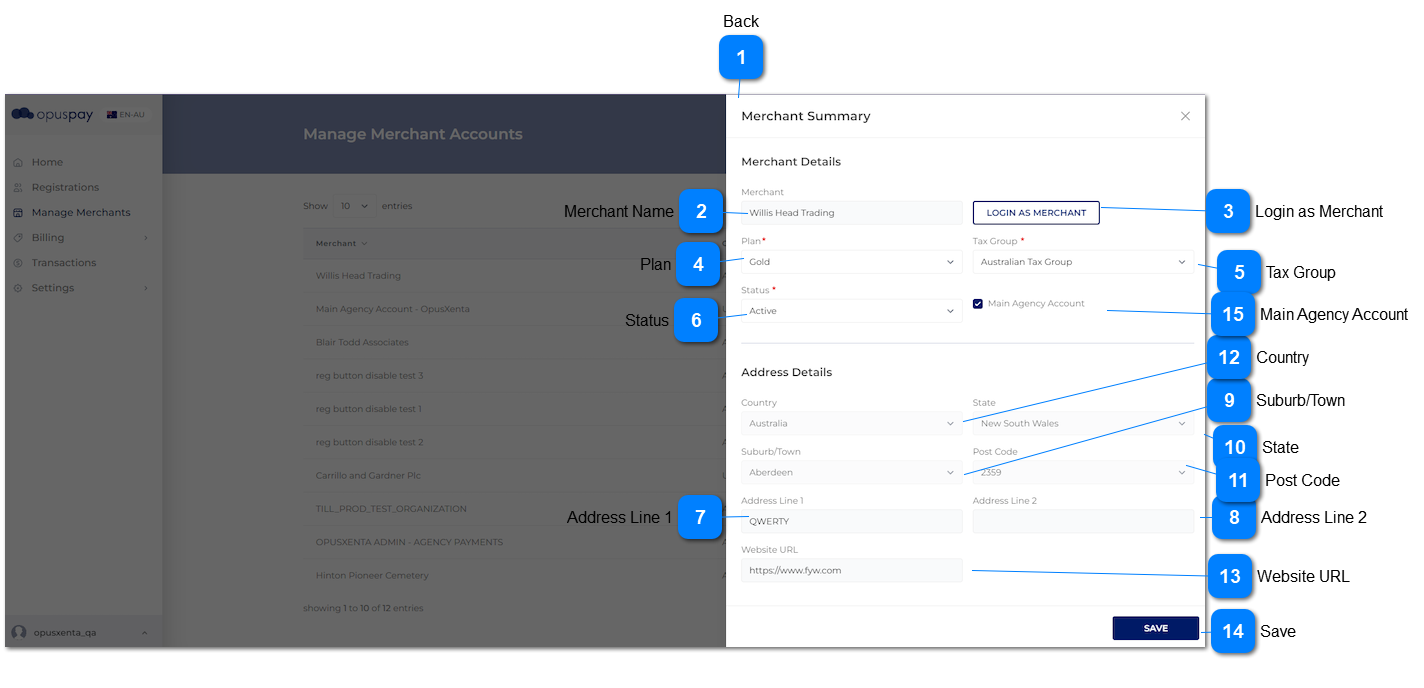
Under merchants in security profile main functions, there are two sub functions.
1. Manage Merchants
2. Login As Merchants (Read only)
'Login as merchant button' would be affected on security profile configuration.
1. User can check only 'Manage merchant' checkbox -> As a result manage merchant module would come to the security profile without the 'Login As Merchant' button.
2. User can check 'Login as merchant' checkbox -> As a result automatically system will check the 'Manage merchant' checkbox, then the security profile would come with the 'Login As Merchant' button.
1. This should be only visible to users linked to a profile having access to this function.
2. The user is able to log into a merchant's portal after clicking this button. The level of access to the merchant's portal will be dependent on the Security Profile assigned to the user. Refer to the specifications for Security Profiles here.
3. When logged in as Merchant, display "Logged in as: " before Organisation name at top of window. Refer to the specification for this screen here.
1. Active merchants should be able to be transactions via opuspay.
2. When a merchant is inactivate they will no longer be able to process transactions via opuspay. And they will not be able to log into the Merchant Portal.
1. This will allow for the updating of the Status of the merchant. If for any reason the merchant needs to be prevented from processing further transactions, this should be set to Inactive.
2. If Status is changed to Inactive, this should send a 'your merchant account has been suspended' email to the merchant user advising them that they can no longer process transactions via opuspay. Refer to the email body content here. byondpro should also be updated to show that the merchant account is inactive (which would display as On-Hold in byondpro).
3. Merchant Status cannot be set to Inactive if they are linked to a Custom Plan. If Merchant is linked to a Custom Plan display an inline error message if user attempts to set the Status to Inactive.
4. If the user tries to change the status of the merchant who has currently running QR Program to Inactive status and then Save it, following warning message would display.
Y
-
Y
-
Default to merchant Status as in the database.
3. Merchant is linked to a Custom Plan. Remove Merchant from the Custom Plan before setting status to Inactive.
4. Warning.
You are not allowed to inactive this merchant as QR program(s) are running.
2. When admin selects 'Main Agency Account' checkbox from admin portal and click on Save button following would be happened.
A. List down all the gateways inside to parent merchant account and sub accounts' gateway details tab.
B. All the sub accounts can be used only parent gateways (List down only the parent gateways and selected, but editable).
C. Sub account must be select at least one gateway.
D. The option 'Link to an existing gateway accounts' in sub accounts should be disabled.
E. If a sub account had a gateway which is not had in parent account, it will be deselected.
F. All the sub accounts link to parent gateways.
3. When admin de-selects 'Main Agency Account' checkbox from admin portal and click on Save button, following would be happened.
A. If main merchant account or sub accounts having gateways which are not in the accounts' country, Admin get a warning message to deselect gateways in the merchant portal which are not in the accounts' country.
B. Link to an existing gateway accounts' option should be enabled to all the sub accounts.
C. List down all the gateways related to the account's country.