OpusPAY
User guide
×
Menu
Index

Merchant Statement

Merchant Statement
1

Merchant Statement

 
Type
Notes
Rules
Compulsory
Format
Edit
Size
Default
Error Message
Heading
-
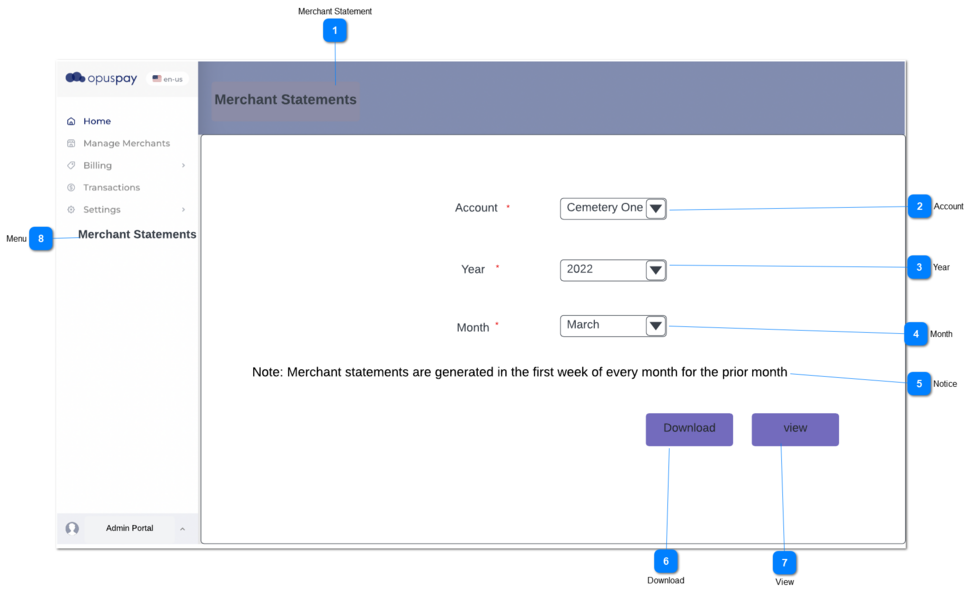
1. All existing accounts of the logged merchant will be appeared as options for selection.
 
1a. For the account selection, both parent and sub accounts should be displayed under drop-down selection.
 
2. If the account is not selected, then  an error message will be displayed.
Y
-
-
-
Select the account
2. Please select the account.
2

Account

 
Type
Notes
Rules
Compulsory
Format
Edit
Size
Default
Error Message
Drop-down
-
1. All existing accounts of the logged merchant will be appeared as options for selection.
 
1a. For the account selection, both parent and sub accounts should be displayed under drop-down selection.
 
2. If the account is not selected, then  an error message will be displayed.
Y
-
-
-
Select the account
2. Please select the account.
3

Year

 
Type
Notes
Rules
Compulsory
Format
Edit
Size
Default
Error Message
Drop-down
-
1. Current and previous years will be listed to select.
 
1a.if the opuspay can be used from 2022 then the years will be listed like below for the drop-down.
Ex: 2022, 2021,2022
 
2. If the account is not selected, then  error message will display.
Y
-
-
-
Select the year
2.Please select the year.
4

Month

 
Type
Notes
Rules
Compulsory
Format
Edit
Size
Default
Error Message
Drop-down
-
1.Merchant statements are generated in the first week of every month for the prior month, therefore the month will be displayed in the drop-down once the first week of the current month is passed.
 
EX:
January month will be displayed once the first week of February is passed.
 
2. If the month is not selected, then  error message will display.
Y
-
-
-
Select the month
2.Please select the month.
5

Notice

 
Type
Notes
Rules
Compulsory
Format
Edit
Size
Default
Error Message
Label
-
1. Below sentence should appear in Merchant Statements screen as a note:
'Note: Merchant statements are generated in the first week of every month for the prior month'
-
-
-
-
-
-
6

Download

 
Type
Notes
Rules
Compulsory
Format
Edit
Size
Default
Error Message
Button
There are two types of merchant statements according to No. of gateways.
 
 
1.Check the rules mentioned in each input element and show inline error messages for invalid / unpopulated inputs.
 
2. Once the button is clicked, generated merchant statement should be downloaded.
 
3.Merchant statements are generated in the first week of every month for the prior month, therefore the month will be displayed in the drop-down once the first week of the current month is passed. If there is no months in drop-downs, then the download button should be disabled.
-
-
-
-
-
-
7

View

 
Type
Notes
Rules
Compulsory
Format
Edit
Size
Default
Error Message
Button
There are two types of merchant statements according to No. of gateways.
 
 
1.Check the rules mentioned in each input element and show inline error messages for invalid / unpopulated inputs.
 
2. Once the button is clicked, generated merchant statement should be displayed on the screen in the view mode.
 
3.Merchant statements are generated in the first week of every month for the prior month, therefore the month will be displayed in the drop-down once the first week of the current month is passed. If there is no months in drop-downs, then the view button should be disabled.
-
-
-
-
-
-
8

Menu

8. Menu
Type
Notes
Rules
Compulsory
Format
Edit
Size
Default
Error Message
Menu
1.The merchant statement will be created per merchant (including parent merchant), regardless the status of  'Invoice Account Directly' is checked or not in merchant account details (opuspay merchant login -> accounts -> view account).
 
2. There is no selection for gateways in merchant portal, therefore all gateways related to the selected merchant account should be displayed.
 
2.There are two types of merchant statements according to the number of gateways.
 
2a. The type of the merchant statement will be decided, according to no. of gateways linked to the merchant as per below.
 
I. If one gateway linked to the merchant- Single Gateway Merchant Statement
 
II. If more than one gateway linked to the merchant - Multiple Gateway Merchant Statement
 
1. There should be a new menu called 'Merchant Statements'.
 
2. Once the user clicks on Merchant Statements from the menu, 'Merchant Statements' screen will be appeared.
-
-
-
-
-
-