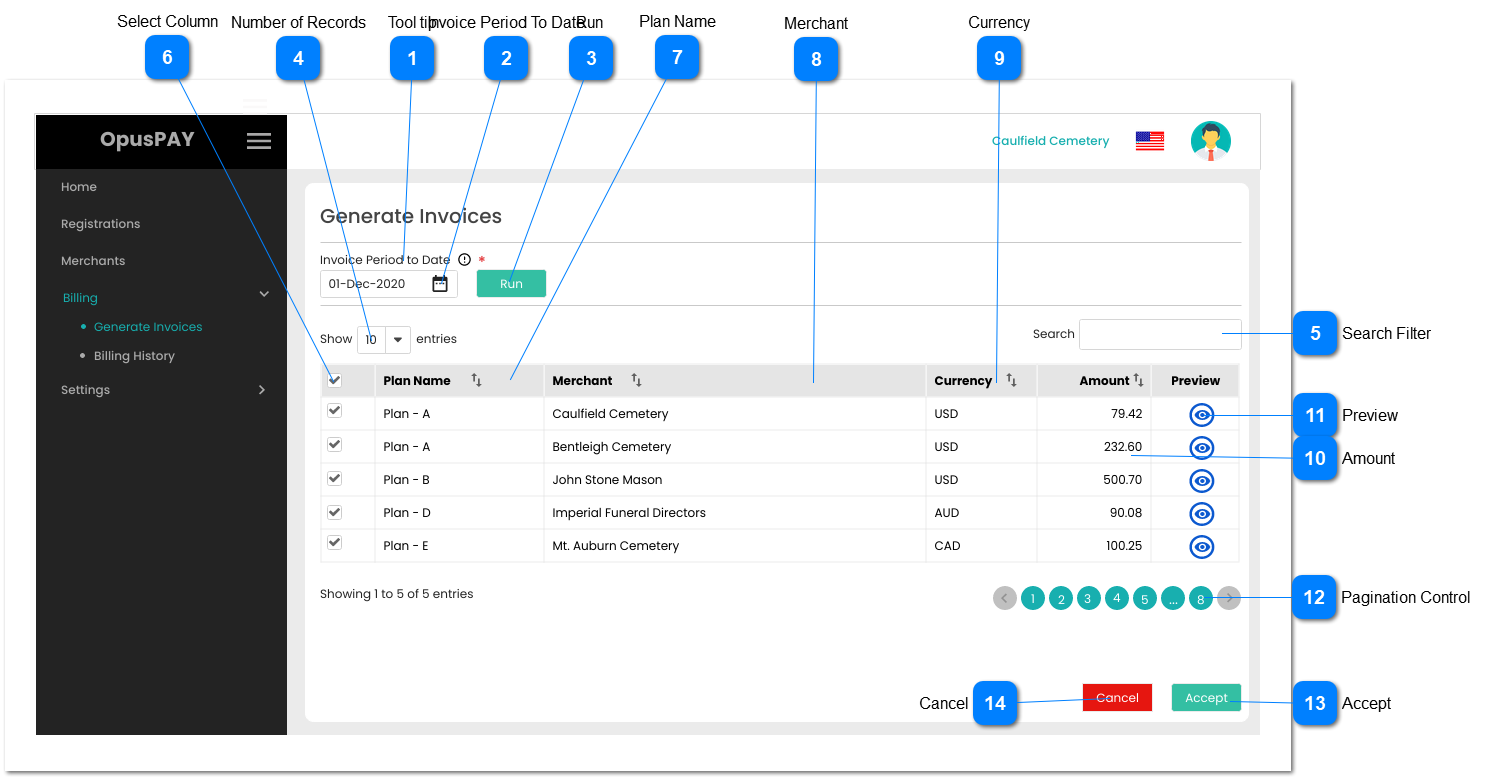
Accept
|
Type
|
Notes
|
Rules
|
Compulsory
|
Format
|
Edit
|
Size
|
Default
|
Error Message
|
|
Button
|
-
|
1. This should be disabled until at least one merchant is selected to generate an invoice for.
2. Create Invoice Record for each Merchant selected:
2a. Generate Invoice # for merchant
and store with Invoice Record.
2b. Set Invoice Date to date Accept
button is clicked and store with
Invoice Record.
2c. For the Invoice Period. If this is
the first time the invoice is generated
for the merchant, show as "Up
to <Invoice Period To Date>".
Otherwise, show "<Last Period
Invoice To Date> to <"Invoice Period
To Date">".
2d. Link the Merchants Plan and
Tax Group to Invoice Record.
2e. Create Invoice (refer to Invoice
Creation Logic below this table).
View the specifications for the
2f. Link each Merchant Transaction
included on this invoice to this
Invoice Record to prevent them
from being invoiced for again in
future.
3. Create Invoice PDF for each Merchant selected and persist them to the server / AWS S3 buckets. Add filepath of this PDF to the Invoice Record for the merchant.
4. Email each Merchant selected their corresponding PDF Invoice. View the specification for the email here.
5. Clear the Invoice Date, Search filter and grid.
|
-
|
-
|
-
|
-
|
Disabled
|
-
|
Invoice Creation Logic:
For each Merchant selected, do the following:
4. Create "Invoice Summary" portion of invoice by doing the following:
a. Add Row and enter the following:
I. Add Tier Number to first row details (starting at "Tier 1" and incrementing for each row)
II. For this merchant, retrieve the Transaction Count from memory that was used in populating the grid.
III. Is Transaction Count greater than Plan "Quantity To" for Tier-Level row?
If Yes, do the following:
a. Number of Transactions = "Quantity To" - "Quantity From" + 1
b. Is Frequency = Month?
i. If Yes, enter "Rate" as Rate and Total for the row
ii. If No:
- enter "Rate" as Rate
- multiply "Rate" X "Quantity To"
- then enter result as Total for the row
c. Update Transaction Count by subtracting "Quantity To" from Transaction Count to get an updated Transaction Count for the next Tier-Level row.
d. Repeat step 4a part (III) for the next Tier-Level row.
If No, do the following:
a. Number of Transactions = Transaction Count
b. Is Frequency = Month?
If Yes, enter "Rate" as Rate and Total for the row
If No:
- enter "Rate" as Rate
- multiply "Rate" X difference
- then enter result as Total for the row.
c. Proceed to step 5.
5. Calculate Invoice Summary Subtotal and add as an invoice line.
6. Display "Tax <<Tax Rate>>" as a line below Subtotal line, calculate tax and display below Subtotal.
7. Calculate Invoice Total by adding Subtotal and Tax, display Total below Tax.
8. Is there another Merchant selected in the grid?
If Yes, repeat steps 1 to 7.
If not, return to the table above and complete remaining steps for the Accept button starting with step 2f.
|