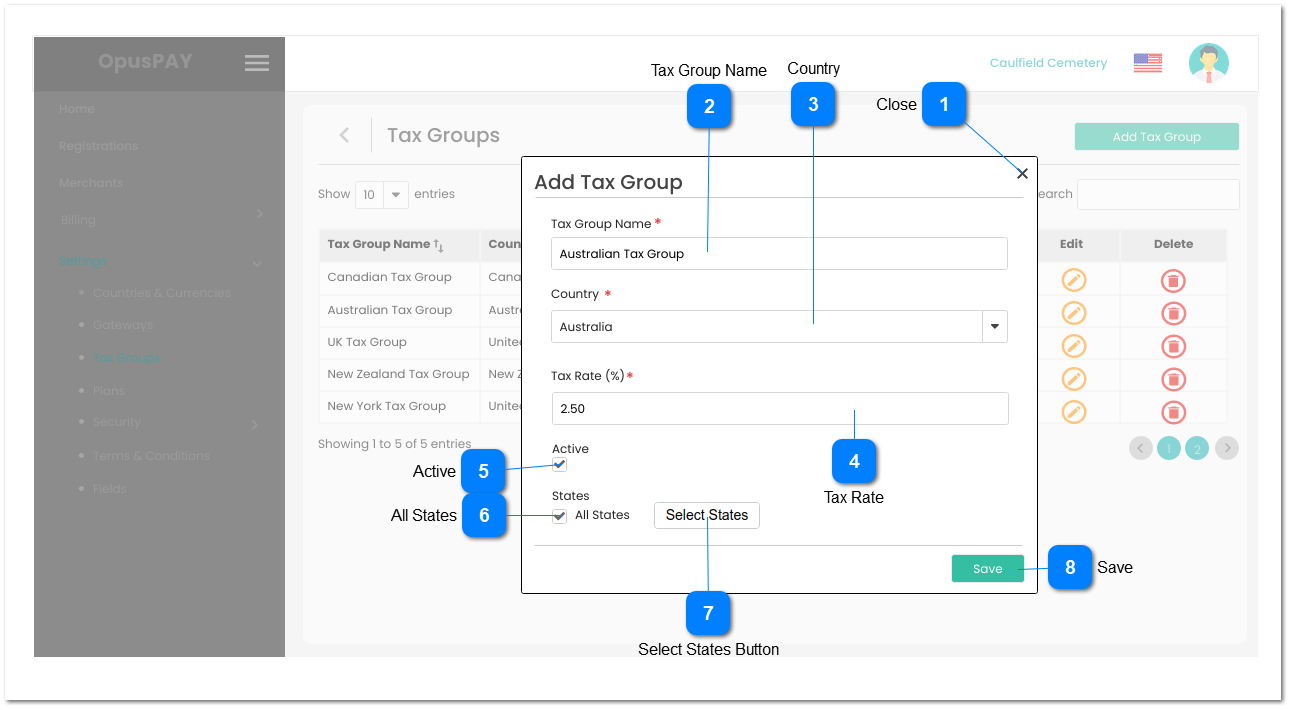
1. This should allow the user to enter a Tax Group Name
2. This should display an inline error message if the user clicks the 'Save' button without populating this field.
3. Check Tax Group Name against already existing ACTIVE Tax Group Names when the user exits this field. If the Tax Group Name already exists, display an inline error message to the user and change the font of this field to red.
Y
-
Y
255
-
2. Please enter a Tax Group Name.
3. Tax Group Name already exists, please enter a new Tax Group Name.
1. This should allow the user to select a Country.
2. List of Countries should come from our database of countries, states, post codes, etc. as used in byondcloud.
3. This should display an inline error message if the user clicks the Submit button without populating this field.
4. Check existing ACTIVE Tax Groups when the user exists this field. If a Tax Group combination of Country and All States already exists, display an inline error message to the user.
Y
-
Y
-
-
3. Please select a Country
4. A Tax Group for All States within the Country selected already exists.
1. When checked the Tax Group applies to all States across the Country selected.
2. Unchecking the checkbox opens a modal screen allowing the user to select which State or States apply to this Tax Group. Refer to the specification of this screen here.
1. When clicked opens a modal screen allowing the user to select which State or States apply to this Tax Group. Refer to the specification of this screen here.
1. Check the rules mentioned in each input elements, starting with Tax Group Name, then Country, then Tax Rate. Show inline error message for the first invalid / unpopulated input the check comes across, stop the check, allow the user to make changes and do not save this new Tax Group.
2. If all validation checks are sucessful, check existing ACTIVE Tax Groups for the combination of Country and State(s) selected. If there is an existing ACTIVE Tax Group with this combination, display an inline error message, allow the user to make changes and do not save this Tax Group.
3. If all validation checks are successful, and there are no duplicate combinations of Country and States selected, save the new Tax Group.
-
-
-
-
-
2. Tax Group already exists for the combination of Country and State(s) selected.