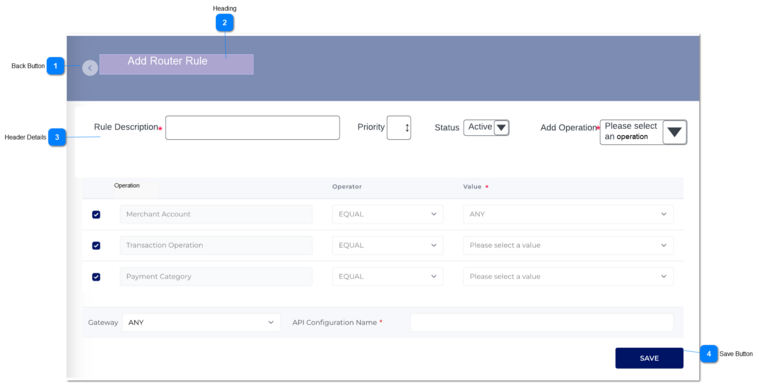
Below should be filled in order to add a router rule.
a. Rule Description
b. Priority
c. Status
d. Add Operation
Text-Field
Rule Description
User can give the description for Rule Description.
yes
Dropdown
Priority
User can give number as priority according to this priority router rule perform the action.
Performing action is in ascending order.
0
Column
Status
There are two options for the status of the rule:
1. Active
2. Inactive
Only active rules are applied for transactions.
Active
Column
Add Operation
1) There are four operations as per below.
1. Merchant Account
2. Transaction Operation
3. Payment Method
4. Payment Category
The user can select an operation at once and configure the rule.
If the user selects 'Merchant Account', by default value would come as 'Any'. (This happens currently this router rule generation is not specific to a particular user, this rule generation is common for all merchants.)
2)Once the user select a value for Add Operation, then a raw will be added to the below grid.
3) When the user select a operation which is already in the gird, a warning message would display.
Please select an operation.
3). Not allowed to add same operation. << Under Add Operation drop down>>
2. Once the user clicks on Save button, all the validation would check and if those are comply then a record would be saved.
3. When the user click on the save button without entering any fields, below warning message must be shown. Those warning messages would be highlighted in red color.
4. If there are values for 'Add operation', 'Rule Description' and a grid have rows related to operations selected, the system needs to check if the 'value' column has values and whether the user have give a value for the API configuration name. If those fields do not have values, then warning messages would display.
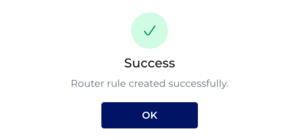
5. If the record successfully saved in database, then below message would display.
3. Please add at least one operation.
<< Under Add operation >>
Please enter a rule description. << Under rule description>>
4. Please enter an API configuration name. << Under API configuration name >>
Please enter a value for the operation<< Under the value cell>>