To properly display this page you need a browser with JavaScript support.
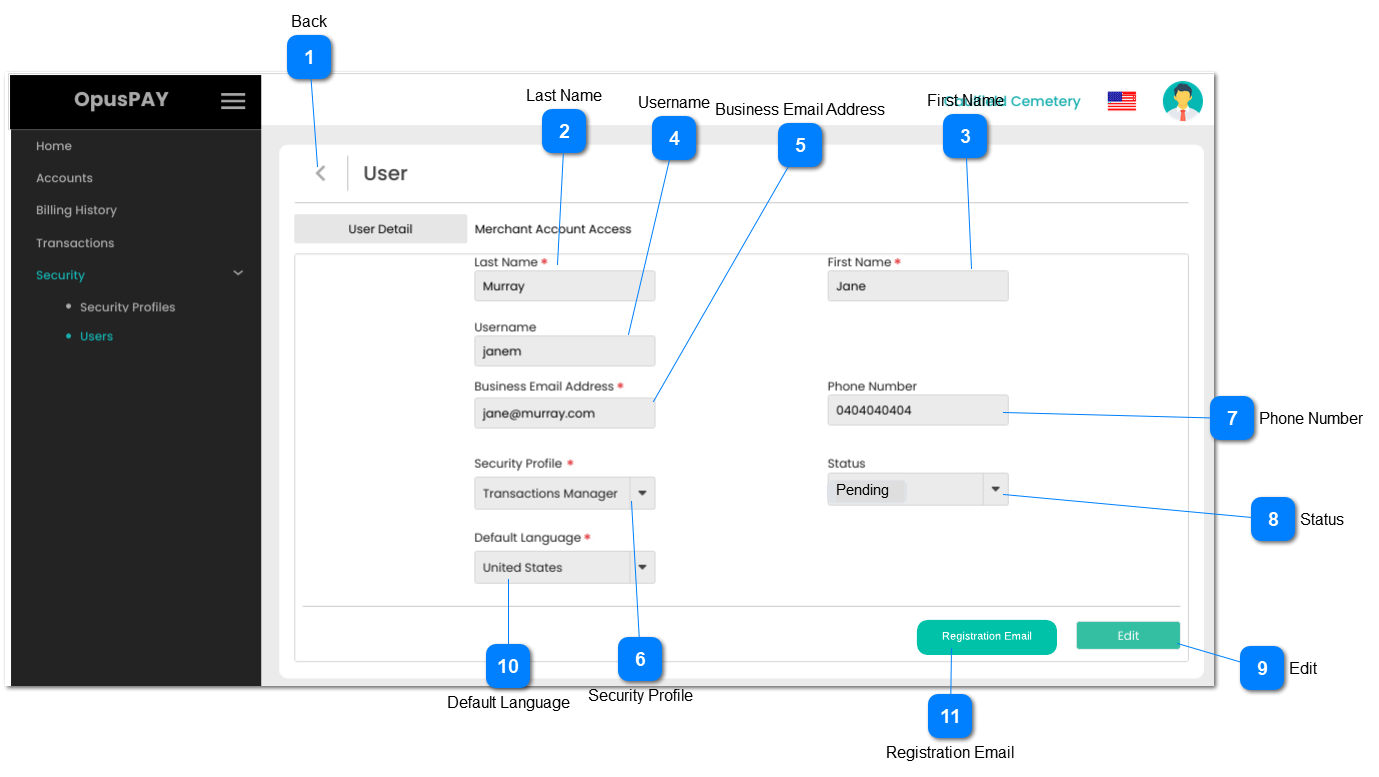
This screen allows the user to view user details.
Back
Type
Notes
Rules
Compulsory
Format
Edit
Size
Default
Error Message
Button
-
1. This should allow the user to navigate to Users screen when clicked. Refer to the specification for that screen here .
-
-
-
-
-
-
Last Name
Type
Notes
Rules
Compulsory
Format
Edit
Size
Default
Error Message
Text
-
1. This should display the user's Last Name.
Y
-
N
255
-
-
First Name
Type
Notes
Rules
Compulsory
Format
Edit
Size
Default
Error Message
Text
-
1. This should display the user's First Name.
Y
-
N
255
-
-
Username
Type
Notes
Rules
Compulsory
Format
Edit
Size
Default
Error Message
Text
-
1. This should display the user's Username.
Y
-
N
255
-
-
Business Email Address
Type
Notes
Rules
Compulsory
Format
Edit
Size
Default
Error Message
Text
-
1. This should display the user's Business Email Address.
Y
-
N
255
-
-
Security Profile
Type
Notes
Rules
Compulsory
Format
Edit
Size
Default
Error Message
Combo-Box
-
1. This should display the Security Profile assigned to the user.
Y
-
N
255
-
-
Phone Number
Type
Notes
Rules
Compulsory
Format
Edit
Size
Default
Error Message
Text
-
1. This should display the user's Phone Number.
-
-
N
255
-
-
Status
Type
Notes
Rules
Compulsory
Format
Edit
Size
Default
Error Message
Combo-Box
-
1. This should display the user's Status.
-
-
N
-
-
-
Edit
Type
Notes
Rules
Compulsory
Format
Edit
Size
Default
Error Message
Button
-
1. If the user is editing their own profile, navigate the user to the Edit User's Own Details screen. Refer to specifications for that screen here .
2. If the user is editing someone else's profile, navigate the user to the Edit User screen. Refer to the specification for that screen here .
-
-
-
-
-
-
Default Language
Type
Notes
Rules
Compulsory
Format
Edit
Size
Default
Error Message
Combo-Box
-
1. This should display the Default Language the user selected.
Y
-
N
255
First language in the list
-
Registration Email
Type
Notes
Rules
Compulsory
Format
Edit
Size
Default
Error Message
Button
Once the user is added, an email would be generated to given business email for further registration and it would be expired after 24 hours.
1. This button actively available for only pending users, for other status type users (Inactive/ Active) email button would not be displayed.
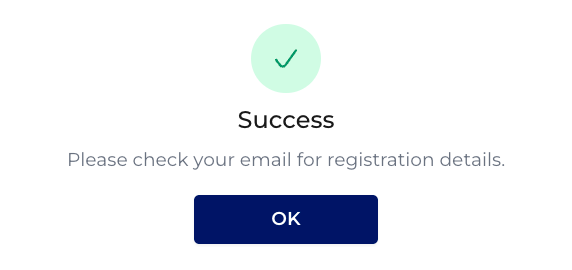
2. Once the user clicks on email button, an email would regenerate to the given business email address and informative message would display. The link in the email will expire in 24 hours.
2A. If the previously sent email is not expired, then it should be expired once the user regenerate a new email.
-
-
Y
-
-
2. Success
Please check your email for registration details.
Refer below image for sucess message.