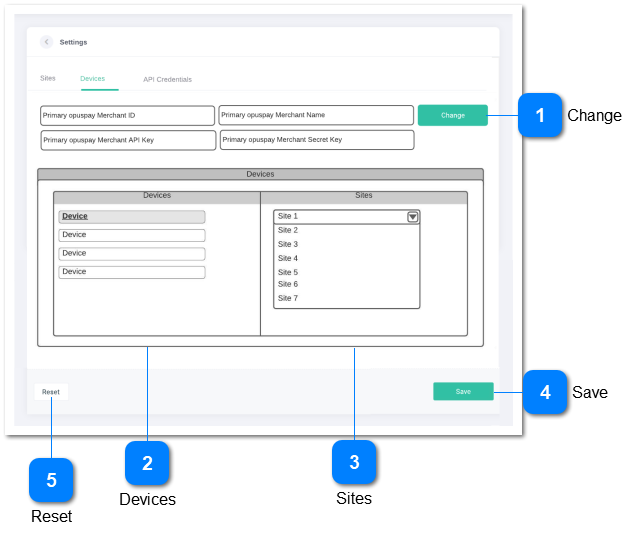
Link credit card reader devices that have been setup by a merchant in opuspay to byondcloud users
 ChangeMakes the fields in the UI editable
|
Type
|
Notes
|
Rules
|
Compulsory
|
Format
|
Edit
|
Size
|
Default
|
Error Message
|
|
Button
|
|
|
|
|
|
|
|
| |
|
 Devices
Displays a list of the credit card reader devices available to the merchant as setup in opuspay
|
Type
|
Notes
|
Rules
|
Compulsory
|
Format
|
Edit
|
Size
|
Default
|
Error Message
|
|
TextBox
|
|
-
Call the opuspay API and display a list of all the ACTIVE Devices setup by the merchant in opuspay
-
Make each Device select-able
-
If selected, then allow for byondcloud Sites to be assigned to the Device
|
|
|
N
|
|
|
| |
|
 Sites
Allows for byondcloud users to be assigned to a Device
|
Type
|
Notes
|
Rules
|
Compulsory
|
Format
|
Edit
|
Size
|
Default
|
Error Message
|
|
Multi-Select ComboBox
|
|
-
Standard multi-select combobox widget to be used including filter by characters entered
-
Show a list of only byondcloud Sites that are linked to the Account that the Device is linked to.
-
Allow for selection of multiple sites from the dropdown list
-
A device can be assigned to multiple-sites
-
Multiple Devices can be assigned to a single Site
|
Y - at least one User must be assigned to each device
|
|
N
|
|
|
Please assign a site to the device
| |
|
 Save
Save data
|
Type
|
Notes
|
Rules
|
Compulsory
|
Format
|
Edit
|
Size
|
Default
|
Error Message
|
|
Button
|
|
-
Refer here for business rules
|
|
|
|
|
|
| |
|
 Reset
Reset all fields with data
|
Type
|
Notes
|
Rules
|
Compulsory
|
Format
|
Edit
|
Size
|
Default
|
Error Message
|
|
Button
|
|
-
Refer here for business rules
|
|
|
|
|
|
| |
|