To properly display this page you need a browser with JavaScript support.
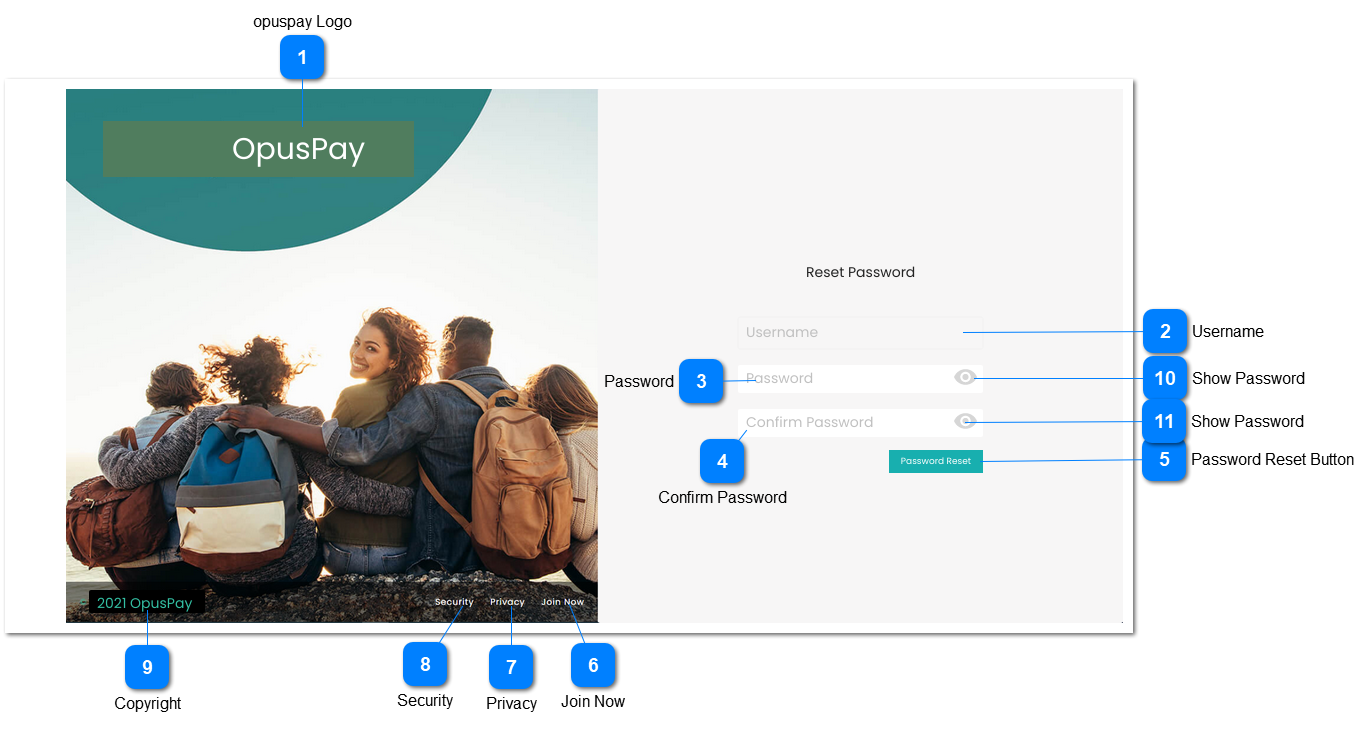
Reset Password screen for opuspay. Same reset password page would be used for both Admin and Merchant portals. This screen will function in the same way as the byondcloud reset password screen.
opuspay Logo
Type
Notes
Rules
Compulsory
Format
Edit
Size
Default
Error Message
Logo
-
1. This should display the opuspay logo.
-
-
-
-
-
-
Username
Type
Notes
Rules
Compulsory
Format
Edit
Size
Default
Error Message
Text
-
1. This should display the username.
Y
-
N
-
Username
Password
Type
Notes
Rules
Compulsory
Format
Edit
Size
Default
Error Message
Text
-
1. This allows the user to enter a desired password
2. Passwords must be salted and hashed
3. Display an inline error message in red text below Password field if password is not populated and user presses <ENTER>.
4. 8 characters minimum
1 uppercase
1 special character
1 numerical
If passwords do not meet this criteria, display an inline error message in red text below Password field if user presses <ENTER>.
5. Passwords must be hashed and salted.
Y
-
Y
255
-
3. Please enter password.
4. Passwords must be a minimum of 8 characters, must contain 1 uppercase, 1 special character, and 1 numerical value. Please enter a valid password.
Confirm Password
Type
Notes
Rules
Compulsory
Format
Edit
Size
Default
Error Message
Text
-
1. This allows the user to re-enter and confirm the desired user password
2. Passwords must be salted and hashed
3. Display an inline error message in red text below Confirm Password field if confirmation password is not populated and user presses <ENTER>.
4. Display an inline error message in red text below password field If users presses <ENTER> and passwords do not match.
5. Display an inline error message in red text below confirm password field if user presses <ENTER> and confirm password is not at least 8 characters.
Y
-
Y
255
-
3. Please enter password.
4. The password and confirm password do not match.
5. The confirm password must have at least 8 characters.
Password Reset Button
Type
Notes
Rules
Compulsory
Format
Edit
Size
Default
Error Message
Button
-
1. Check to ensure Password and Confirm Password entried match.
2. If passwords match:
a. Save new password for the user.
b. Display Password Reset
Successful modal.
Refer to the specification of that
3. Display an inline error message in red text below Password field if password is not populated.
4. Display an inline error message in red text below Confirm Password field if confirmation password is not populated.
5. Display an inline error message in red text below password field If passwords do not match.
6. Display an inline error message in red text below confirm password field if confirm password is not at least 6 characters.
-
-
-
-
-
3. Please enter password.
4. Please enter confirm password.
5. The password and confirm password do not match.
6. The confirm password must have at least 6 characters.
Join Now
Type
Notes
Rules
Compulsory
Format
Edit
Size
Default
Error Message
Hyperlink
-
1. Display Registration screen. Refer to the specifications of that screen here .
-
-
-
-
-
-
Privacy
Type
Notes
Rules
Compulsory
Format
Edit
Size
Default
Error Message
Hyperlink
-
-
-
-
-
-
-
Security
Type
Notes
Rules
Compulsory
Format
Edit
Size
Default
Error Message
Hyperlink
-
-
-
-
-
-
-
Copyright
Type
Notes
Rules
Compulsory
Format
Edit
Size
Default
Error Message
Text
-
1. Display opuspay copyright.
-
-
-
-
-
-
Show Password
Type
Notes
Rules
Compulsory
Format
Edit
Size
Default
Error Message
Icon
1. This should allow the user to view their hashed password in a readable format if clicked.
2. This should allow the user to revert to hashed password from readable format if clicked.
-
-
-
-
-
-
Show Password
Type
Notes
Rules
Compulsory
Format
Edit
Size
Default
Error Message
Icon
1. This should allow the user to view their hashed password in a readable format if clicked.
2. This should allow the user to revert to hashed password from readable format if clicked.
-
-
-
-
-
-