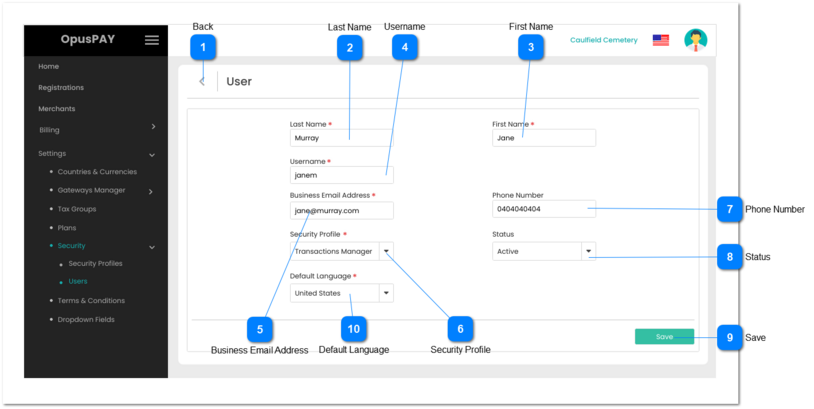
This screen allows the user to view and update user details.
Back
Type
Notes
Rules
Compulsory
Format
Edit
Size
Default
Error Message
Button
-
1. Do not save any changes made.
2. If the user has arrived to this screen from the Users screen then navigate the user to the Users screen when clicked. Refer to the specification for that screen here.
3. If the user has arrived to this screen from the View User screen then navigate the user to View User screen. Refer to the specification for that screen here.
1. Check the rule mentioned in each input elements and show inline error messages for invalid / unpopulated inputs.
2. Check User profiles and ensure that at least one profile is still set as Admin. There must be at least one Admin user at all times. If this user was set as an Admin, they change their Security Profile to something other than Admin and there are no other Admin users, display an inline error message and do not save the record.
3. If all validation checks are successful then user details are saved after the user clicks this button.
4. Navigate the user to the "View User" screen. Refer to the specifications for that screen here.
-
-
-
-
-
2. There must be at least one Admin user at all times. Another user has to be set to Admin before being able to change the Security Profile.
1. This should allow the user to select their desired Default Language from the list of available languages based on the language file for all labels in OpusPAY.