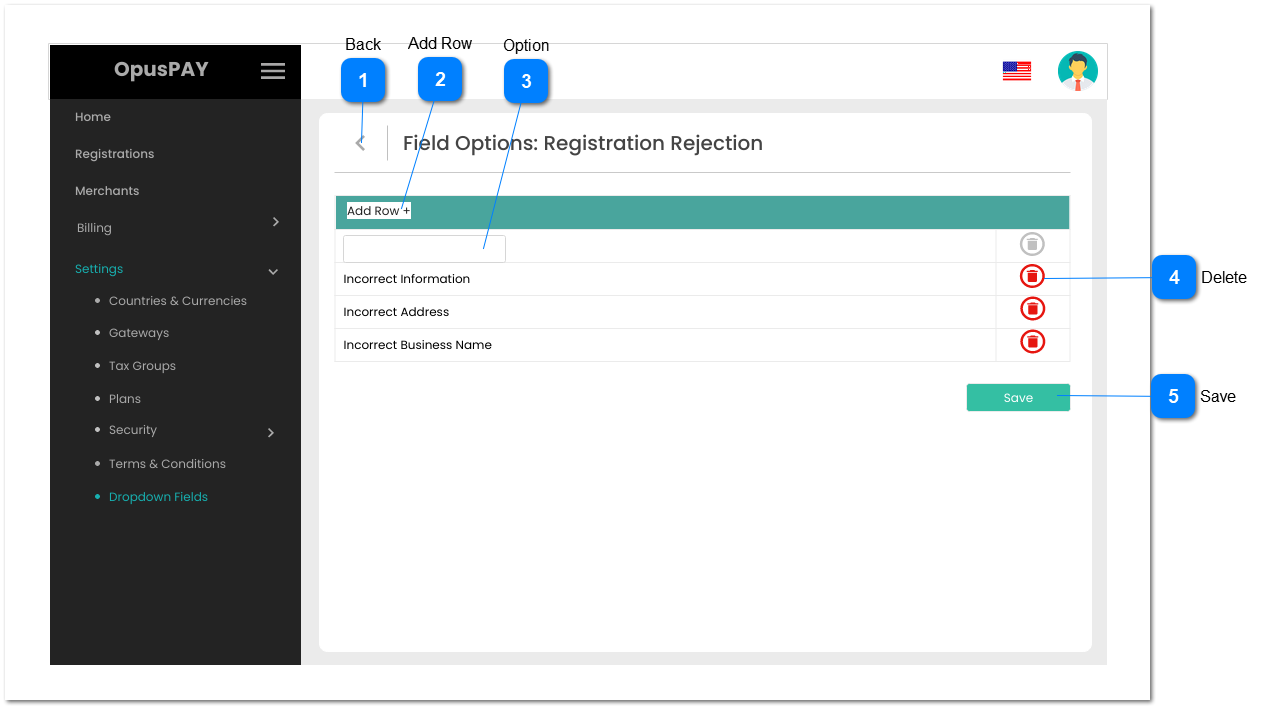
1. If the user has arrived to this screen from View Dropdown Options screen, then navigate the user back to the View Dropdown Options screen when clicked. Refer to the specification for that screen here.
2. If the user has arrived to this screen from the Dropdown Fields screen, navigate the user to the Dropdown Fields Screen when clicked. Refer to the specification for that screen here.
1. This should allow the user to delete a dropdown option value.
2. This should be greyed out and disabled if the user has just added a new row and the option value is blank.
3. If an option is deleted, the option is set to Inactive in the database. If the option is linked to any records, it remains linked to the record. It is simply unavailable to be selected going forward.
1. If there is an Option without a value entered, display inline error message and do not save any changes. Allow the user to make changes.
2. If the validation check results return as successful, then save any option value changes and navigate the user to the View Dropdown Options screen. Refer to the specifications of this screen here.